Streaming on Desktop: Displays, Audio, Connections & Setup
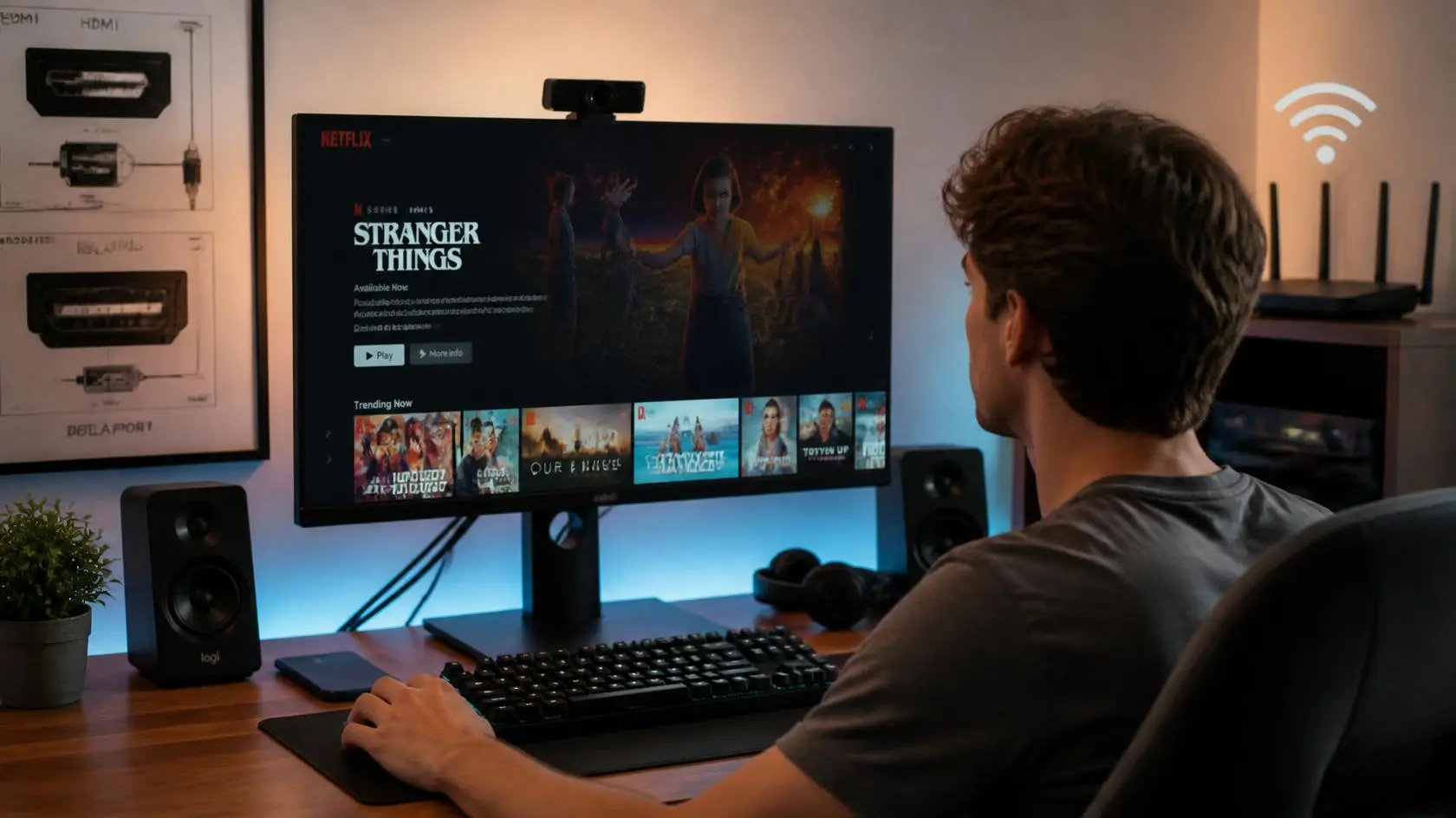
A desktop computer can be a great streaming setup once the screen, audio equipment, network connection, and output devices are all working together. Unlike watching on a phone or television, a desktop setup often involves multiple displays, external speakers, headphones, and a mix of connection types.
This guide focuses specifically on the physical side of streaming on desktop: which display you use, how the cables and audio route, and how multiple monitors fit together in the room. If you’re after the software side instead, browsers, apps, DRM, and hardware acceleration, our guide on streaming on PC covers that ground in depth.
What Makes a Desktop Streaming Setup Different?
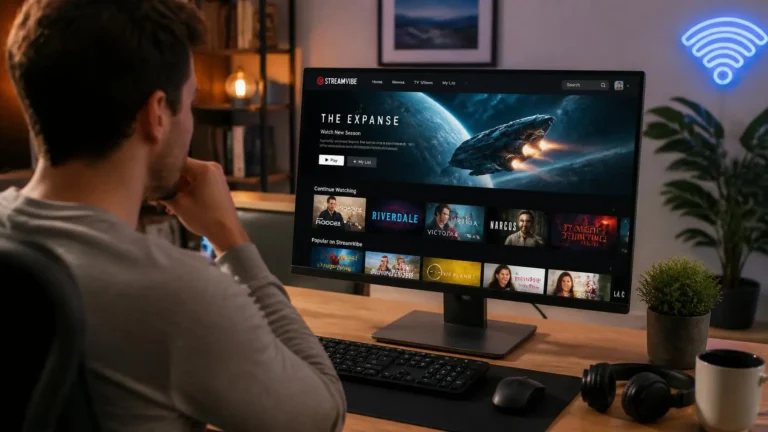
A desktop computer is usually part of a larger workstation. The display may be a monitor rather than a television, audio may come from external speakers or headphones, and the computer connects to the network through either Wi-Fi or Ethernet.
The important point is that these physical components work together. A computer can have a fast internet connection but still deliver an unsatisfying viewing experience if the display is set up incorrectly or the audio is going to the wrong device. A desktop setup can include a single monitor, multiple monitors, a television connected to the computer, built-in monitor speakers, external desktop speakers, wired or wireless headphones, Wi-Fi or Ethernet, HDMI or DisplayPort connections, and USB audio or display devices.
Start With the Display
The display is one of the most visible parts of a desktop streaming setup. Its resolution, refresh rate, size, and connection to the computer all affect how video is presented.
A common mistake is assuming a monitor’s maximum specifications automatically determine the quality of every video you watch. They don’t. The actual result depends on the content, the computer, the application or browser, the display connection, and the display settings themselves.
A monitor may support Full HD, QHD, 4K, or another resolution, and higher resolution provides more pixels, but it doesn’t automatically make lower-resolution content sharper. Connecting a computer to a 4K monitor doesn’t turn ordinary HD video into native 4K, since the source content still has to provide that resolution. Our guide on streaming on PC walks through the full technical chain behind that if you want the deeper explanation.
Refresh rate describes how often a display can update its image, and a monitor might support 60 Hz, 120 Hz, 144 Hz, or higher. That specification matters a lot for gaming and general desktop use, while most conventional video is produced at much lower frame rates. For normal streaming, a higher refresh rate isn’t automatically necessary. What matters is that the display is configured correctly for the content and the way you’re actually using the computer.
Connecting a Desktop to a TV
A television can turn a desktop computer into a larger-screen viewing system, most commonly through HDMI, which carries digital video and audio through one cable, or DisplayPort on capable computer hardware.
Once you’ve picked the connection, the practical questions are physical ones: is the TV set to the right input, is audio routing through the TV or a separate device, and is the correct display mode selected in the operating system? Windows offers different display modes when multiple screens are connected, letting you extend the desktop, duplicate it, or use one screen as the primary display. For a living-room setup, choosing the right mode here makes the computer far easier to actually use day to day. For the technical side of matching resolution, refresh rate, and HDR support between your PC and the TV, our streaming on PC guide covers that in more detail.
Multiple Monitors and Streaming
Many desktop users work with two or more monitors, and a multi-monitor arrangement is genuinely useful when streaming is part of a broader workstation, with one screen for video and another for everything else.
The physical arrangement matters here. A setup where the streaming window lives on the monitor directly in front of you, with other applications kept on a side monitor, keeps the viewing area separate from the rest of your desktop. A different approach sends video output to a television elsewhere in the room while a monitor handles normal work.
There’s a practical difference between duplicating and extending displays worth knowing. Duplicate mode shows both screens the same desktop content, while Extend mode lets each screen act as a separate part of the desktop so windows can move independently between them. Microsoft’s own documentation confirms this distinction, and for most multi-screen desktop setups, extending gives you more flexibility than duplicating.
Audio Is Part of the Setup
Video gets most of the attention, but the physical audio path matters just as much for a comfortable viewing experience. A desktop can send sound to monitor speakers, TV speakers, wired or USB headphones, USB speakers, Bluetooth headphones, external desktop speakers, or an amplifier.
The practical issue is that a monitor connected through HDMI or DisplayPort may get detected as an available audio output, which can quietly send sound to the monitor or TV when you expected headphones or desktop speakers instead. If picking the physically correct speakers or headphones for your room, the OS-level troubleshooting for switching the selected output device is covered in our streaming on PC guide.
Wired and Wireless Connections
A desktop computer typically connects to the internet through Ethernet or Wi-Fi, and both can support streaming when conditions are suitable. Ethernet is worth running when the desktop sits close enough to a router or network switch, since a wired connection doesn’t depend on wireless signal conditions.
For a desktop in the same room as the router, either option is usually fine. For one located farther away, the actual network environment matters more than simply picking Wi-Fi or Ethernet by name, and testing Ethernet is a useful diagnostic if wireless conditions are causing interruptions. For a deeper look at how network stability affects playback beyond the physical connection type, see our streaming on PC guide.
Display Cables Matter Too
The cable connecting the computer to a display is part of the signal path. Common digital interfaces include HDMI, DisplayPort, and USB-C with compatible display functionality, and exact capabilities depend on the hardware and the specific version involved.
When picking a cable or connection, think about the resolution and refresh rate you actually want to run rather than choosing based on the connector’s physical shape alone. A display may have several inputs and a computer may have several outputs, so make sure the one you’ve selected actually supports the setup you intend to use.
Scaling and Text Size
High-resolution desktop monitors can make interface elements appear smaller, which is why operating systems provide display scaling options that enlarge text, icons, and other interface elements. Scaling doesn’t reduce the resolution of the video itself; it only changes how the operating system presents its own interface.
This is especially useful on high-resolution monitors, since it lets you keep a genuinely detailed display while keeping menus and controls comfortable to read. For streaming on desktop specifically, this is a usability consideration rather than a streaming-quality setting.
Using a Desktop With a Large TV
A desktop connected to a large television works well for anyone who wants computer-based playback on a bigger screen, but there are a few practical things worth confirming first.
Make sure the TV is actually selected as the intended display, check its picture mode and input settings, and confirm the computer is sending audio to the destination you actually want. Viewing distance matters too. A large television positioned across the room gets used very differently than a monitor sitting on your desk, so the physical setup here can matter just as much as the computer’s specifications.
A Simple Desktop Streaming Setup
A straightforward desktop arrangement doesn’t need to be complicated. One common path is computer to Ethernet or Wi-Fi to monitor to headphones, which gives you a simple personal viewing environment. Another is computer to HDMI to TV to TV speakers, better suited when the computer acts as a source for a larger screen.
A fuller workstation might run the computer to two monitors over DisplayPort or HDMI, with headphones connected over USB or Bluetooth. The best arrangement depends entirely on how you use the computer and where you actually sit.
What to Check When Setting Up a Desktop
Before changing advanced settings, check the physical configuration first. For the display, confirm the intended monitor or TV is connected, the correct input is selected, the desired resolution is available, and the display is positioned and scaled comfortably.
For audio, confirm the correct output device is selected and that headphones, speakers, or TV audio are being used intentionally, with volume controlled from the right device. For the network, confirm whether you’re on Wi-Fi or Ethernet, whether the connection is stable, and whether the computer sits in a sensible spot relative to your router. For multiple displays, confirm the screens are arranged correctly in the operating system, the video window sits on the intended display, and you’re using duplicate or extended mode on purpose rather than by accident.
These checks solve a surprising number of setup problems without touching any unrelated system settings.
When a Desktop Setup Makes Sense
A desktop is particularly useful for anyone who wants flexibility around their viewing environment. It can support a monitor at a desk, a television in the same room, multiple displays, external audio equipment, and different connection methods, and it lets the same machine handle other tasks before or after watching.
The trade-off is that a desktop setup usually needs more configuration than a dedicated television or streaming device. There are simply more components to connect and more settings that can affect the final experience.
Common Desktop Setup Mistakes
Some problems come from how the equipment is physically connected rather than from the streaming service itself.
Using the wrong display input is a common one. A TV or monitor can have multiple HDMI or other inputs, and selecting the wrong one can make it look like the computer or display isn’t working at all. Sending audio to the wrong device happens often too, since a connected TV or monitor may quietly become the selected audio output; check the operating system’s sound settings before touching any hardware.
Ignoring display arrangement is another frequent issue. With multiple monitors, an incorrect screen arrangement can send windows to a display you weren’t expecting. And assuming a higher specification is always necessary trips people up regularly: a 144 Hz monitor, a 4K display, or advanced graphics hardware doesn’t automatically improve every type of video playback. The useful specification depends on the content and the rest of the setup, not the biggest number on the box.
Finally, changing too many settings at once makes any of this harder to diagnose. If a desktop setup is working reasonably well, change one setting at a time when testing a problem, so you can actually tell what fixed it.
A Practical Way to Build Your Setup
You don’t need to buy or change every component at once. Start with the equipment you already have: choose the display you want to use, connect the computer, select the appropriate audio output, and test the network connection. After that, check whether the resolution, scaling, and display arrangement feel comfortable.
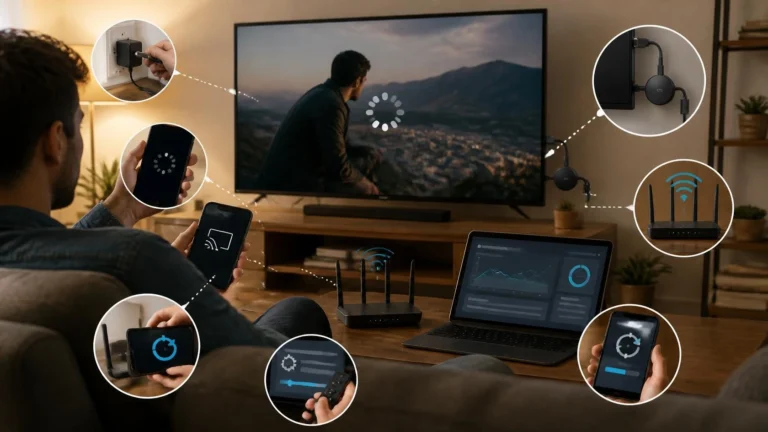
If something doesn’t work as expected, isolate the component involved. No picture means checking the display input and video connection. Picture with no sound means checking the selected audio output. A problem on only one monitor means checking that monitor’s connection and display settings specifically. A problem that only happens over Wi-Fi means comparing against Ethernet if it’s available. This keeps the setup process practical instead of changing settings that have nothing to do with the actual problem.
Frequently Asked Questions
Can I use a desktop computer with a TV for streaming?
Yes. A desktop computer can connect to a compatible television, commonly through HDMI or another supported digital display connection.
Is Ethernet better than Wi-Fi for desktop streaming?
Both can work well. Ethernet provides a wired connection, while Wi-Fi offers more flexibility. The more important factor is whether the connection is stable enough for the content you’re actually watching.
Can I stream on one monitor while using another?
Yes. A multi-monitor desktop can display video on one screen while other applications stay open on another.
Can a monitor play audio?
Some monitors include built-in speakers and can receive audio through supported display connections. Otherwise, the computer can send sound to headphones, external speakers, or another audio device instead.
Can I use a laptop-style USB-C connection with a desktop monitor?
It depends on the computer, monitor, cable, and the specific USB-C implementation involved. USB-C is a connector type, so the actual hardware has to support the display functionality you need.
Does a 4K monitor automatically make streaming 4K?
No. The display is only one part of the system, and the source content, service, and playback environment all have to support the required format too. Our streaming on PC guide breaks down the full chain if you want the complete picture.
Editorial and Source Note
This guide focuses on the physical and configuration side of desktop streaming. Display technologies and connection capabilities vary between hardware models, so specifications should be checked against the manufacturer’s documentation for your specific monitor, TV, computer, or cable.
Last reviewed: September 2026
Final Thoughts
A good desktop streaming setup isn’t necessarily the one with the most expensive hardware. It’s the one where the display, audio, network, and connections all work together for the way you actually watch.
For streaming on desktop, start with the basics: choose the right display, confirm the audio output, use a stable network connection, and configure multiple screens on purpose rather than by accident. Once those physical pieces are working properly, there’s usually little reason to touch settings that have nothing to do with the problem in front of you.