Why Your Fire Stick Keeps Buffering and How to Fix It
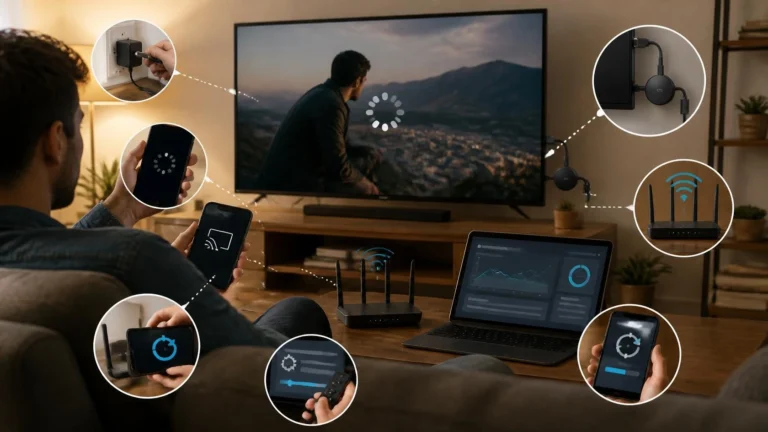
Your Fire Stick is not broken. It buffers because something specific is getting in the way, and that something is almost always fixable from your couch. Most buffering comes down to six known causes, and this guide covers all of them in plain language.
The right fire stick buffering fix depends on which cause is hitting you. Read the causes first, then work through the fixes in order. Each step takes only a few minutes, and you can stop as soon as the buffering stops. Nothing here requires technical skill or new equipment.
Why your Fire Stick keeps buffering
The most common cause is a weak Wi-Fi signal at the stick. The stick plugs directly into the back of your TV, and the TV itself blocks part of the signal. With the router two rooms away, the stick may be running on scraps while your phone shows full bars.
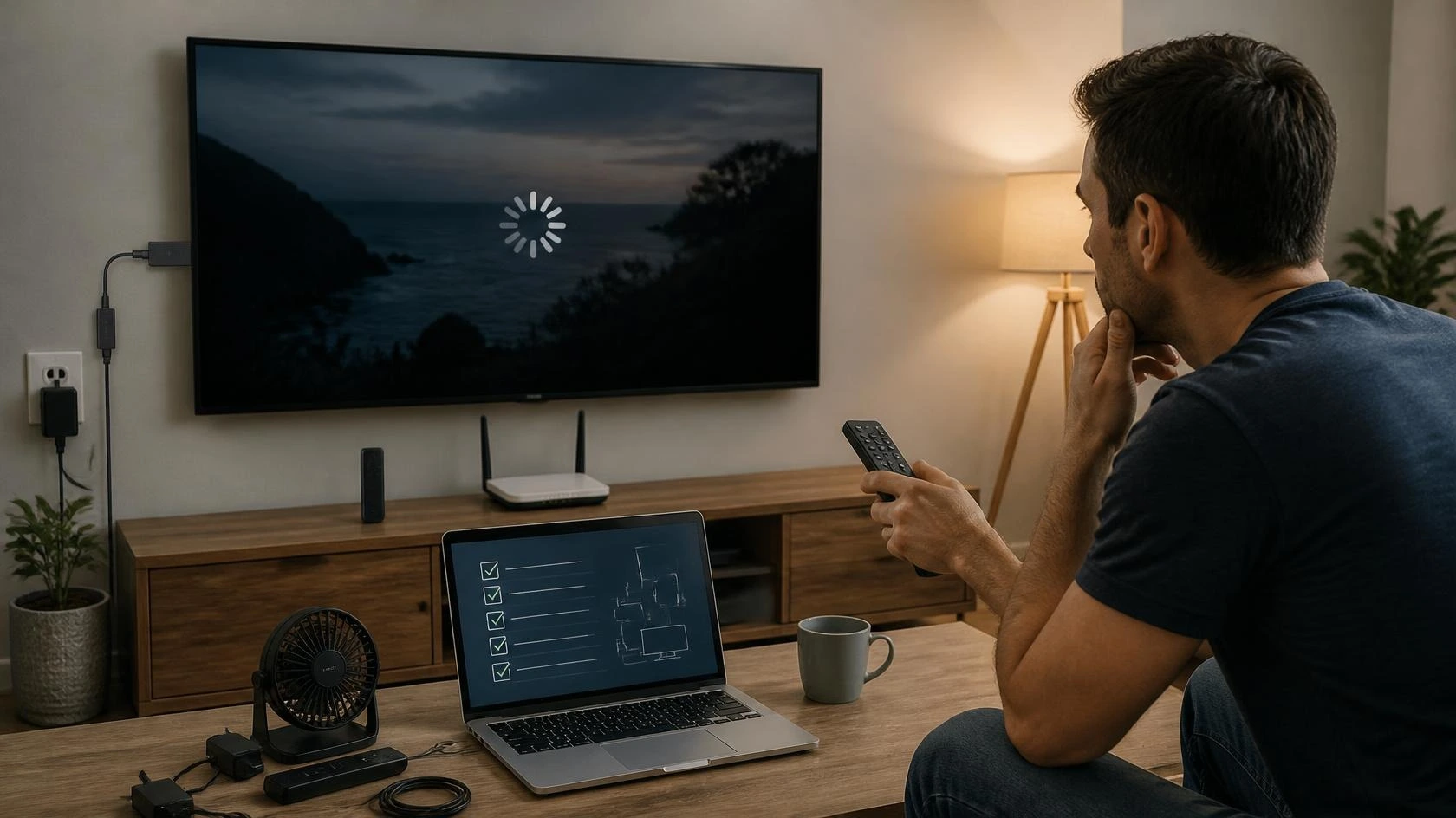
Heat is the second suspect. The stick generates warmth as it works, and tucked behind a TV it has nowhere to send it. When a Fire Stick gets too hot, it slows itself down to cool off. Video is the first thing to stutter.
Your stick also has very little memory to work with. Apps store temporary files called cache, and those files pile up over weeks of use. Other apps keep running quietly in the background, eating the small amount of memory that is left for your show.
Sometimes the problem is not in your home at all. Internet speeds often dip in the evening when everyone in your neighborhood goes online at once. Buffering that only happens between dinner and bedtime points at your connection rather than your device.
Finally, many people skip the short HDMI extender cable that comes in the box. That little cable moves the stick a few inches away from the TV. Without it, the TV’s electronics interfere with the stick’s Wi-Fi antenna.
Check how your stick gets its power. Many people plug it into the TV’s USB port, but those ports often deliver too little power. A weak power supply makes the stick unstable, and video stutters first. Always use the wall adapter and cable that came in the box.
Notice whether every app buffers or just one. One stuttering app means the problem lives inside that app. All of them stuttering means the cause is the stick, the Wi-Fi, or the connection itself.
Try this Fire Stick buffering fix first
Start with a restart, because it clears temporary glitches in about two minutes. Unplug the stick from power, wait thirty seconds, and plug it back in. You can also restart from the menu under Settings, then My Fire TV, then Restart.
Next, test your actual speed on the stick itself. Open the Silk browser on your Fire Stick and visit fast.com, which runs a quick speed test. You need around 5 Mbps for smooth HD and around 15 Mbps for steady 4K. Far lower numbers mean the next sections will help you raise them.
While the stick restarts, feel it with your hand. Warm is normal, but too hot to touch comfortably means overheating. A stick that runs hot will keep buffering no matter what you change in software.
Check whether your other devices are slow too. Run fast.com on your phone while standing next to the TV. A fast phone next to a slow stick means the stick or its Wi-Fi signal is the problem.
Try a different HDMI port on the TV. Ports can wear out or behave oddly, and switching takes seconds. If the picture improves on another port, the old one was part of the problem.
This simple fire stick buffering fix resolves more cases than any other single step. A restart costs nothing and takes two minutes, so it is always worth trying before anything fancier. Still seeing the spinning circle after a restart? Keep going.
Clear the cache and close background apps
Open Settings, then Applications, then Manage Installed Applications. Pick the app that buffers most, choose Clear Cache, and confirm. Do this for each streaming app you use regularly, since cache builds up in all of them.
Do not choose Clear Data by mistake. Clear Cache removes only temporary files, while Clear Data wipes the app completely and logs you out. For an app that keeps misbehaving after a cache clear, select it and choose Force Stop instead.
While you are in that menu, force stop the apps you rarely open. Each one you stop frees memory for the app you actually want to watch. This step alone can smooth out a stick that stutters in every app.
Uninstall the apps you never open. Go to the same Applications menu, choose an app, and select Uninstall. Free storage keeps the system running smoothly, and fewer apps mean fewer background processes.
Give the stick a stronger Wi-Fi signal
Dig out the HDMI extender from the Fire Stick box if you skipped it. Plug the extender into the TV, then plug the stick into the extender. Those few inches of distance cut the interference from the TV noticeably.
Check which Wi-Fi band the stick is using. The 5 GHz band is faster but fades quickly through walls, while 2.4 GHz travels farther at lower speed. Same-room routers pair best with 5 GHz. Through two walls, 2.4 GHz is the safer pick.
For distance problems, the most reliable fire stick buffering fix is the extender cable plus a router restart. Unplug your router for thirty seconds and plug it back in. It develops the same temporary glitches as the stick. Also move the router out of closed cabinets and off the floor, because both trap the signal.
Some rooms will never give the stick reliable Wi-Fi. For those, consider a wired connection. Amazon sells an Ethernet adapter made for the Fire Stick. It plugs into the stick’s power port and gives you a stable wired link.
Keep the stick away from other electronics. Microwaves, baby monitors, and Bluetooth speakers all crowd the same airwaves. A few feet of separation can lift your speed more than you would expect.
Lower the video resolution
A Fire Stick set to 4K will fight for bandwidth your connection may not have. Go to Settings, then Display and Sounds, then Display, then Video Resolution, and set 1080p at 60 Hz. A steady HD picture always beats a stuttering 4K one.
Some apps let you cap quality inside the app as well. Look under the app’s own settings for playback or data usage options. If your speed test showed under 10 Mbps, this fire stick buffering fix matters more than any other single change.
Prime Video has its own data controls worth checking. Open the Prime Video app settings and look for stream quality options. Lowering the in-app quality can stop buffering even when the stick’s own resolution stays high.
Update the stick and its apps
Outdated software causes playback bugs that updates already fixed. Go to Settings, then My Fire TV, then About, and choose Check for System Update. Install anything it finds and let the stick restart on its own.
Update your streaming apps the same way. Open the Appstore on the stick, go to Updates, and install all pending updates. An old app version can buffer on a stick that is otherwise healthy.
Turn on automatic updates so this does not happen again. In the Appstore settings, enable automatic app updates. The stick will then keep itself current without you thinking about it.
When nothing else works, reset the stick
A factory reset is the last resort, and you should only reach it after every other step. Go to Settings, then My Fire TV, and choose Reset to Factory Defaults. The stick will erase all apps, settings, and logins, so set aside twenty minutes to set everything up again.
After the reset, reinstall only the apps you truly use. Each extra app adds background load to a device with little memory. A lean stick stays fast much longer than a crowded one.
When every other fire stick buffering fix has failed, a reset gives you a clean slate. Buffering that continues after a reset on a strong connection means the stick itself may be failing. At that point, Amazon’s official Fire TV page is the right next stop for support options.