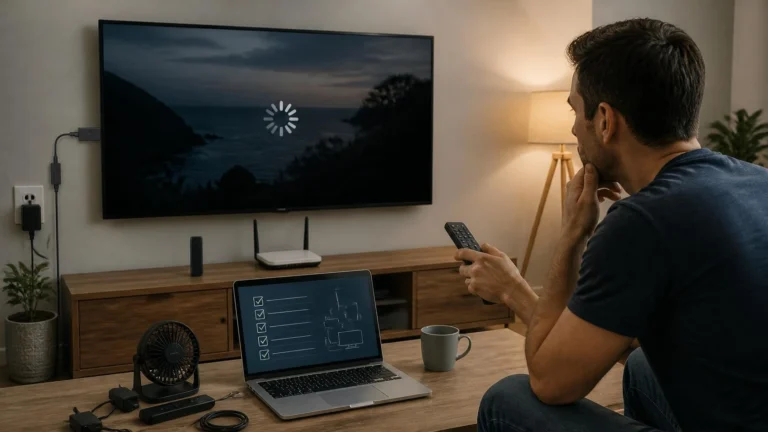
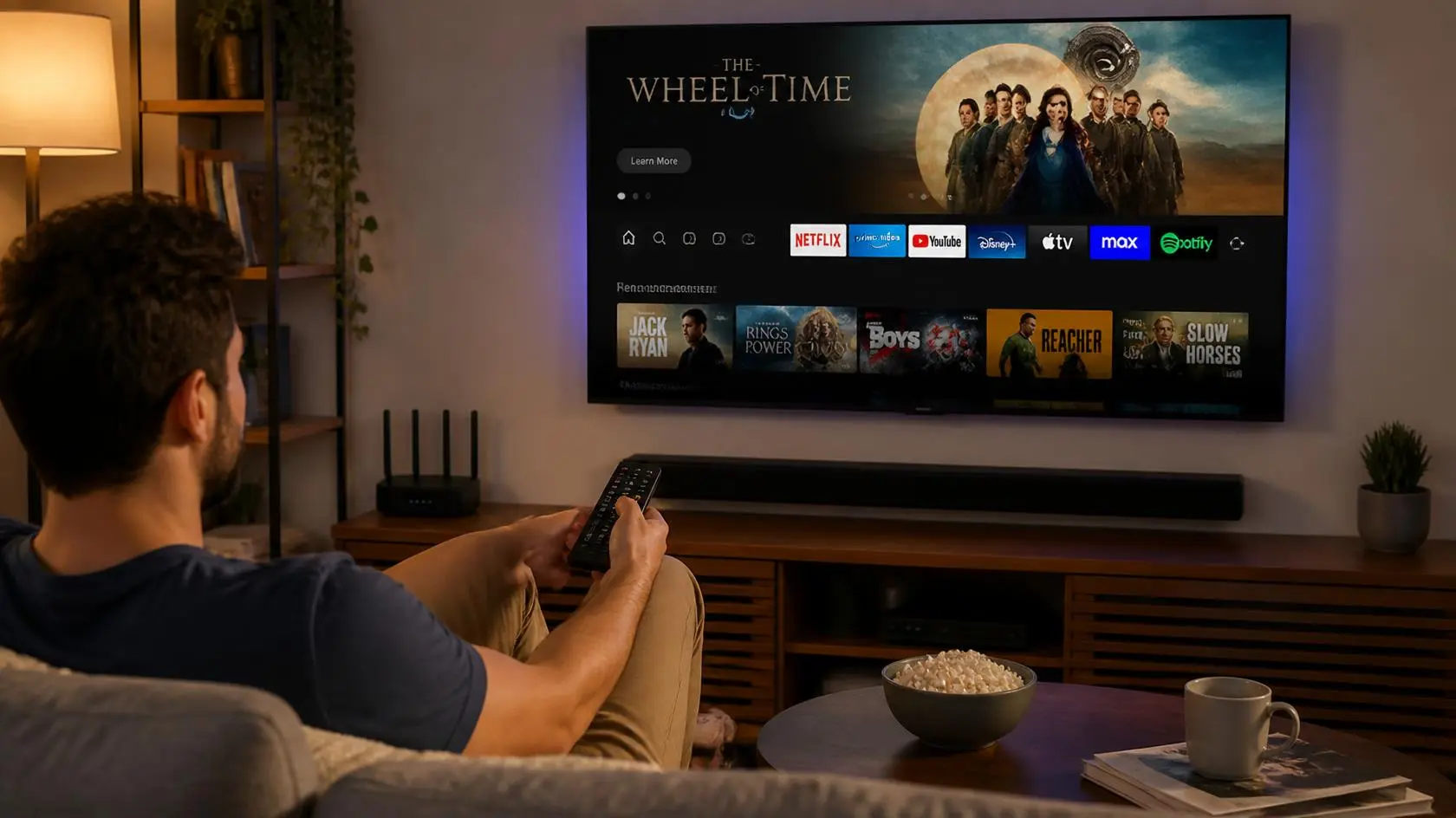
Streaming on Smart TV: How Apps, Network, and Display Settings Work Together
A Smart TV packs the screen, the software, the network connection, and every streaming app into one box. That’s simpler than running a separate computer and monitor for video, but it also means more parts can quietly affect what you see.
The app can be working fine while the network isn’t. The network can be rock solid while the TV’s software is out of date. The video itself can play perfectly while your picture settings make it look nothing like what you expected.
This guide isn’t a troubleshooting checklist. Streaming on smart TV involves more moving parts than people expect, and this is a walk through how it actually works. It covers the television, the apps, the network, the display, and the audio, so you understand how the pieces connect instead of guessing at fixes.
What Makes a Smart TV a Streaming Device?
A modern Smart TV is more than a screen.
| Part of the setup | What it does |
|---|---|
| Display panel | Shows the video image |
| Smart TV operating system | Runs the television’s software and apps |
| Streaming app | Provides the playback interface for a specific service |
| Wi-Fi or Ethernet | Connects the TV to the network |
| Speakers or audio output | Produces sound |
| HDMI inputs | Connect external devices such as streaming boxes or consoles |
| Remote control | Controls apps, settings, and playback |
| Firmware | Runs the underlying software the TV depends on |
The exact hardware and software vary by manufacturer and model. That’s why two TVs can look and behave differently even when both are sold as “Smart TVs.” That’s also why streaming on smart TV never looks quite identical from one brand to the next.
Connect the TV Before Installing Apps
Most internet-based streaming needs a working network connection, usually through Wi-Fi, Ethernet, or another method depending on the model. Wi-Fi skips the hassle of running a cable to the router. Ethernet earns its keep when the TV sits close enough to your network gear for a wired connection to make sense. Wi-Fi Alliance-certified equipment is built specifically to keep that wireless link stable across a wide mix of devices.
Getting streaming on smart TV right starts here, before a single app is even installed. Whether the TV says “connected” isn’t really the question. What matters is whether that connection holds up for the content you’re actually watching. If the TV shows a connection but apps keep struggling, check the network on its own, separate from the app. For the bandwidth math behind different streaming quality tiers, our guide on what internet speed you need for streaming breaks it down.
Wi-Fi Placement Matters More Than You’d Think
Where the TV physically sits changes its wireless performance. Push it against a wall, tuck it inside furniture, put it far from the router, or stick it on another floor, and results shift depending on your home’s layout.
Don’t blame the TV automatically when playback gets choppy. The wireless connection is just one piece of a bigger setup. Compare the TV’s behavior against another device on the same network. That’s usually the fastest way to tell whether the problem is the television or the network itself.
Ethernet Can Be an Alternative
Some Smart TVs include an Ethernet port. A wired connection earns its place when the TV sits near enough to a router or switch that running a cable is realistic. It’s also a handy comparison point when you’re trying to figure out if a shaky Wi-Fi signal is actually the culprit.
Neither connection type wins for every home. The right call depends on your physical layout and how reliable your existing network already is.
The Streaming App Is Only One Part of the TV
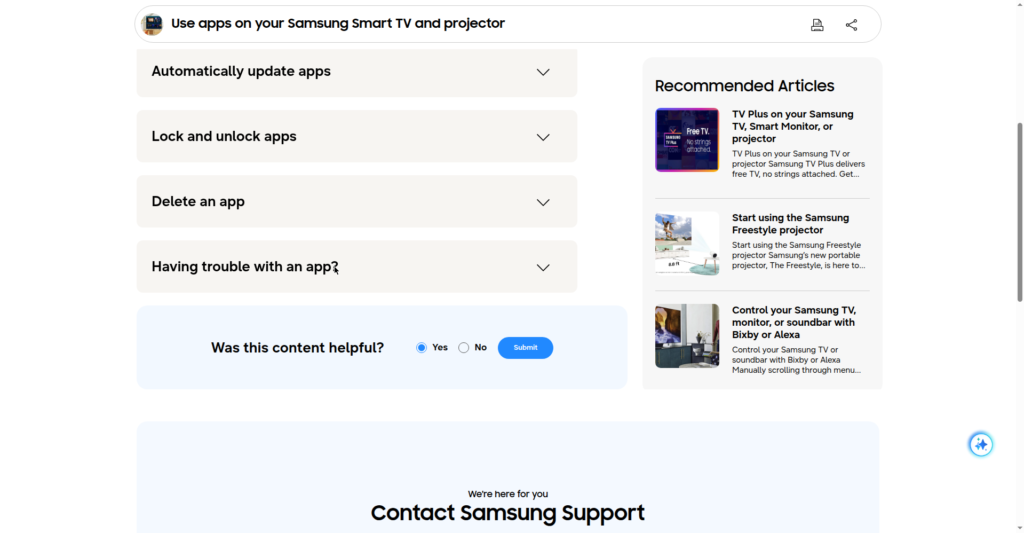
A streaming app runs on top of the TV’s operating system, which stacks several layers: the streaming service, the app itself, the TV’s software, the network, and finally the display and audio hardware. A problem in one layer can look exactly like a problem in another.
One app might fail to open for reasons specific to that app, while everything else keeps working normally. Comparing how different apps behave tells you a lot before you touch a single setting. That’s exactly why a full TV reset shouldn’t be your first move whenever one app acts up. If an app on your TV has genuinely stopped working, rather than just behaving oddly, our dedicated guide on why your streaming app isn’t working covers the deeper diagnostics.
Keep Smart TV Software Current
Smart TVs run firmware and OS software that gets updated over time, and those updates can shift app compatibility, security, features, and menus. The process differs by manufacturer.
A TV that hasn’t updated in ages might be running an older software environment than some apps now expect. That doesn’t mean every playback hiccup calls for an update, though. If the TV is working fine, there’s no reason to touch settings just because an update happens to be sitting there. Software version becomes useful information mainly when an app breaks or a feature suddenly behaves differently.
Apps Have Their Own Requirements
Streaming apps don’t behave identically across every Smart TV platform. They differ in supported operating systems, available video and audio formats, interface design, account features, offline downloads, playback controls, and update schedules.
Streaming on smart TV can genuinely feel different from one platform to the next, even with the exact same service installed. If you’re shopping for a Smart TV with a particular service in mind, check that service directly rather than trusting the phrase “Smart TV” to guarantee anything.
Display Settings Can Change the Picture
Picture controls (brightness, contrast, color, motion processing, sharpness) change how the TV presents an incoming signal. They don’t touch the underlying video file, and they definitely don’t boost its resolution.
Cranking up sharpness doesn’t turn an HD stream into native 4K. The right settings also depend on your room, since the same picture looks noticeably different in a bright space versus a dark one. If something looks genuinely wrong rather than just differently configured, our guide on why your streaming video quality is poor walks through the diagnostic side.
Resolution and the TV Panel
Smart TVs ship in different resolutions, including Full HD, 4K, and 8K. That resolution describes the screen’s physical pixel grid. It’s not a promise that every video you watch will use all of it.
What you actually see depends on the source content, the streaming service, the app, network conditions, and the supported playback format. The Consumer Technology Association’s 4K and 8K Ultra HD definitions spell out the technical bar a display has to clear, but meeting that bar doesn’t upgrade lower-resolution content on the fly. A 4K TV handles 1080p content just fine. That content simply doesn’t become native 4K because the panel can technically show it. Our guide on what 4K streaming actually is covers the full chain if you want the deeper explanation.
HDR Is a Separate Consideration
HDR, or High Dynamic Range, governs how compatible content represents brightness, contrast, and color. A TV might support one or more HDR formats while a given app or piece of content supports a different one, or none at all. That creates a compatibility chain running from the content through the service, the app, the TV’s software, and finally the display itself.
An HDR label on the box doesn’t guarantee every video plays in HDR. When HDR actually matters to you, check the specific TV and streaming service rather than assuming the feature applies everywhere. Our dedicated guide on what HDR streaming actually is goes deeper into the underlying technology.
HDMI Is Important for External Devices
Smart TVs typically include HDMI inputs for streaming sticks, streaming boxes, game consoles, Blu-ray players, computers, and AV receivers. HDMI carries digital video and often digital audio too, with exact capabilities set by the HDMI Forum’s published specification, the connected devices, and the rest of the signal chain.
This matters most once you pair a Smart TV with an external streaming device, because the TV’s built-in streaming system and an external box are genuinely two separate playback environments, even though both show up on the same screen. Our guide on streaming on PC covers HDMI bandwidth and refresh-rate specifics in more depth if you need the technical side.
Built-In Apps vs. External Streaming Devices
A Smart TV doesn’t need an external streaming device by default.
| Setup | Main advantage | Main tradeoff |
|---|---|---|
| Built-in Smart TV apps | No extra hardware required | Locked to the TV’s own software platform |
| Streaming stick | Small, simple, and portable | Needs a free, compatible HDMI input |
| Streaming box | Dedicated hardware and interface | Adds one more device to manage |
| Computer connected to TV | Most flexible software | More cabling and setup involved |
| Game console | Doubles as a gaming machine | Streaming is just one of its jobs |
There’s no need to bolt on extra hardware simply because the TV is “smart.” Reach for one only when the built-in platform genuinely can’t do what you need.
Audio Options on a Smart TV
Audio can route through several paths depending on the model and what’s connected: built-in TV speakers, Bluetooth headphones or speakers, HDMI-connected audio gear, optical audio, an AV receiver, or a soundbar. Availability varies by television.
If you’ve got external audio connected, the TV may need its output setting changed manually. That matters most when video plays fine but sound is coming from the wrong device entirely.
Soundbars and External Audio
A soundbar changes where your sound comes from without replacing the TV. The television still handles video while the soundbar takes over audio output, and depending on the gear, HDMI-based audio connections can unlock features that other connection types simply don’t offer.
Before setting up external audio, check both the TV’s output options and the soundbar’s inputs. A cable that physically fits into a port doesn’t guarantee every audio feature you want will actually work through it.
Remote Control and Everyday Use
The remote shapes how the whole interface feels, because everything is built around it. A well-organized layout makes the basics fast: opening an app, switching inputs, adjusting volume, reaching picture settings, changing audio output, and getting back to the home screen.
Some TVs add voice control or a mobile remote app. Treat those as convenience extras rather than something every Smart TV offers, since support varies by manufacturer and region.
Organizing the Home Screen
Many Smart TV platforms let you arrange or pin apps. Put the services you actually use somewhere easy to reach, and you’ll cut down on unnecessary scrolling every time you sit down to watch something.
The interface itself differs across platforms, but the principle holds everywhere: build the home screen around what you actually watch. A pile of unused apps just adds clutter and makes everything harder to find.
When a Smart TV Is Connected to Other Devices
A television can sit inside several systems at once: Wi-Fi plus built-in apps, Ethernet plus a streaming box plus a soundbar, or HDMI plus a connected computer plus external audio. Each combination has its own points where settings matter.
When something changes, figure out which device is actually responsible. If a streaming box’s picture looks different from the TV’s built-in app, treat those as two separate playback paths. If a soundbar works fine with a game console but not the TV’s own apps, check the audio path at the television level specifically.
Smart TV and External Display Settings
A Smart TV can also work as a large monitor for a connected computer. That’s a genuinely different setup from the TV running its own apps. The computer handles playback and simply sends the image over. Our guides on streaming on PC and streaming on desktop cover the display modes (Duplicate and Extend) and cabling details in more depth.
Knowing which mode you’re actually in, TV as its own streaming device or TV as a monitor, makes it much easier to figure out where a given setting even belongs.
Refresh Rate and Smart TV Viewing
Refresh rate describes how often a display updates its image, and the available rates depend on both the display and whatever’s connected to it. Ordinary video streaming doesn’t automatically need a higher refresh rate.
What’s useful depends on the content, the TV, the external source, and what you’re actually doing with it. This starts to matter more once a TV doubles as a computer monitor or gaming screen, because those uses carry different display demands than passive viewing.
Smart TV Picture Modes
Most TVs ship with predefined picture modes built for different rooms or content types, though naming varies by brand. Switching modes can make the image look dramatically different without touching the actual streaming quality at all.
If the picture suddenly looks too dark, too bright, over-processed, or artificially sharp, check the picture settings first. Don’t assume the streaming service changed the video itself.
A Practical Setup for Streaming on Smart TV
A basic setup might run router → Wi-Fi → Smart TV → built-in app → TV speakers. A step up could use router → Ethernet → Smart TV → app → soundbar. A third option might route router → Wi-Fi → streaming box → HDMI → Smart TV → external audio.
All three work. The real difference is which device is actually doing the playback.
What to Check Before Changing Advanced Settings
Before adjusting anything advanced related to streaming on smart TV, start with the basics. For the network: connect the TV to a reliable source, pick Wi-Fi or Ethernet based on what’s practical, and check the TV’s network status. For apps: install only what you use, keep the important ones updated, and review each app’s own settings when needed.
For display: pick a comfortable picture mode, check resolution and display options, and review HDR settings if both the TV and content support it. For audio: decide between TV speakers and external gear, confirm the output is set correctly, and check the connection between the TV and any outside equipment. For external devices: confirm which HDMI input each one uses, make sure the right input is selected, and verify the device matches what the TV can actually support.
These basics usually solve more than jumping straight into advanced settings ever does.
Streaming on Smart TV in a Living Room
A living-room TV often sits farther from the router than a desktop ever would, which makes placement matter more. Wi-Fi is the easy choice when the router’s nearby. If it’s farther off and running Ethernet is realistic, a wired connection is worth considering. If neither option works well, look hard at your existing Wi-Fi setup before buying anything new.
The TV’s position also shapes how comfortable viewing actually feels, since screen size, seating distance, room lighting, and picture settings all stack together to form the final image you see.
When a Smart TV Needs an External Device
An external device genuinely helps in a few situations: you want a different app platform, a different interface, more app support, a dedicated remote, different hardware, or a feature the built-in platform just doesn’t offer.
Adding a device also adds a layer of software and hardware to manage. If your built-in setup already covers what you need, skip the extra box.
Common Smart TV Setup Mistakes
Blaming every playback issue on the internet is a common one. The network is only one piece, and the app, TV software, display settings, and external gear can all cause the same symptoms. Installing every app you come across is another; a pile of unused apps just makes the interface harder to manage.
Changing picture settings without noting the original values causes headaches down the line, since you’ll want to undo a bad change later. Losing track of which device is actually playing the video trips people up too. A TV’s built-in app and an external streaming box are separate playback paths. Assuming 4K or HDR applies to everything is another common mistake, because the TV’s capabilities don’t automatically upgrade every piece of content. And changing several settings at once makes any problem much harder to isolate. Change one thing at a time and you’ll actually know what fixed it.
Frequently Asked Questions
Can I stream without a separate streaming stick?
Yes. A Smart TV can run compatible streaming apps directly once the service you want is supported by its platform.
What’s the easiest way to start streaming on smart TV?
Connect the TV to a reliable network, install only the apps you actually use, and sign into each one. That covers most of what streaming on smart TV requires before you ever touch a picture or audio setting.
Is Wi-Fi enough for smart TV streaming?
Often, yes. A reliable Wi-Fi connection can carry streaming just fine, but the real experience still depends on your network environment, the service, the content, and the TV itself.
Should I use Ethernet instead of Wi-Fi?
Ethernet helps when a wired connection is easy to run and you’d rather not depend on wireless. It’s not automatically necessary if your existing Wi-Fi is already stable.
Does a 4K Smart TV make every video 4K?
No. The TV can have a 4K display while the source content is delivered at a lower resolution.
Can I connect a streaming box to a Smart TV?
Yes. A streaming box plugs into a compatible HDMI input and runs as its own playback device, separate from the TV’s built-in platform.
Why does my TV picture look different between apps?
Different apps use different playback formats, and the TV layers its own picture processing on top. Both the source content and the app affect how the final image looks.
Can I use a Smart TV as a computer monitor?
Yes, as long as the TV and computer share a compatible connection. HDMI is the common choice. The computer handles the video output; the TV just displays it.
Does a higher refresh rate improve every streaming video?
No. It helps in specific situations, like gaming or computer use, but it doesn’t automatically improve ordinary video streaming.
Bringing the Setup Together
Streaming on smart TV works best when you treat it as one connected system rather than a single app. The network carries the connection, the TV’s platform runs the software, the display shows the result, and the audio system handles sound. An external device adds a layer on top when the built-in platform isn’t quite enough.
Start with the fundamentals: a reliable network connection, current software on both the TV and the apps you rely on, display and audio configured for your actual room, and a clear sense of whether the TV or an external device is doing the playback. Get those right, and most of what goes wrong afterward is easy to trace back to a single, specific part of the chain.
Written and reviewed by the https://streamingcommunitye.cam/ editorial team. Last reviewed: September 2026. Technical references: HDMI Forum, Wi-Fi Alliance, Consumer Technology Association.