Streaming on iPhone and iPad: Wi-Fi, Mobile Data & Settings
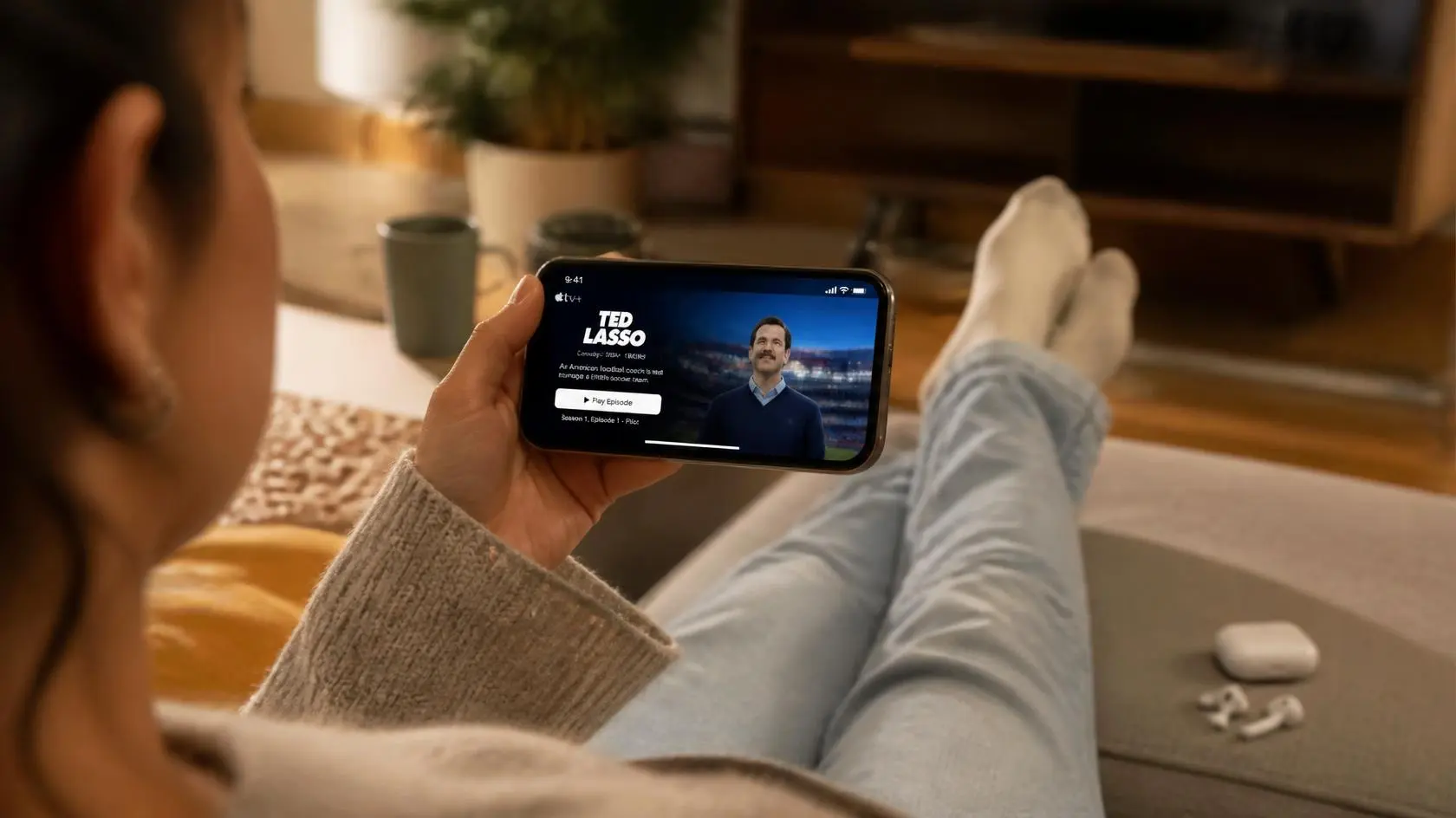
A phone or tablet changes the way people watch video. There is no fixed desk, cable connection, or permanent display. You can watch over home Wi-Fi, mobile data, a personal hotspot, or while connected to another screen.
That flexibility is one of the main advantages of mobile streaming, but it also introduces conditions that matter less on a stationary setup. Data usage, battery level, wireless signal, device temperature, app settings, and screen behavior can all affect the experience.
This guide looks at streaming on iPhone and iPad from a mobile-use perspective, covering everyday viewing, network choices, device settings, external playback, and practical situations such as traveling or switching between Wi-Fi and mobile data.
Start With the Connection You Are Actually Using
Before changing settings, identify how the device is connected. An iPhone or iPad may be using home Wi-Fi, public Wi-Fi, workplace or school Wi-Fi, mobile data, a personal hotspot, or another shared connection, and these do not necessarily behave the same way.
A strong Wi-Fi connection at home may feel consistent, while public Wi-Fi can have restrictions or become busy when many people use it. Mobile data varies depending on coverage, network conditions, and your specific plan. That makes the first question simple: is the problem happening on one connection, or every connection? If video works normally on home Wi-Fi but struggles on mobile data, changing unrelated playback settings is unlikely to fix the underlying issue.
Wi-Fi Settings That Can Affect Streaming on iPhone and iPad
iPhone and iPad provide network-specific settings that change how the device uses data. One of the most important is Low Data Mode. Apple explains that Low Data Mode restricts background network use and can reduce the quality of streaming content. It can be enabled separately for cellular data and individual Wi-Fi networks.
That makes it worth checking when video quality seems lower than expected. For a Wi-Fi network, open its information settings and check whether Low Data Mode is enabled. Apple also provides options such as Private Wi-Fi Address and Limit IP Address Tracking, but these serve different purposes and should not be changed simply because a video is buffering. A better approach is to identify the specific setting relevant to the problem.
Mobile Data Requires More Planning
Watching video over mobile data is convenient when Wi-Fi is unavailable, but it can consume significant data depending on the service, video quality, and viewing time. If your mobile plan has a limited allowance, check the streaming service’s own data controls where available.
Low Data Mode works on mobile data too, with separate settings for cellular and Wi-Fi. This can reduce background network activity and streaming data use, but there is a trade-off: Apple states that Low Data Mode can reduce the quality of streaming content.
If a video suddenly looks softer after changing data settings, check Low Data Mode before assuming the display or streaming service is at fault. Some individual apps also provide their own cellular-data or quality controls, so those settings can matter independently.
A Simple Wi-Fi Test
When streaming on iPhone feels inconsistent, a useful test is comparing two networks without changing several other settings at once. Watch the same type of content on your usual Wi-Fi, then try another reliable Wi-Fi connection.
If the behavior changes significantly, the network deserves further investigation. That does not prove the first network is defective. It simply helps separate a device-specific problem from a network-specific one. If the same issue appears on multiple reliable connections, look at the app, device software, storage, power conditions, and playback settings next.
Keep the Device Comfortable During Longer Sessions
Mobile devices manage their own temperature, but demanding tasks can still produce heat. Streaming keeps the display active and continuously uses network and video-processing resources, while other demanding activity can add to the workload.
For longer sessions, avoid covering the device or placing it somewhere that prevents normal heat dissipation. It is also worth noticing whether the device becomes unusually warm when a problem appears. Heat alone does not prove that it is causing a playback issue, but it is useful context. A warmer device can also make battery consumption more noticeable.
Battery Level and Streaming
Video playback can consume more battery than many simpler phone activities because the screen remains active and the device continuously processes network and video data. The effect varies by device, display brightness, connection type, content, and application.
If you are watching away from a charger, practical steps include reducing unnecessary screen brightness, keeping the device in a comfortable temperature range, and using a reliable Wi-Fi connection when appropriate. There is no need to treat every battery drop as a streaming problem, since battery consumption naturally depends on how the device is being used.
Screen Orientation and Full-Screen Playback
Phones and tablets switch between portrait and landscape orientations, and some video services automatically switch to landscape for full-screen playback while others provide their own controls. If a video does not rotate as expected, check whether orientation is locked on the device.
Orientation also affects how comfortable viewing feels. An iPad gives you considerably more screen area than an iPhone, while an iPhone is easier to hold and use away from a fixed location. The useful orientation depends on the content, application, and way you are holding the device.
AirPlay Changes the Role of the iPhone or iPad
An iPhone or iPad does not have to remain the final screen. Apple’s AirPlay system can stream video or audio to compatible devices, including an Apple TV 4K, an AirPlay-compatible smart TV, or a Mac. Screen mirroring is also supported.
For normal AirPlay streaming, the iPhone or iPad and the receiving device need to be connected to the same Wi-Fi network. Apple also notes that some video apps may not support AirPlay.
There are two different use cases worth distinguishing. Streaming sends supported content to the selected playback destination, while screen mirroring reproduces what is happening on the iPhone or iPad screen.
If AirPlay is not working, Apple recommends checking that the devices are powered on, nearby, updated, and connected to the same Wi-Fi network. Apple also notes that VPN configurations can interfere with local networking in some situations.
Automatic AirPlay Can Be Controlled
Some people prefer choosing their playback destination manually rather than having compatible devices appear as automatic suggestions. Apple provides an Automatically AirPlay setting under AirPlay & Continuity, with options that control whether connections happen automatically or are suggested.
This can be useful in a household with several compatible TVs or devices regularly available. If unexpected AirPlay suggestions keep appearing, checking this setting is usually more useful than changing unrelated network settings.
App Settings Are Often More Important Than iOS Settings
The operating system provides the network and device environment, but individual streaming apps have their own controls too. Depending on the service, an app may offer settings for video quality, downloads, mobile data use, autoplay, notifications, background activity, offline viewing, or general playback preferences.
For example, Apple’s own TV app provides separate streaming options for cellular and Wi-Fi connections, including quality and data-use controls.
There is no single iPhone or iPad setting that controls every streaming service in the same way. If only one application has a playback problem while other video apps work normally, check that app’s own settings and update status before changing system-wide network options.
Downloads and Offline Viewing
Some legitimate streaming services offer offline downloads through their official apps, which can be useful when you expect limited connectivity, such as during travel. Offline viewing also changes the nature of a problem: if a downloaded title plays normally while online playback struggles, the issue is more likely related to the network path than the device’s basic ability to play that downloaded content.
Availability, download rules, expiration, and supported titles all depend on the individual service. Downloaded content also uses device storage, so it is worth checking available space before saving a large amount of video.
Storage Can Matter
A nearly full device makes everyday management less convenient. Storage is used by the operating system, apps, photos, downloads, cached information, and other content, and exact behavior varies by application.
If you regularly download video for offline use, check available storage from time to time, especially when an app reports a storage-related problem or downloads will not complete. Do not delete system data or random application files simply because storage is low. Start by identifying which categories are actually using the available space.
Software Updates and Streaming Apps
Streaming apps depend on both the operating system and the app itself. Keeping the device and its apps reasonably current can help with compatibility, but an update should not be treated as a guaranteed fix for every playback problem.
When troubleshooting, note whether the problem started immediately after an app or system update, since that timing is useful information. If the problem affects only one app, compare it against another legitimate streaming service. If several apps behave differently, the issue may involve the device, network, or a particular software component rather than one application alone.
Streaming While Traveling
Mobile devices are especially useful for travel because they are not tied to a home setup, but travel introduces its own variables: different Wi-Fi networks, mobile data availability, roaming conditions, public network restrictions, varying network speeds, limited battery access, and limited storage.
Before a long journey, downloading permitted offline content can reduce how much you depend on a live connection where the service supports it. If you plan to use public Wi-Fi, remember that connecting to a network does not guarantee every app or streaming service will behave exactly as it does at home.
Personal Hotspots and Shared Connections
An iPhone can provide a Personal Hotspot for another device when your carrier and plan support it. This is useful when another device needs internet access and conventional Wi-Fi is unavailable. The connection still depends on the cellular network supplying the hotspot and uses the mobile plan’s data allowance. Apple notes that Personal Hotspot availability and limits can vary by carrier and device.
If a laptop or tablet connected through an iPhone hotspot streams poorly, investigate the cellular connection itself before assuming the receiving device is at fault. Signal conditions and cellular network performance can affect the connection available to the connected device.
What to Check When Video Quality Changes
Work through the simplest possibilities first. Check the network: are you on Wi-Fi, mobile data, or a hotspot? Check Low Data Mode, since Apple states that it can reduce streaming quality. Check the app’s own quality setting, since some services provide their own controls. Check whether the same issue appears elsewhere by trying another legitimate video service, and check the device display to confirm that nothing unusual was recently changed.
Working through the possibilities in this order avoids changing several unrelated settings at once.
What to Check When Streaming Keeps Buffering
Buffering does not automatically mean the iPhone or iPad is faulty. Start with the connection. If you are on Wi-Fi, test another reliable connection if you can. If you are on mobile data, check whether cellular coverage and service conditions are stable.
Then check whether Low Data Mode or an app-specific data setting is affecting playback. If the problem only appears in one app, compare it with another service before changing broader device settings. This helps narrow down whether the issue is related to the network, application, or device.
For a more detailed diagnosis of buffering itself, see our guide on why streaming keeps buffering.
When HDR or High-Quality Video Is Not Available
High-quality video formats depend on more than the streaming service. Apple’s developer documentation provides an HDR playback eligibility property that indicates whether the current device can present content to an HDR display.
As a result, seeing an HDR or high-resolution label in an app does not necessarily mean every iPhone or iPad will display that format under every condition. Device capabilities, display support, application behavior, content, and playback path can all matter.
The important distinction is between a service offering a particular format and a specific device being eligible to present it. Check the requirements for the particular device and service rather than assuming a feature is available simply because the application supports it somewhere.
A Practical Mobile Streaming Checklist
Before a long viewing session, a quick check can prevent unnecessary problems.
Connection: confirm whether you are on Wi-Fi or mobile data, check whether the connection is stable, and review Low Data Mode if quality or data usage has changed.
Device: check the battery level, make sure the device is not unusually warm, and confirm that there is enough storage for planned downloads.
App: check the application’s playback and data settings, confirm that it is functioning normally, and compare it with another legitimate service if you need to isolate a problem.
External playback: if using AirPlay, confirm that both devices are connected to the same Wi-Fi network, select the intended destination, and check AirPlay settings if automatic connections are appearing unexpectedly.
Display: check portrait or landscape orientation, confirm full-screen playback when appropriate, and make sure the receiving device is compatible if you are using AirPlay or another supported display method.
Frequently Asked Questions
Can I stream video using mobile data?
Yes. Streaming services can use mobile data when the device is connected through a supported cellular network. The amount of data used depends on factors such as video quality and viewing time.
Does Low Data Mode affect streaming quality?
It can. Apple states that Low Data Mode can reduce the quality of streaming content while also restricting background network use.
Can I stream from an iPhone to a smart TV?
Yes, when the TV supports the appropriate AirPlay functionality. Apple states that an iPhone or iPad and the AirPlay-compatible TV normally need to be connected to the same Wi-Fi network.
Can I use AirPlay from an iPad?
Yes. Apple supports streaming video and audio from iPad to compatible Macs, Apple TV 4K devices, and AirPlay-enabled TVs, along with screen mirroring.
Why does streaming use so much mobile data?
Video continuously transfers media data while playing. Higher-quality playback generally requires more data than lower-quality playback, although the exact amount varies by service, content, and playback conditions.
Does streaming drain an iPhone battery quickly?
Video playback can contribute significantly to battery use because the screen, network connection, and video processing remain active. Actual consumption varies between devices and usage conditions.
Why does my iPhone stream normally on Wi-Fi but struggle on mobile data?
The two connections use different network paths and conditions. Cellular coverage, network congestion, plan restrictions, and device settings can all affect mobile playback. Comparing the two connections helps identify where the problem actually sits.
Editorial and Source Note
This guide focuses on legitimate streaming services and the device, network, and playback settings available on iPhone and iPad. Apple feature names and menu locations can change between iOS and iPadOS versions, so check Apple’s current documentation when a setting looks different on your specific device.
Last reviewed: September 2026
Final Thoughts
A mobile streaming setup is less about building a fixed system and more about managing the conditions around the device.
For streaming on iPhone, the most useful checks are usually straightforward: know which network you are using, understand how Low Data Mode affects data and quality, keep an eye on battery and storage, and check the individual app’s settings when a problem is limited to one service.
On iPad, the same principles apply, with the larger screen and AirPlay options giving you additional ways to watch. When the device is part of a larger setup, figuring out exactly where the video is actually being played makes troubleshooting far easier.