Why Does Streaming Keep Buffering?
If you are trying to watch a movie, show, live event, or video and playback keeps stopping to load, it is frustrating. Why does streaming keep buffering even when your internet connection seems fast enough? The answer is not always your advertised internet speed.
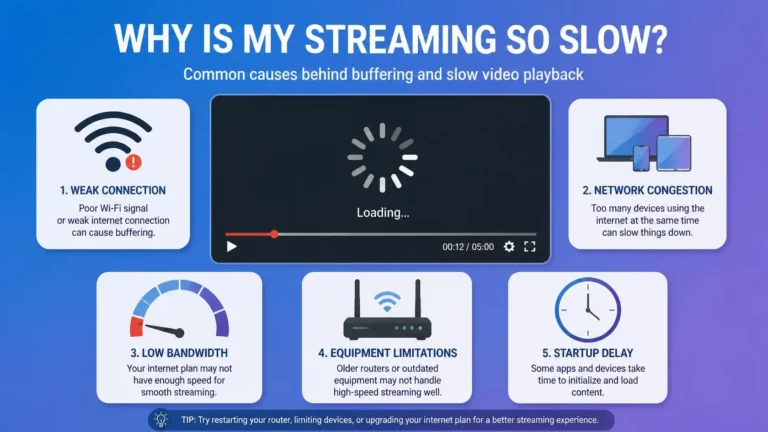
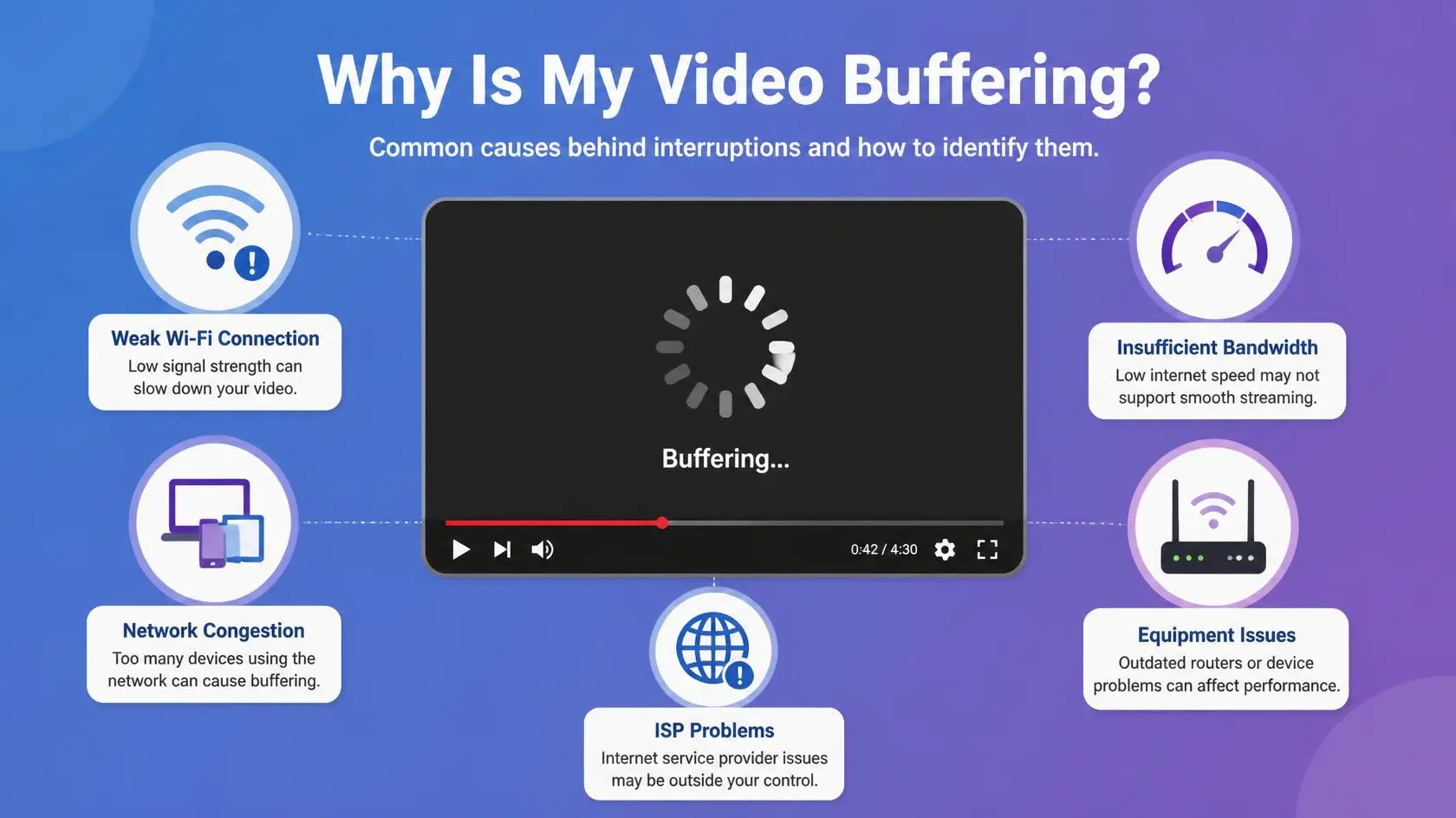
Buffering happens when the player cannot receive and prepare enough video data to keep playback smooth. A weak Wi-Fi connection, network congestion, multiple devices sharing the connection, an overloaded device, app problems, or an issue with the streaming service can all contribute. YouTube’s own troubleshooting guidance recommends checking the connection, testing another network or device, adjusting playback quality, restarting the app or device, and checking for updates.
The useful approach is identifying where the problem is actually happening, instead of changing every network setting at once. When you are asking why does streaming keep buffering, the pattern of the problem often tells you more than a single speed-test result.
What Buffering Actually Means
When you start a stream, the player receives media data from the service and uses it for playback. It does not necessarily download the entire video first. The player keeps a small amount of data ahead of the current playback position, which gives it some cushion against brief dips in network performance.
If data arrives more slowly than the player needs, that cushion runs down. Once the player does not have enough data available, playback pauses while more arrives. That is buffering.
A one-off pause does not necessarily mean a serious problem. Repeated buffering, especially at predictable times or across several services, gives you far more useful clues about the actual cause. This is why the question of why does streaming keep buffering is best approached as a diagnosis rather than a single-speed problem.
Common Reasons Streaming Buffers
There are several possible reasons, and they do not all involve your internet package. The table below compares common symptoms with the likely cause and a quick way to test it.
| What you notice | Possible cause | Useful test |
|---|---|---|
| Several devices buffer at the same time | Network congestion | Pause other downloads and streams |
| Only one device buffers | Device or local connection issue | Try another device |
| Only one streaming service buffers | Service or app-specific problem | Test another service |
| Buffering improves near the router | Weak Wi-Fi signal or interference | Move closer to the router |
| Lowering quality fixes the problem | Available bandwidth is limited | Compare different quality levels |
| App freezes as well as video | App or device issue | Restart and update the app |
| Ethernet works but Wi-Fi does not | Wireless connection issue | Compare both connections |
| The problem appears everywhere | Network or service issue | Test another connection |
This kind of comparison is more useful than repeatedly restarting the router without checking what actually changed.
Check Whether the Problem Affects One Service or Everything
Start with a simple test. If one streaming service keeps buffering while others play normally, the problem may be specific to that service, app, title, or account environment.
For example, you might find one app buffers while another plays without interruption on the same device and network. That does not prove the first service is having an outage, but it makes a general home-network problem less likely.
If the problem follows the service, investigate the app or service. If it follows the device, investigate the device or its connection. If every device has the same problem, focus on the network itself. YouTube similarly recommends trying another supported device when playback keeps failing after basic troubleshooting.
Test the Connection Where You Actually Watch
A speed test run on a phone beside the router does not necessarily tell you what your Smart TV receives several meters away. Wi-Fi performance shifts with distance, walls, interference, the device’s wireless hardware, and what else is active on the network.
If the TV is in another room, test the connection close to it, or directly on the TV when the device offers that option. YouTube specifically recommends checking the connection near the TV and reducing interference or the number of other devices on the network when performance is low.
If playback becomes stable once the device is closer to the router, the problem likely sits with the wireless connection rather than your internet subscription.
Do Not Look at Download Speed Alone
A speed test gives useful information, but it is not the whole story. Your available bandwidth can shift while you are watching, since other people may be using the connection, cloud backups may be running, or another device may be streaming video at the same time.
Suppose your connection normally measures 100 Mbps. If several devices are actively in use, the bandwidth actually reaching your streaming device can look very different from an isolated speed test result. Test the connection while the buffering problem is actually happening, not before or after.
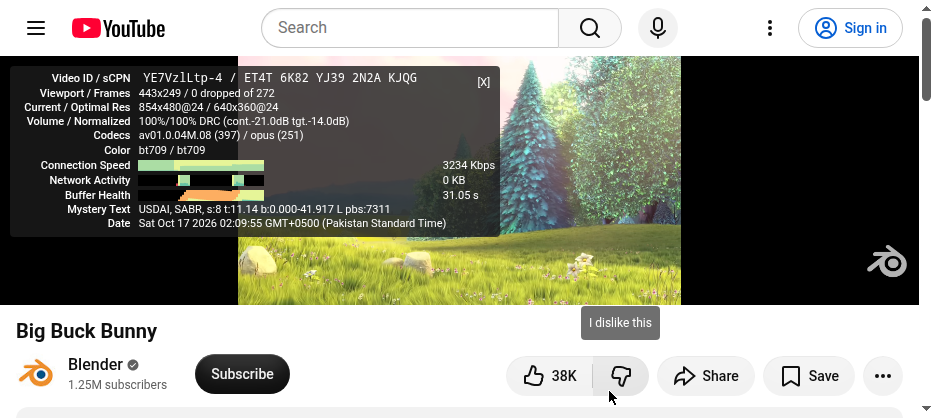
Required bandwidth also depends on video quality. YouTube’s system requirements page lists approximate sustained speeds of 0.7 Mbps for 360p, 1.1 Mbps for 480p, 2.5 Mbps for 720p, 5 Mbps for 1080p, and 20 Mbps for 4K playback. These are service-specific figures, not universal requirements for every platform. See our guide on what internet speed you need for streaming for the broader picture.
Try Lowering the Video Quality
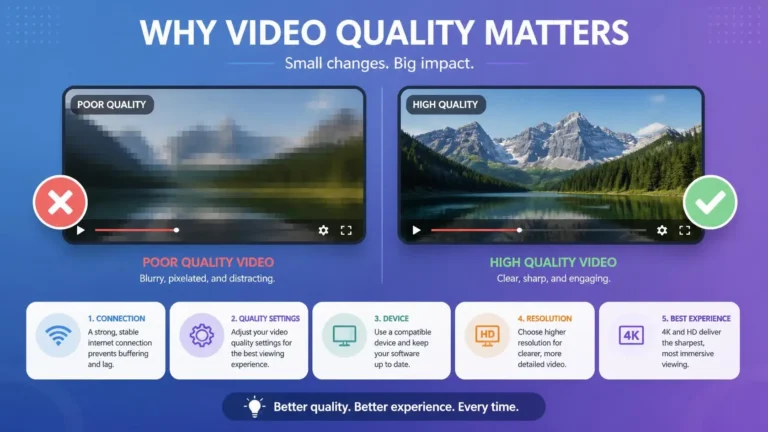
Changing playback quality is a genuinely useful diagnostic test. If a video repeatedly buffers at a higher quality but plays fine after you drop to a lower one, your available connection capacity may be insufficient or unstable for the original setting.
That does not automatically mean your internet is bad. A temporary network condition, Wi-Fi limitation, congestion, or several active devices could all be responsible. If this pattern shows up consistently, investigate the connection before assuming the app itself is broken. YouTube also recommends this exact test when connection performance falls short of the selected resolution.
If you are still asking why does streaming keep buffering after lowering the quality, the problem may be elsewhere. For picture-specific problems, see our guide to streaming video quality problems.
Check How Many Devices Are Using the Network
Your streaming device probably is not the only thing competing for bandwidth. Another TV streaming video, phones uploading photos, computers downloading large files, game consoles updating, cloud storage syncing, or security cameras uploading footage can all draw from the same connection.
You do not need to disconnect everything permanently. Temporarily pause the heavier activities and test the stream again. If the buffering disappears, that is a real clue: the connection may be fine under light use but insufficient once several devices are active at once.
Restart the Device and Streaming App
Sometimes the network is working fine but the app or device has developed a temporary glitch. Close the streaming app completely and reopen it, and if that does not help, restart the device.
For a TV or streaming box, a full power restart tends to help more than just returning to the home screen. YouTube’s own guidance recommends restarting devices and reopening the app for playback problems. Test the same title again afterward, before touching any other settings, so you get a clean comparison.
Check for App and System Updates
Outdated app or device software can sometimes cause playback problems. Check whether the streaming app has an update available, your Smart TV has a system update, your streaming device has updated firmware, or your browser is current if you are watching on a computer.
YouTube recommends keeping the app, browser, and device software current when troubleshooting playback issues. That said, do not assume an update is the cause of every buffering problem. It is simply one of the easier things to check when the issue is isolated to one app or device.
Compare Wi-Fi With Ethernet
If your streaming device supports Ethernet, this is one of the most useful tests for separating a Wi-Fi problem from a wider internet problem. Try the same stream over Wi-Fi, then again over Ethernet, and compare directly.
If Wi-Fi buffers but Ethernet plays cleanly, and that holds up consistently, the evidence points to the wireless side: distance from the router, physical obstructions, interference, router placement, device Wi-Fi hardware, or network congestion. If both connections show the same buffering behavior, look beyond the wireless connection entirely.
If the connection is actually dropping rather than simply running out of available data, our guide on why streaming keeps disconnecting covers that separate problem.
Consider the Streaming Service
Sometimes the problem is not inside your home at all. A streaming service can hit temporary technical problems, high demand, or an issue affecting one particular title or piece of content.
Look for a pattern: does every title buffer, or just one? Does it happen on multiple devices? Does another service work fine, or does the problem disappear later without you touching your network? If only one service or title is affected while everything else works, changing DNS, buying a faster internet plan, or replacing your router probably will not fix the actual problem. That is exactly why testing more than one service matters.
What If Your Internet Seems Fast but Streaming Still Buffers?
This is one of the more confusing situations to run into. You run a speed test, see a high download speed, and playback still keeps stopping. A strong speed-test result does not guarantee uninterrupted streaming.
Other factors include Wi-Fi instability, packet loss, network congestion, high latency, temporary service problems, device limitations, app problems, or quality settings that exceed the connection’s current capacity. The key distinction is capacity versus consistency. A connection can deliver a large amount of data under ideal conditions and still suffer short interruptions that break up continuous playback. Watching the stream while the problem happens tells you more than one speed-test result ever will.
When Should You Contact Your Internet Provider?
Consider reaching out when multiple devices have connection problems, several unrelated services are affected, the connection keeps becoming unstable, speed tests are consistently far lower than expected, Ethernet shows the same issues, or the problem continues after restarting your equipment.
Before you call, jot down useful details: roughly when the problem happens, which devices are affected, whether Wi-Fi and Ethernet behave differently, and whether other services work normally. That information makes troubleshooting far more specific and saves time on the call.
What You Should Not Change Immediately
Buffering problems often push people to change advanced network settings before they have actually found the cause. You do not necessarily need to change DNS right away, buy a new router, upgrade your internet package, reset every network setting, or dig into advanced router configuration.
Start with simple comparisons first. If the problem does turn out to be DNS-related or you are seeing a specific connection error, our guide to streaming connection errors is a better place to investigate that separate issue than changing DNS as a blanket fix for every buffering problem.
If you are still trying to determine why does streaming keep buffering, the goal is to collect evidence before changing advanced settings.
A Quick Diagnostic Checklist
When streaming repeatedly buffers, working through these checks in order helps isolate the actual cause instead of changing several things at once and losing track of what fixed it.
- Try another video on the same service
- Try a different streaming service entirely
- Check the connection on the actual streaming device, not just near the router
- Check whether other devices are using significant bandwidth right now
- Try lowering the video quality as a test
- Compare Wi-Fi with Ethernet if your device supports it
- Restart the streaming app, then the device itself if needed
- Check for app and system updates
- Test another supported device on the same network
- Test another internet connection if one is available
- If only one service is affected, investigate that service specifically
- Contact your internet provider if several devices and services keep having problems
The most important step is looking for a pattern. Once you know whether the problem follows the service, device, network, connection type, or video quality, the cause becomes much easier to pin down.
A methodical test beats changing several settings at once. It helps you find the real source of the problem and avoid unnecessary changes to a network that may already be working fine.
Frequently Asked Questions
Why does streaming keep buffering even with fast internet?
A high speed-test result does not guarantee stable playback. Wi-Fi interference, congestion, packet loss, device limitations, service problems, or changing network conditions can still interrupt the flow of video data.
Can Wi-Fi cause buffering even with fast internet?
Yes. Your internet package’s advertised speed does not describe every part of the wireless connection. Distance, interference, router placement, congestion, and the device itself can all affect what actually reaches the screen.
Does lowering video quality stop buffering?
It can. If a lower quality consistently produces stable playback, the connection likely does not have enough available capacity or stability for the higher setting at that moment. It is a useful diagnostic test, not proof of one single cause.
Why does streaming buffer on one device but not another?
Devices can differ in Wi-Fi hardware, software, app versions, processing power, or current network conditions. Testing the same service on another device helps confirm whether the problem actually follows the device.
Should I change my DNS when streaming buffers?
Not automatically. DNS can contribute to some connection and service-access problems, but buffering has many possible causes. Test the network, device, app, and service first so you actually have evidence DNS is relevant.
Why does streaming buffer at certain times of day?
If it mainly happens during busy periods, network congestion is worth investigating. That could be your home network, your provider’s network, or the streaming service itself. Compare different times and, where possible, different services to spot the pattern.
Why does streaming keep buffering on one service but not another?
If one service buffers while another plays normally on the same device and network, the issue may be specific to the service, app, title, or account environment. Test another title and another device before changing broader network settings.