Why Is My Streaming App Not Working?
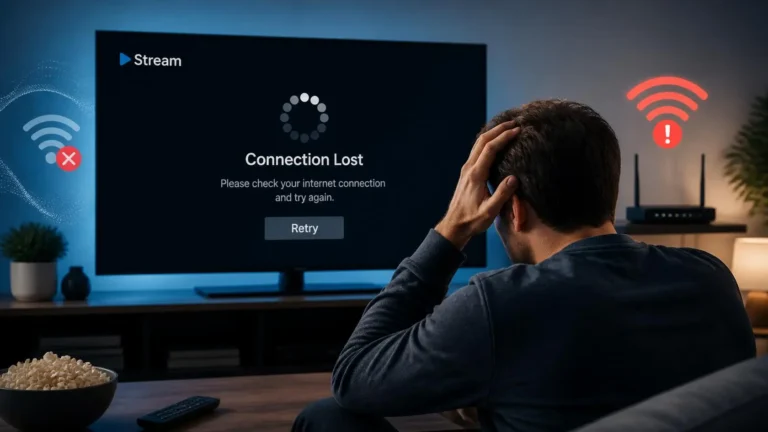
A streaming app can stop working in several different ways. It may refuse to open, close unexpectedly, show a blank screen, fail to load content, become unresponsive, or display an error when you try to play a video.
These problems do not always come from your internet connection. The app itself, device software, account session, storage, permissions, or the streaming service can all play a role.
If you are dealing with a streaming app not working, the most useful approach is identifying exactly where the failure occurs before changing multiple settings.
Start With the Exact Problem
First, describe what the app is actually doing. There is a real difference between an app that will not open, opens but stays on a loading screen, opens but shows no content, displays an error message, plays audio without video, plays video but keeps buffering, closes or crashes, stops responding after you select something, or works on one device but not another. The symptom gives you a starting point.
For example, an app that crashes immediately needs a different troubleshooting approach from an app that opens normally but cannot load a video. Identifying the symptom is especially important when a streaming app not working appears to be an internet problem but other online services are functioning normally.
Check Whether Other Apps Work
Open another application on the same device. If other apps work normally, your device may still have a functioning internet connection and operating system, making the streaming app itself a more relevant place to investigate.
If several applications are failing, check the device and network before focusing only on the streaming app. This simple test can help prevent unnecessary changes to the app.
Check Your Internet Connection
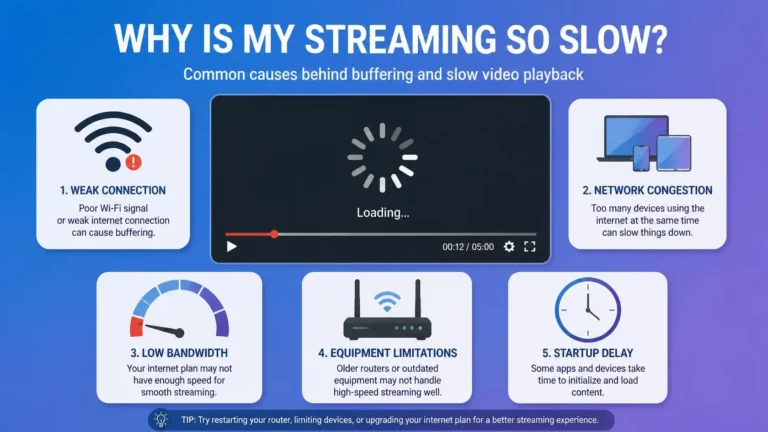
If the streaming app opens but cannot load content, check the connection. Open a website or another online application on the same device. If the connection appears unstable, check whether you are using Wi-Fi, Ethernet, or mobile data, and whether other devices are consuming significant bandwidth.
A streaming app can behave differently from a normal website because playback may depend on additional services involved in authentication, content delivery, and media playback. Do not assume a speed test alone proves the connection is perfect. Stability and access to the required service matter as well.
If you are unsure whether your connection is fast enough for the quality you are trying to watch, see our guide to what internet speed you need for streaming.
If the app reports an actual connection error message rather than just failing silently, our guide on why streaming shows a connection error covers that specific situation in more depth.
Try Another Video
If the app opens normally, try playing a different title. A problem with one video does not necessarily mean the entire application is broken.
If other videos play normally, the problem may be limited to a particular piece of content or the service’s handling of it. If nothing loads, continue with the application and connection checks below.
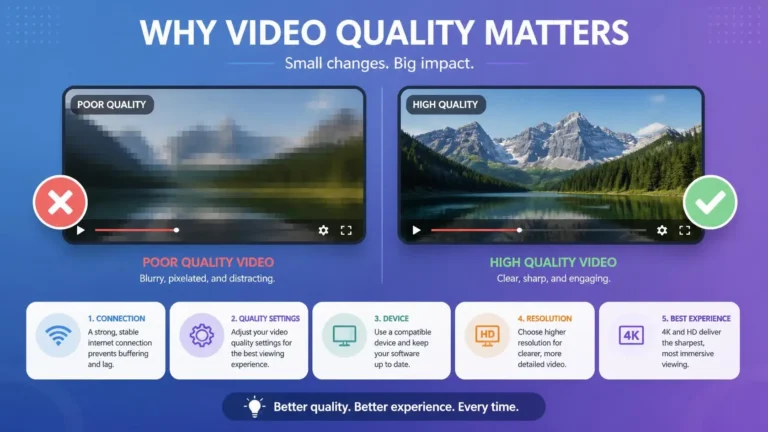
If the video plays but the picture itself looks blurry, pixelated, or unexpectedly low quality, see our guide on why streaming video quality can be poor for a separate diagnosis.
Force Close the App
An application can sometimes remain in an incomplete or unresponsive state. Close it completely and then open it again. The exact method depends on your device.
On a phone or tablet, remove the app from the recent applications view or use the operating system’s application controls. On a computer, close the application normally and make sure it is no longer running before starting it again. On a Smart TV or dedicated streaming device, return to the home screen and use the available application controls.
A simple restart can resolve temporary application states without changing your account or device configuration. Google recommends restarting and force-stopping an application as part of its troubleshooting guidance for apps that crash, refuse to open, or stop responding. Google’s guide to fixing an installed Android app
Restart the Device
If closing the app does not help, restart the device. This gives the operating system and applications a fresh start and can clear temporary problems affecting memory, networking, or background processes.
After the device starts again, open the streaming app before making other changes. If it works after the restart, continue using it normally and watch for the problem returning.
Restarting the device is also a standard step in Google’s current troubleshooting guidance for applications that will not open, crash, or stop responding. Google Play Help
Check for an App Update
Open your device’s official application store and check whether an update is available for the streaming app. An application that is behind the current version can sometimes run into compatibility or functionality problems, particularly after changes to the service or operating system.
If an update is available, install it and test the app again. Also check for operating system updates when the problem affects more than one application or started after a recent system change.
Google’s troubleshooting guidance recommends checking both app and system updates when an application crashes, will not open, or does not respond.
Keeping the application and operating system current is particularly useful when a streaming app not working problem starts after a device software change.
Check Your Device Storage
Very limited storage can create problems for applications and the operating system. Check the available storage on the affected device.
If storage is nearly full, remove files or applications you no longer need and then restart the device. You do not need to delete large amounts of data simply because a streaming app is having a problem. Check the available space first and make changes only if storage is genuinely limited.
Google’s Android guidance also recommends checking available storage when a device is experiencing certain app and system problems. Android Help notes that devices can begin experiencing problems when available storage becomes very low.
Clear the App Cache When Appropriate
Some devices let you clear an application’s temporary cache. Cached files can become outdated or corrupted, and clearing them can sometimes help when an application repeatedly fails to load correctly. The exact procedure depends on the operating system.
Before clearing anything, know the difference between cache and app data. Clearing cached temporary files is generally a smaller change, while clearing application data may remove stored settings or sign-in information and can require you to sign in again.
If your device does not provide a separate cache option, do not reach for a more destructive reset simply because that option is unavailable.
Google’s Android guidance includes clearing an app’s cache and data as a later troubleshooting step and warns that clearing app data can remove information stored by the application.
Check Your Account
If the application opens but you cannot access content, check the account associated with the service. Look for sign-in problems, expired sessions, account messages, subscription status, profile restrictions, device limits, or payment and billing notices.
Do not assume an account problem is a network problem. If the service provides an account page through its official website, sign in there and check whether the account itself is working normally.
An account issue can explain a streaming app not working even when the application opens normally and other online services work.
Check Whether the Service Works on Another Device
Sign in to the same service on another supported device if you have one available. This is one of the most useful comparisons because it separates an application problem from a wider service or account problem.
If the service works on another device, focus on the original device and application. If it fails on several supported devices, check the account and service status before changing device settings.
Testing another supported device is also useful when trying to determine whether the problem is limited to one application installation or device. YouTube’s current troubleshooting guidance similarly recommends testing playback on another supported device when problems continue.
Try Another Network
If the app opens but cannot connect to the service, test it on another network when possible. A mobile device, for example, can temporarily switch between Wi-Fi and mobile data.
If the application works on the second connection, the original network becomes a more relevant part of the investigation. If it fails on both networks, continue looking at the application, account, device, or streaming service.
This test is more useful than changing advanced network settings without first establishing whether the network is actually involved.
If the app repeatedly loses its connection rather than simply failing to open, our separate guide on why streaming keeps disconnecting covers repeated connection-loss problems in more detail.
Check the Device Date and Time
Some applications and online services depend on correct system time for secure connections and authentication. Check whether the device is using automatic date and time settings where available.
If the date or time is significantly incorrect, correct it and test the application again. This is a device-level check and should not be confused with changing DNS or other network settings.
Google includes checking automatic date and time settings among its troubleshooting steps for certain Android app and Google Play problems.
Check Permissions
Some applications require specific permissions to operate correctly, and the relevant permissions depend on the application and operating system. Review the app’s permissions if it suddenly stopped working after an operating system update or a change to privacy settings.
Do not grant unnecessary permissions simply because an app is failing. Only review permissions that are relevant to the application’s documented functionality.
When the App Opens but Video Does Not Play
An application can function normally at the interface level while playback itself fails. If menus, profiles, and account pages work but video does not, check whether other videos play, whether another device can play the same content, whether your connection is stable, whether the app is updated, whether the device supports the required video format or quality, and whether the service has reported a playback problem.
This is different from an app that cannot open at all. The playback system may have a problem even when the application’s main interface continues to work.
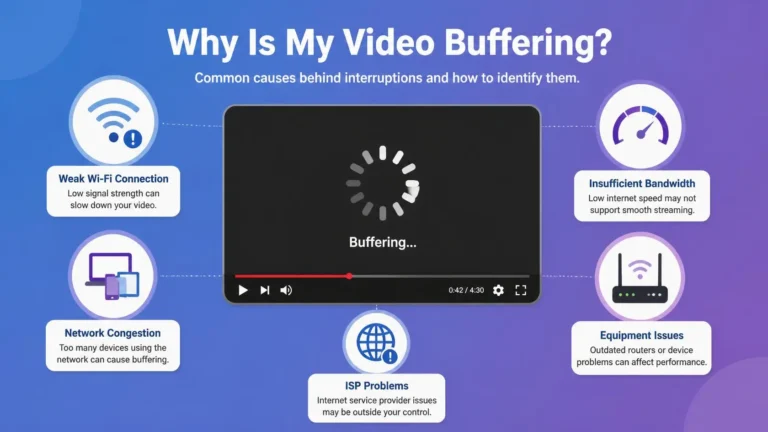
If the problem is specifically repeated loading or playback pauses, see our guide on why streaming keeps buffering. That article focuses on buffering rather than general application failures.
YouTube’s current troubleshooting guidance also recommends checking the connection, app updates, device software, restarting the app or device, and trying another supported device when playback fails. YouTube’s official troubleshooting guide
When the App Keeps Crashing
If the application opens and then closes repeatedly, start with the least disruptive checks. Restart the device, then update the application and operating system if updates are available, and check available storage.
If the problem continues, clear the app cache where the device supports that option. If none of these steps help, reinstalling the application can provide a fresh installation. Remember that reinstalling may remove local application data and require you to sign in again.
These steps are consistent with Google’s current troubleshooting sequence for applications that crash or stop responding.
Reinstall the App as a Later Step
Reinstalling is sometimes useful, but it should not be the first thing you do. Before reinstalling, make sure you know the account credentials needed to sign back in.
Then remove the application, restart the device if appropriate, and install the current version from the device’s official application store. After installation, sign in and test the service again.
If the newly installed application immediately develops the same problem, the cause may be outside the application’s local installation. This is an important distinction when a streaming app not working continues after a clean installation.
Google notes that uninstalling an app can erase data saved by that app, so reinstalling should be treated as a later troubleshooting step rather than an automatic first response.
Browser Streaming Has Different Checks
If you are using a streaming service through a web browser rather than a dedicated application, use browser-specific troubleshooting. Check whether the browser is updated, whether another supported browser works, whether a private or incognito window works, whether extensions affect playback, and whether browser permissions are blocking required functionality.
If the service works in another browser, focus on the original browser rather than changing the entire network configuration. Do not install unknown browser extensions or unofficial playback tools simply because a streaming site displays an error.
For more information about browser-based streaming, our guide on streaming on PC covers browsers, playback settings, displays, and related computer-side issues.
Smart TVs and Streaming Devices
Streaming apps on Smart TVs and dedicated streaming devices have additional variables: network connection, device software, application updates, available storage, device restart, display settings, account status, and whether other applications work.
If several applications fail on the same television or streaming device, investigate the device and network rather than assuming every application has the same problem. If only one application fails while other services work normally, focus on that application and its service.
If you need broader Smart TV troubleshooting, see our guide on why streaming is not working on a Smart TV.
Do Not Change Everything at Once
One of the easiest ways to make troubleshooting harder is changing several settings simultaneously. Do not immediately change DNS, reset the router, reinstall the app, change video quality, reset the device, and modify display settings all at the same time.
If the problem disappears, you will not know which change solved it. Test one step, then check the result. This creates a much clearer troubleshooting path.
This approach also makes it easier to identify the real cause when a streaming app not working problem returns later.
When DNS Is Worth Investigating
DNS can affect how your device locates online services, but it is not a universal solution for application problems. If the streaming app opens and other online services work normally, changing DNS should not be your first response.
Consider DNS when you have evidence of a name-resolution or broader connectivity problem. Make one network change at a time and test the application afterward.
YouTube’s official troubleshooting documentation includes checking DNS among the network settings that may be relevant to certain playback and connection problems, but it does not present changing DNS as a universal solution.
When the Problem May Be With the Streaming Service
Sometimes your device and connection are working correctly. A service-side problem becomes more relevant when the app fails on several devices, other applications work normally, the same account has problems across devices, the issue affects multiple users or locations, the problem started suddenly, or basic troubleshooting has not changed the behavior.
Check the service’s official support channels or status information when available. If the service itself is experiencing a temporary problem, changing settings on your device may not resolve it.
This distinction is important because a streaming app not working does not necessarily mean there is anything wrong with the local installation.
A Simple Troubleshooting Checklist
Work through the checks in this order, since each one narrows down where the actual problem lives.
Identify the exact symptom first: does the app refuse to open, fail to load content, crash, or fail specifically during playback? Test another app to confirm whether the rest of the device is working normally, then test another video to see whether the problem affects one title or everything. Confirm your connection works by checking whether websites and other online services load normally. Close and reopen the app as the simplest reset, then restart the device entirely if that does not help. Check for app and device software updates, and look at storage and any recently changed device settings. Test another device or network to see where the problem actually follows. Reinstall only once these simpler checks have not worked, and if the problem persists across devices and networks, turn your attention to the streaming service itself.
What to Tell Support
If the app still does not work, give the service’s support team useful details rather than only saying the application is broken. Include the exact error message, device model, operating system, app version, whether other apps work, whether other videos work, whether another device works, whether another network works, when the problem started, and the steps you have already tried.
This information helps support staff distinguish between an application issue, account problem, device problem, network problem, and service-side issue.
Providing these details is especially useful when a streaming app not working problem continues after standard troubleshooting.
Frequently Asked Questions
Why is my streaming app not working but the internet is fine?
A streaming application can fail even when general internet access works. The cause may involve the app, account, device software, service connection, or the streaming service itself.
Should I reinstall my streaming app?
Reinstalling can help when the local application installation is damaged or behaving incorrectly, but try restarting the app and device and checking for updates first.
Why does my streaming app work on my phone but not my TV?
The two devices may have different application versions, software, network connections, hardware capabilities, or supported playback features. Testing the same account and content on both devices helps identify where the problem occurs.
Can low storage make a streaming app stop working?
Very limited device storage can affect applications and system operation. Check available storage before deciding whether storage is relevant to the problem.
Should I change DNS if my streaming app is not working?
Not automatically. DNS can affect access to online services, but many application problems have other causes. Establish that DNS or network resolution is involved before changing it.
Why does the app keep crashing?
Repeated crashes can be related to the application, device software, available storage, or compatibility. Restarting the device, updating the app and operating system, and checking storage are reasonable first checks.
Final Check
When a streaming app not working becomes a problem, avoid treating every failure as an internet-speed issue. First identify what the app is actually doing, then compare another video, another application, another device, or another network where possible.
Restart the app and device, check for updates, review storage and relevant settings, and only move to more disruptive steps when the simpler checks do not resolve the problem. If the same application continues to fail across different devices and connections, the problem may be associated with the account or streaming service rather than your local setup.