Why Is Streaming So Slow?
Last reviewed: September 18, 2026
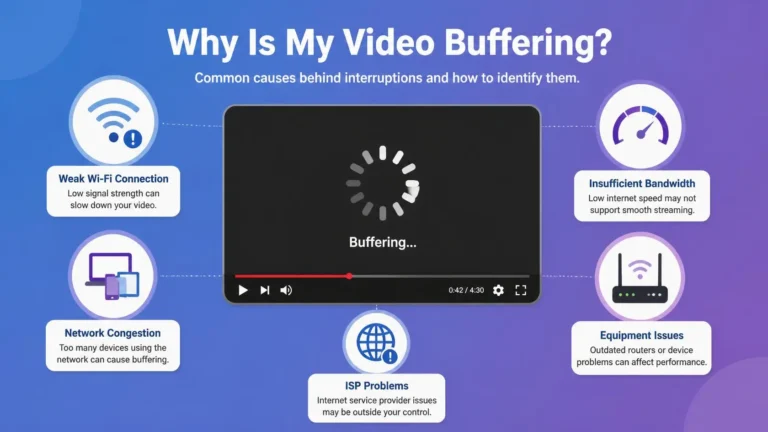
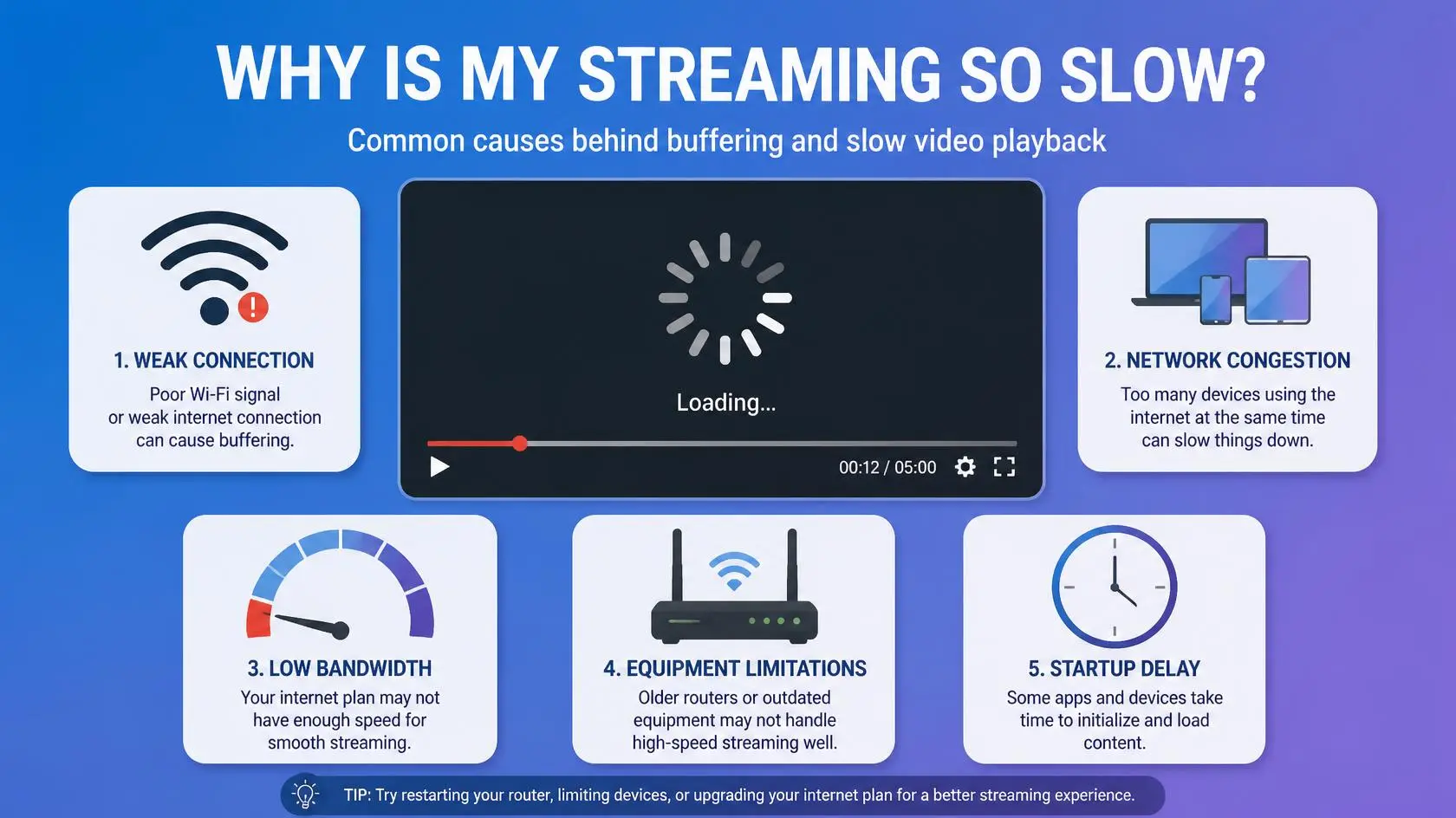
Streaming can feel slow in several different ways. A video may take a long time to start, pause when you seek forward, take too long to recover after an interruption, or the streaming app itself may respond slowly. These symptoms can look similar, but they do not necessarily share the same cause.
If you are wondering why is streaming so slow, the first useful step is identifying exactly what is slow. A problem with starting playback is different from a problem with buffering during playback, and neither necessarily means your internet connection is simply too slow.
What Does Slow Streaming Actually Mean?
“Slow streaming” is not one specific technical problem. It can describe several different symptoms, and each one can point toward a different part of the streaming process.
| What feels slow | What to investigate |
|---|---|
| Video takes a long time to start | Connection, service response, app, or device |
| Video pauses during playback | Connection, Wi-Fi, network activity, or service |
| Seeking takes a long time | Connection, app, device, or stream delivery |
| App menus respond slowly | Device performance or app |
| Video takes too long to recover | Connection stability, Wi-Fi, or service |
| Only one service feels slow | Service, app, account, or title |
This distinction matters because changing your internet connection will not necessarily fix a problem caused by an application, device, browser, or streaming service.
First Check: Is the Internet Actually Slow?
The first thing to establish is whether the connection is actually slow on the device where you watch.
A speed test can provide a useful reference, but it should ideally be performed on the same device and in the same location where the problem occurs. A computer connected close to the router may show a very different result from a Smart TV located in another room.
It is also useful to test the connection when the problem is happening. If streaming becomes slow only at certain times, the result at another time of day may not tell you much about the actual problem.
Streaming services also have their own requirements. YouTube, for example, recommends approximately 5 Mbps for 1080p playback and 20 Mbps for 4K playback. These figures are useful reference points, but they do not mean that a particular speed guarantees identical performance on every service or device. YouTube Help: System requirements and supported devices
If the connection appears fast enough, do not immediately assume that the speed test has found the answer. Other parts of the streaming setup still need to be checked.
Slow Starting vs Buffering
Slow starting and buffering are related, but they are not the same symptom.
If a video takes a long time to begin playing, the delay can involve the application, device, connection, or streaming service. If the video starts normally but repeatedly stops while playing, the problem is more closely related to buffering and playback delivery.
If the main symptom is repeated pauses during playback, see our guide on why streaming keeps buffering. That article focuses specifically on repeated loading and playback interruptions.
Separating these symptoms prevents the troubleshooting process from becoming too broad. A slow application, for example, can make playback feel slow even when the connection itself is working normally.
Check Whether Every Streaming Service Is Slow
Try another streaming service to see whether the same problem occurs.
If one service is slow while another starts normally, the problem may be specific to the application, account, title, or service. If several unrelated services are slow on the same device, the connection or device becomes more relevant.
The same comparison can be made across different titles. If one title takes much longer to start while other content from the same service works normally, there may be a content-specific or service-side factor involved.
This is one of the simplest ways to determine whether the problem belongs to the streaming service or to the device and network you are using.
Check the Streaming Device
The streaming device itself can become a limiting factor.
An older device may take longer to open applications, respond to menus, process video, or switch between playback qualities. Limited storage, outdated software, or general device performance can also affect how responsive streaming feels.
If other applications on the same device are also slow, the problem is less likely to be caused only by the streaming service.
You can also compare the same service on another supported device. If it works normally elsewhere, the original device becomes an important part of the investigation.
YouTube recommends keeping supported devices and software up to date when troubleshooting playback problems. YouTube Help: Troubleshoot YouTube video errors
Check the Streaming App
If the device itself responds normally but one streaming application feels slow, focus on the application.
Start by closing and reopening the app. Then check whether an update is available. Temporary application data can sometimes contribute to problems, although clearing data should not be treated as a universal solution.
If the application continues to behave differently from other streaming apps, compare it with another supported way of accessing the same service. For example, where supported, you could compare the dedicated application with the service’s browser version.
YouTube’s troubleshooting guidance includes restarting the app, checking for updates, and clearing cached data where appropriate. YouTube Help: Troubleshoot YouTube video errors
Check Your Wi-Fi Connection
A fast internet plan does not necessarily mean that every device in your home has a strong Wi-Fi connection.
Distance from the router, walls, interference, network congestion, and the wireless hardware in the device can all affect the connection available during playback.
This is particularly important when the streaming device is far from the router. A speed test performed beside the router may not represent what the television or streaming device receives in its normal location.
Try comparing the connection in the location where you normally watch. If moving the device closer to the router improves performance, the local Wi-Fi connection deserves further investigation.
YouTube also recommends moving the device closer to the router and reducing interference or other network activity when troubleshooting playback problems. YouTube Help: Troubleshoot streaming and video issues
Compare Wi-Fi With Ethernet
If your streaming device supports Ethernet, comparing it with Wi-Fi can help identify whether the wireless connection is contributing to the problem.
Ethernet removes many variables associated with wireless networking. If streaming becomes noticeably more responsive through a wired connection, that does not automatically mean you need to use Ethernet permanently. It simply gives you useful evidence about where the problem may be located.
If both Ethernet and Wi-Fi produce similar results, the investigation can move toward the device, application, internet connection, or streaming service.
Check Other Network Activity
Streaming does not use the entire internet connection by itself. Other devices and activities can use network capacity at the same time.
Large downloads, cloud backups, software updates, online gaming, video calls, and other streaming sessions can all compete for available capacity.
Temporarily reducing heavy network activity can help determine whether another device or process is contributing to the problem. If streaming becomes more responsive afterward, the issue may involve network usage rather than the streaming service itself.
This is also why the advertised speed of an internet plan does not always describe the experience of one device at a particular moment.
Why Can Streaming Be Slow With a Fast Internet Connection?
A fast speed-test result does not eliminate every possible cause of slow streaming.
The connection between the device and router can still be weak. The device may be underperforming, the application may have a problem, or the browser may be affecting playback. A particular streaming service can also experience temporary technical problems.
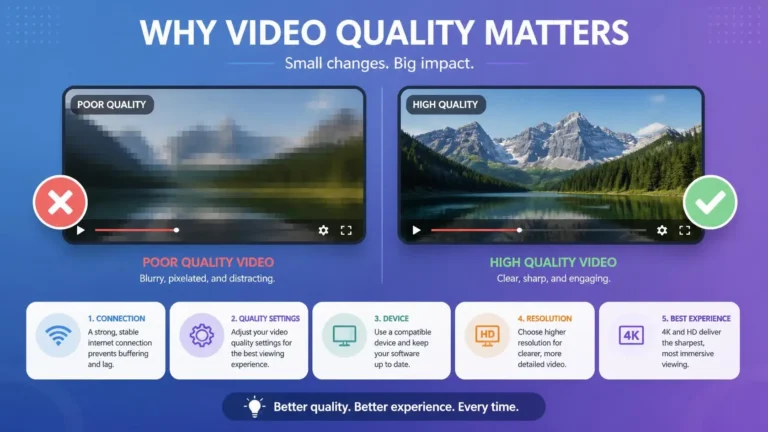
Streaming quality can also be adjusted according to viewing conditions. YouTube explains that factors such as internet speed, the size of the player or screen, the original video quality, and browser support can affect available playback quality. YouTube Help: Change the quality of your video
This is why a speed test should be treated as one piece of evidence rather than a complete diagnosis.
Check Whether the Problem Happens at Specific Times
Pay attention to when the problem occurs.
If streaming becomes slow at approximately the same time each day, note the pattern. A problem that appears consistently during certain periods may point toward network congestion or another time-related factor.
Compare the experience at different times and with different services. You do not need to collect complicated technical measurements. Simply knowing whether the problem happens occasionally or follows a consistent pattern can make the next troubleshooting step clearer.
If the same device and service work normally at other times, that information is useful when determining whether the problem is local to the device or related to the network or service at a particular time.
Test Another Device
Testing another supported device can help separate a device problem from a network problem.
Try the same service on another device connected to the same network. If it works normally there, the original device or application becomes more likely to be involved.
You can also test the same device with another service. This creates a simple comparison between the device and the service without changing several settings at once.
If the problem appears across multiple devices and multiple services, the network connection deserves more attention.
Check for Device and App Updates
Software updates can address compatibility problems, playback bugs, and other issues that affect streaming applications.
Check the streaming application, device operating system, browser, and streaming device software for available updates.
An update will not solve every slow-streaming problem, but using supported and current software removes one common source of compatibility problems. YouTube also recommends updating supported software and devices when troubleshooting playback issues. YouTube Help: System requirements and supported devices
Check Your Browser if You Stream on a Computer
Browser-based streaming can be affected by the browser itself, extensions, cached data, or compatibility issues.
Start by making sure the browser is current. Close unnecessary tabs and test whether the same service behaves differently in another supported browser.
If playback improves in another browser, the original browser becomes part of the investigation. Extensions can also interfere with some websites, so testing without unnecessary extensions can help identify whether one of them is involved.
The browser should also be supported by the streaming service. YouTube recommends using a current supported browser and operating system for playback. YouTube Help: System requirements and supported devices
Clear App or Browser Data Carefully
Clearing temporary data can sometimes help when an application or browser is behaving incorrectly.
However, cache, cookies, saved website data, and application data are not the same thing. Clearing some types of data can sign you out, remove stored preferences, or affect locally stored information.
For that reason, clearing data should be treated as a troubleshooting step rather than the first solution for every slow-streaming problem.
YouTube includes clearing browser cache and cookies, as well as clearing application cache where supported, among its troubleshooting steps. YouTube Help: Troubleshoot YouTube video errors
What About DNS?
DNS can affect how a device finds online services, but changing DNS servers is not automatically a solution for slow streaming.
If other troubleshooting steps do not explain the problem, DNS can be considered as one part of the connection path. It is better to change one network setting at a time so that you can identify whether the change actually affected the problem.
If you change a DNS setting, keep a record of the previous configuration so you can restore it if necessary.
Check the Streaming Service
Sometimes the problem is outside your home network.
A streaming service can experience temporary outages, maintenance, regional problems, or other technical issues. In these situations, changing settings on your device may not solve anything.
Check the service’s official status information when it is available. You can also compare the same service on another device or network.
If other services work normally and only one service is affected, avoid making major changes to your home network until you have ruled out a service-specific problem.
When the Device Is the Bottleneck
A device can become the limiting factor even when the internet connection is fast enough.
This becomes more likely when the entire device feels slow, several applications respond slowly, menus take a long time to open, or playback improves substantially on another supported device.
Device support can also affect available video formats. YouTube notes that higher-quality formats are not available on every device because some devices may not support the required technology. YouTube Help: Change the quality of your video
In this situation, replacing or upgrading the internet connection may not address the actual limitation.
A Complete Troubleshooting Checklist
Work through the checks one at a time rather than changing several settings together.
- Identify exactly what feels slow, test the connection on the affected device, compare another streaming service, check other network activity, test another device, compare Wi-Fi with Ethernet when possible, update the application and device software, and investigate browser, cache, or DNS issues only when the earlier checks do not explain the problem.
✓ The most useful result is not simply knowing that streaming is slow. It is knowing whether the problem follows the service, device, application, browser, network, or connection type.
Slow Streaming Diagnosis Table
| Symptom | Most useful area to investigate |
|---|---|
| Slow start on every service | Network, Wi-Fi, or device |
| Slow start on one service | Application, service, account, or title |
| Playback pauses repeatedly | Connection, Wi-Fi, or network activity |
| App menus are slow | Device or application |
| Browser playback is slow | Browser, extensions, or device |
| Only one device is affected | Device, application, or Wi-Fi |
| Several devices are affected | Network or service |
| Ethernet improves playback | Wi-Fi or wireless environment |
| Another network fixes the problem | Local network or connection path |
| Same problem everywhere | Service, account, or broader connection issue |
What Not to Do First
Do not immediately change every router setting, replace your DNS servers, reset the device, or purchase a faster internet package.
First identify what the problem follows. If only one application is affected, changing the whole network is unlikely to be the most useful first step. If every device and service is affected, the network deserves more attention.
A controlled troubleshooting process makes it easier to understand what actually changed instead of creating several new variables at the same time.
When to Contact Your Internet Provider
Contact your internet provider when the evidence points toward the connection itself.
This is more relevant when several devices have poor performance, multiple unrelated services are affected, wired and wireless connections both perform poorly, or the connection repeatedly drops.
When contacting your provider, explain the pattern rather than simply saying that streaming is slow. Information such as the affected devices, approximate times, connection type, and speed-test results can make the problem easier to investigate.
If the problem only occurs with one application or one streaming service, it is useful to rule out those possibilities before assuming the internet provider is responsible.
FAQ
Why is streaming so slow even though my internet is fast?
A fast connection can still have problems with Wi-Fi quality, network activity, device performance, applications, browsers, or the streaming service itself. A speed test should therefore be considered together with the other symptoms.
Why does streaming take so long to start?
A slow start can involve the network connection, application, device, streaming service, or the particular content being requested. Testing another service or device can help narrow down the cause.
Can Wi-Fi make streaming slow?
Yes. A device may receive a weaker or less stable connection over Wi-Fi because of distance, walls, interference, congestion, or wireless hardware.
Does a faster internet plan always fix slow streaming?
No. More bandwidth can help when the connection is limiting playback, but it cannot automatically fix a slow device, application problem, browser issue, poor Wi-Fi environment, or service-side problem.
Should I change my DNS settings?
DNS can be relevant to some connection problems, but it should not be the first change you make. First establish whether the symptoms point toward a DNS or connection-path issue.
Why is one streaming service slow while another works normally?
The difference may point toward a service-specific issue, application problem, account issue, title-specific problem, or a different delivery path. Testing the affected service on another device or connection can help narrow it down.
Final Takeaway
Slow streaming is not always an internet-speed problem.
The most useful approach is to identify exactly what feels slow and then test one variable at a time. Compare services, devices, Wi-Fi and Ethernet, applications, browsers, and connections before making major changes.
Once you know what the problem follows, it becomes much easier to decide whether the next step involves your network, device, application, browser, or streaming service.
Editorial note: This guide is intended for troubleshooting legitimate streaming services and devices. Recommendations can vary between services, devices, browsers, and network environments.