Why Does Streaming Say There Is a Connection Error?
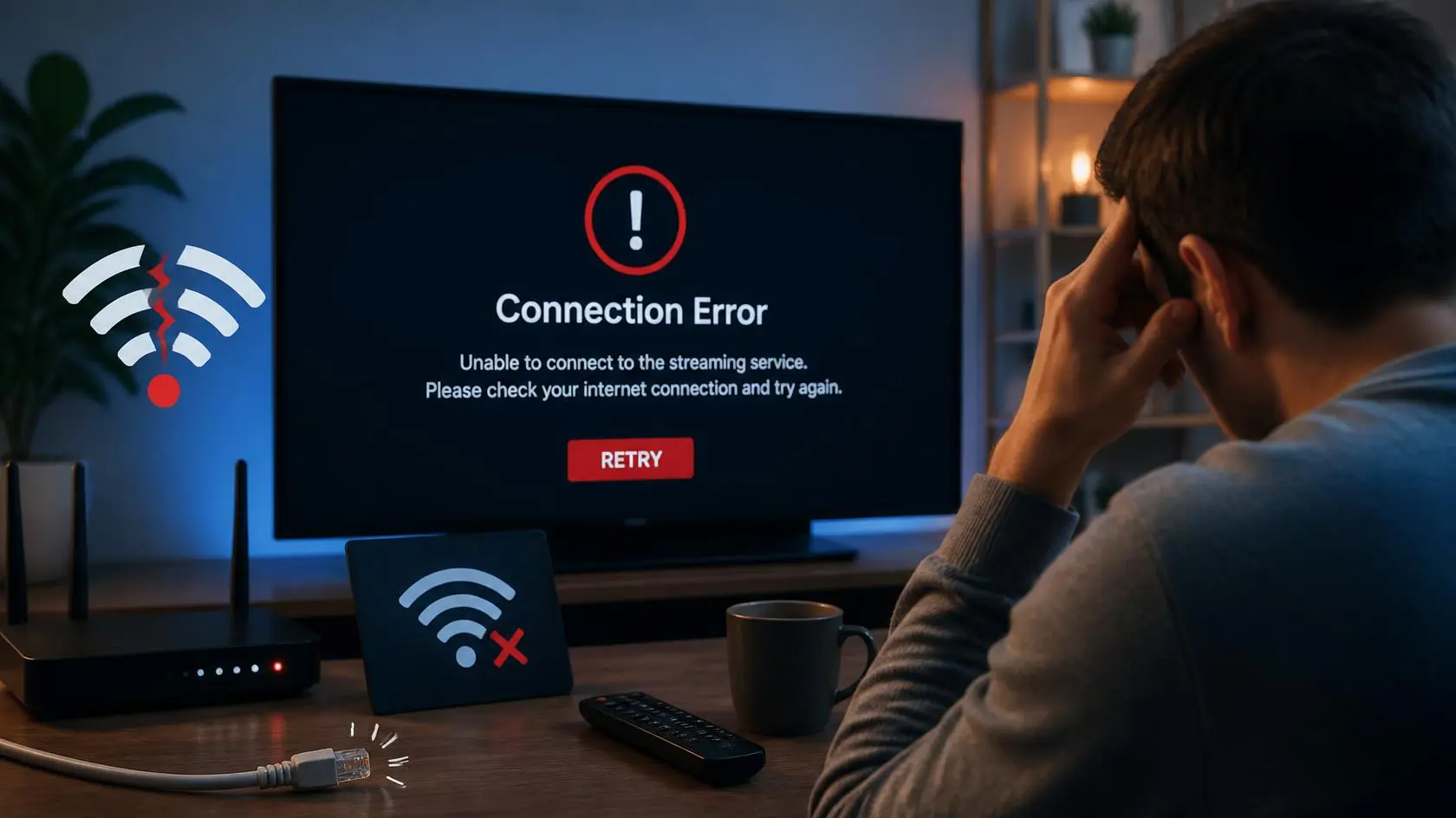
A connection error while streaming can be confusing because the message does not always tell you where the problem is. Your internet may be working normally for other websites, yet a video service may still report that it cannot connect, load the video, or communicate with its servers.
If you are seeing a streaming connection error, the most useful approach is identifying where the connection is failing instead of changing several settings at once. This guide walks through checking your network, device, app or browser, and streaming service so you can narrow down the cause.
What a Streaming Connection Error Usually Means
A streaming connection error generally means the streaming application or player could not complete the communication it needed for playback. The cause can be local or external: your Wi-Fi or wired connection, your router or modem, temporary network congestion, other devices using the connection, the streaming app or browser, device software, DNS or other network settings, or a problem affecting the streaming service itself.
A streaming connection error does not automatically mean your internet connection is completely down. You may still be able to browse websites or use other applications while one streaming service is unable to establish or maintain the connection it needs.
Start by Checking Whether Other Services Work
Before changing anything, open another website or application on the same device. If several unrelated services also fail to load, the problem is more likely tied to your device or network.
If everything else works normally and only one streaming service shows an error, the problem may be specific to that service, its application, or the particular content you are trying to play. This simple comparison can save you from changing network settings unnecessarily when investigating a streaming connection error.
Check the Connection on Another Device
Try the same streaming service on another device connected to the same network. If the error appears on a laptop, try the service on a phone or tablet using the same Wi-Fi connection. The result helps separate a device-specific problem from a wider network problem.
If the second device works normally, concentrate on the original device, browser, or application. If both devices show the same connection error, investigate the network or streaming service next. Testing another connection can provide another useful comparison, whether that means temporarily switching from Wi-Fi to mobile data or using another available network. YouTube’s own guidance recommends changing the internet connection when troubleshooting video loading and playback problems.
If the same connection error appears on two different devices connected to the same network, the network or service becomes more relevant than the original device alone.
Check Whether the Problem Happens With Every Video
A connection error affecting every video is different from an error affecting one particular title. Try another video from the same service. If one title fails while other content plays normally, the problem may be related to that specific content or how the service handles it.
If every video fails, continue with the connection and application checks below. This distinction matters because repeatedly restarting your router will not necessarily solve a problem limited to one piece of content.
Test the Internet Connection
Run a connection speed test on the affected device. Do not look only at the advertised speed of your internet plan. The important question is what the device is actually receiving at the time of the problem.
Network conditions can change throughout the day, and multiple devices sharing the same connection can reduce the bandwidth available to a streaming device. YouTube’s troubleshooting guidance also recommends checking connection speed and considering other devices on the same network when diagnosing video errors.
A speed test is not a complete diagnosis, though. A connection can show a reasonable download speed while still experiencing instability, packet loss, interference, or other problems that affect playback. That distinction is important when a streaming connection error appears even though a speed test looks normal.
For a broader explanation of the connection capacity needed for different streaming qualities, see what internet speed you need for streaming.
Check Wi-Fi Before Changing Advanced Settings
If the affected device uses Wi-Fi, look at the wireless connection first. Consider how far the device is from the router, whether walls or other obstacles sit between them, whether other devices are using the network heavily, whether the connection gets worse in a particular location, and whether the problem disappears on a wired connection.
If the device is close to the router, try the streaming test again. If possible, testing the same device with Ethernet can help too. If streaming works consistently over Ethernet but not Wi-Fi, the comparison points toward the wireless connection rather than the streaming service itself.
Restart the Router and Device
A restart is a simple diagnostic step, especially when the connection problem appeared suddenly. Restart the affected device first and test the service again.
If the error remains, restart the router or network equipment according to the manufacturer’s instructions, and allow the connection to return fully before testing the stream again. Do not change DNS, router settings, or other advanced options at the same time. Changing one thing at a time makes it far easier to identify what actually affected the problem. YouTube’s troubleshooting guidance also recommends restarting the app or device and, for TV playback problems, power cycling the device.
Check the Streaming App
If the connection itself appears normal, the application may be the next place to investigate. Start by completely closing the streaming app and opening it again, then check whether an update is available. An outdated application can sometimes behave differently from the current version of the service.
You should also check for available device software updates if the problem continues. For Android devices specifically, Google recommends restarting the device and checking for application and system updates when an installed app is not working correctly. On supported devices, clearing an application’s cache can also be a useful step, though the exact process depends on the operating system and device. Do not clear application data or remove saved information unless you understand what the action will reset.
If the application continues to show a streaming connection error while other applications work normally, testing the same service through another supported device can help determine whether the app or device is involved.
Check Your Browser
If you are streaming through a web browser, test the service in another supported browser and check whether the current one is up to date. If the service works in another browser, the problem may be connected to the original browser rather than your internet connection.
Browser extensions can also interfere with video playback. YouTube specifically recommends checking extensions and testing playback in a private or incognito window with extensions disabled when troubleshooting certain video errors. If the problem disappears in that test, enable extensions again one at a time to identify whether one of them is involved.
Check Your Device Software
A streaming connection error is not always caused by the network. An outdated operating system, device software, or application can affect how a streaming service operates. Check for available updates on your phone or tablet, your computer, your Smart TV, your streaming device, the streaming application, and your web browser.
YouTube’s current troubleshooting guidance recommends keeping the browser, application, and device software up to date when dealing with playback errors.
Check DNS Only When the Evidence Points There
DNS translates domain names into network addresses so devices can locate online services. A DNS problem can therefore affect access to a streaming service even when your general internet connection appears to work fine.
Changing DNS should not be your first response to every connection error you see while streaming, though. If websites load normally and only one streaming application reports an error, changing DNS may not address the actual cause. DNS becomes more relevant when you see broader connection problems, domain-resolution errors, or a difference between networks that suggests a name-resolution issue. Make one change at a time and test the service afterward.
YouTube’s official troubleshooting documentation also includes checking DNS settings among the possible steps for certain video and connection errors. See YouTube’s official video-error troubleshooting guide for additional information.
Check Whether the Service Is Having a Problem
Sometimes the problem is outside your home network entirely. If the same service fails on several devices and different connections, investigate whether the service is experiencing a temporary outage or technical problem.
This is especially worth checking when your internet works normally, other streaming services work, multiple devices show the same error, the problem started suddenly, or it continues after restarting your devices and network equipment. In this situation, repeatedly changing settings on your own network may not help. A service-side problem requires the provider to resolve the issue, not you.
If several devices and networks produce the same streaming connection error, the service itself becomes a more important part of the investigation.
When Only One Streaming Service Fails
Suppose your internet works, websites load, and other streaming services play normally, but one service continues to show a connection error. The problem is less likely to be a general loss of internet access.
At this point, check whether the service works on another device, whether it works on another network, whether the application and browser are updated, whether the service has reported an outage, and whether the problem affects every title or only one. This gives you a much clearer picture before contacting the service’s support team.
When Several Streaming Services Fail
If several unrelated streaming services suddenly stop working, investigate the shared part of the setup, starting with the network connection itself. Check the router, Wi-Fi, Ethernet connection, and other devices using the network.
If the problem affects multiple devices and applications, contact your internet provider once the issue continues after basic network troubleshooting. YouTube also notes that connection problems can prevent access to its service and recommends checking whether other websites work normally when diagnosing access problems.
A Connection Error Is Not the Same as Buffering
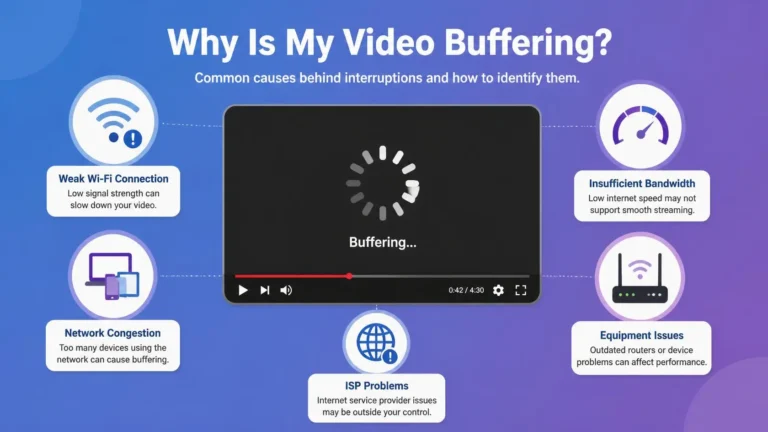
A connection error and buffering can look similar, but they are not exactly the same problem. Buffering usually means playback has started but the player does not have enough usable media data to continue smoothly. A connection error means the application or player has encountered a problem communicating with the service or retrieving what it needs.
The two can also occur together. An unstable connection may first cause repeated buffering and eventually result in a streaming connection error once the player can no longer maintain the required connection. Understanding the difference helps you choose the right troubleshooting step instead of treating every playback problem as a speed issue. Our guide on why streaming keeps buffering covers that specific problem in more depth, and our guide on why streaming keeps disconnecting covers the related but distinct problem of a session repeatedly dropping and reconnecting.
A Simple Troubleshooting Sequence
If you want to work through the problem without changing unnecessary settings, use this order: test another website to confirm whether the internet works normally, try another video to check whether the problem affects one title or all content, try another device to identify whether the problem is device-specific, and check the connection with a speed test and a look at Wi-Fi or Ethernet.
From there, restart the app, then the device, and test playback again. Check for updates to the app, browser, and device software where appropriate. Try another network temporarily to see whether the original one is involved, and check whether the streaming service itself might be having a problem if multiple devices and networks show the same issue. If none of that resolves it, contact support with the error message, device, connection type, and the troubleshooting steps you have already completed.
What Information Should You Give Support?
If the problem continues, avoid simply reporting that “streaming does not work.” Useful information includes the exact error message, the streaming service, the device model, the operating system version, the app or browser version, whether other services work, whether other devices are affected, whether you are using Wi-Fi, Ethernet, or mobile data, whether the problem occurs with every video, and when it started.
This information makes it far easier for the service or your internet provider to determine which part of the connection actually needs attention.
Frequently Asked Questions
Why does streaming say there is a connection error when my internet works?
Your internet connection can work for normal browsing while a particular streaming service has a problem connecting to its servers. Testing another service, device, or network can help identify where the problem actually occurs.
Can Wi-Fi cause a streaming connection error?
Yes. An unstable wireless connection can interfere with communication between your device and the streaming service. Testing the same device through Ethernet or another network can help determine whether Wi-Fi is involved.
Should I change my DNS when streaming shows a connection error?
Not automatically. DNS can affect access to online services, but changing it is not a universal fix. First determine whether the problem affects other websites, services, devices, or networks.
Why does one streaming service work while another shows a connection error?
Different services use different applications, servers, network paths, and technical systems. A problem affecting one service does not necessarily mean your entire internet connection is failing.
Can restarting my router fix this kind of connection problem?
It can help when the router or local network connection has temporarily run into a problem. It is a useful basic troubleshooting step, but it will not fix every service-side or application-related error.
Final Check
When a streaming connection error appears, start with the simplest comparison rather than immediately changing advanced settings. Check whether other websites and services work, try another video and another device, test the connection, restart the application and device, check for updates, and compare another network when possible.
If the same error follows you across different devices and connections, the problem may be outside your local setup. A methodical approach makes it easier to identify whether the issue is coming from your network, device, application, or the streaming service itself.