Why Streaming Buffers With Fast Internet Even When Speed Tests Look Fine
Why Streaming Buffers With Fast Internet Even When Speed Tests Look Fine
You ran the speed test twice. It says 200 megabits per second. The movie still freezes every ten minutes, and you want to throw the remote through the screen.
You are not imagining the problem, and your internet provider is not exactly lying either. Streaming buffers with fast internet because a speed test and a video stream measure two different things.
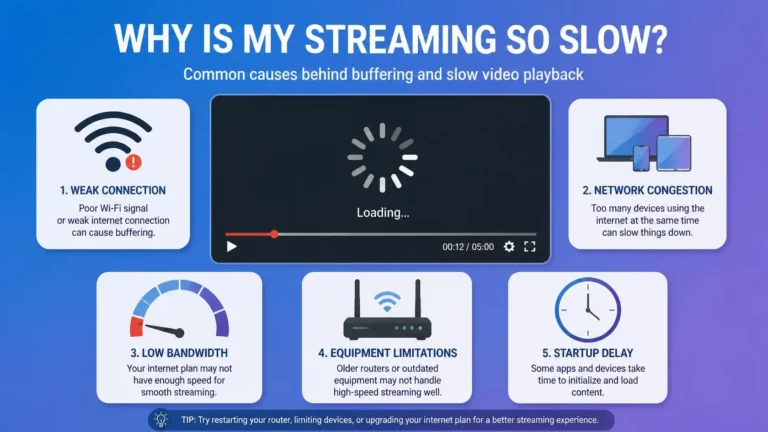
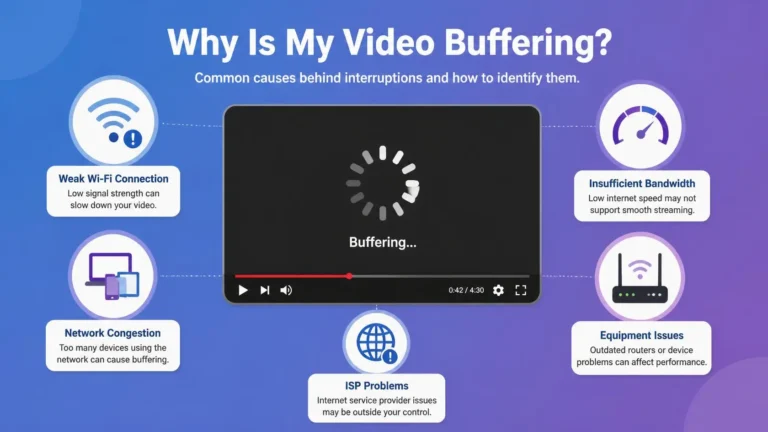
This guide walks through the eight most common causes, one by one. Each cause comes with its fix, so you can test and rule things out in a single evening.
The good news: this is one of the most solvable streaming problems. Almost every cause below has a test you can run tonight, with equipment you already own.
Speed tests do not test your streaming
A speed test measures the road between you and the nearest test server. Your movie travels a different road, from the streaming company’s servers to your TV.
That second road can be slower, longer, or more crowded. The number on your screen says nothing about it.
Netflix runs its own test at fast.com, and it measures speed to Netflix servers. Run it on the device that stutters, in the evening when you actually watch. If that number is much lower than your regular test, you found the gap.
Run the test twice: once on your phone next to the router, once on the TV across the house. A big gap between the two readings points at your home network. Your provider is off the hook in that case.
Also note which server your test uses. Some tests let you change the server. Picking one far away gives a lower number that means nothing.
When streaming buffers with fast internet, check your Wi-Fi first
Wi-Fi causes more cases of streaming buffers with fast internet than anything else. The signal has to cross walls, furniture, and competing signals from your neighbors.
A router that advertises 300 megabits may deliver 40 to a TV two rooms away. That is still enough for one 4K stream, but barely, and any interference tips it over.
Move the TV or streaming stick closer for one evening as a test. If the buffering stops, Wi-Fi was the bottleneck, and a cable or better router placement is the permanent fix.
The cheapest lasting fix is a network cable between the router and the TV. If a cable is impossible, try the 5 GHz band on your router, which is usually less crowded than 2.4 GHz.
Free phone apps can show which Wi-Fi channels your neighbors use. Switch your router to an emptier channel, and the interference drops.
Microwaves and baby monitors chatter on 2.4 GHz. If buffering strikes every evening at dinner time, look at what else switches on in your kitchen.
Latency hurts more than raw speed
Streaming needs data to arrive steadily. A connection can be fast on paper and still deliver packets in uneven bursts.
Gamers call this lag. For video, uneven delivery empties the player’s buffer, and the spinning circle appears.
Fast.com shows two latency numbers when you click “Show more info”: unloaded and loaded. A big gap between them means your connection chokes when busy, which engineers call bufferbloat.
Restart your modem and router, then retest. If the gap stays large, look for a quality-of-service setting in your router, which lets video traffic jump the queue.
Some routers let you cap upload speed slightly below the maximum. This sounds backward, but it keeps the queue short and the video smooth.
Your provider’s road to the streaming service gets crowded
Evenings are rush hour for the internet. Everyone in your neighborhood streams at once, and the links between providers fill up.
Your plan is the same size it was at noon. The shared road to the video servers is simply fuller at 9 p.m.
Test your speed at 8 p.m. and again after midnight. A big difference tells you streaming buffers with fast internet for reasons outside your walls. That is your provider’s problem to solve.
Call them and mention evening slowdowns specifically. Ask whether your neighborhood node is congested. If they promise a fix date, ask for it in writing.
Dense apartment blocks feel rush hour most, and rural streets feel it least. The number of neighbors sharing your street’s equipment decides how bad it gets.
During the 2020 lockdowns, Netflix publicly lowered streaming quality in Europe to ease the networks. Peak-hour pressure is real, even when it stays invisible.
Your router may be the tired middleman
Every byte of your movie passes through your router. This little box is a prime suspect when the network looks fine.
Ten phones, two TVs, a game console, and a laptop all ask for attention at once. A five-year-old router was not built for that crowd.
Unplug the router for thirty seconds, then plug it back in. This clears its memory and often helps for days.
Check for a firmware update in the router settings. If the router is more than five years old and the problem persists, replacing it is the honest fix.
Put the router high and in the open, not inside a cabinet. A router buried behind the TV cabinet loses signal before the data even leaves the room.
Count your connected devices once. Most families are shocked to find twenty or more, from doorbells to smart bulbs.
Something is uploading in the background
Downloads get all the attention, but uploads can ruin a stream. Cloud photo backups, video calls, and game updates all push data upstream.
A saturated upload slows everything down, including the small confirmation messages your stream needs. The video cannot flow smoothly if its confirmations get stuck.
Open your router’s app and look at which devices are active. Pause cloud backups while you watch, and schedule big uploads for the night.
Ask others at home before the movie starts. One person uploading phone videos to the cloud can stall everyone else’s evening.
Game consoles are sneaky uploaders. They download updates at night and upload clips and saves without asking, so check their settings too.
Old devices decode video slowly
The TV itself can be the bottleneck. A 2016 smart TV has a weak chip and an old Wi-Fi radio by today’s standards.
It may show full signal bars and still fail to decode a 4K stream smoothly. The network delivers the data, and the TV chokes on it.
Try the same service on your phone, standing next to the TV. If the phone plays fine, the TV is the weak link.
A modern streaming stick costs less than a dinner out and offloads the work from the old TV. Set the playback quality to 1080p manually if 4K still stutters.
Cables age as well. A damaged Ethernet cable can silently drop a gigabit link to 100 megabits, which still looks fine until 4K stutters.
Slow DNS delays every stream start
Before any video loads, your device asks a directory where the service lives. That directory is called DNS, and a slow one adds a pause to everything.
Most home connections use the provider’s directory by default. It is not always the fastest option.
Cloudflare runs a free directory at 1.1.1.1, and setup takes minutes in your router or device settings. Google offers one at 8.8.8.8 with the same idea.
This will not fix a congested evening connection. It removes one small delay from every stream start, and small delays add up.
Change the DNS in the router if you can, so every device benefits at once. Changing it on one TV helps only that TV.
A ten-minute routine that finds the culprit
Start with the simplest isolation test. Plug the streaming device into the router with a cable for ten minutes. Let the cable cross the room if it must.
If the cable fixes it, your Wi-Fi is the problem, and you now know where to spend your effort. If the cable changes nothing, the problem lives further upstream.
Next, run fast.com on the device twice: once at 8 p.m. and once late at night. Compare the numbers and the loaded latency.
Finally, check the router for unfamiliar devices and pause any cloud backups. Most cases of streaming buffers with fast internet surrender to one of these checks.
Write down the numbers from each test. If you end up calling your provider, those notes turn a vague complaint into evidence.