How to watch streaming services abroad without the headaches
Your flight lands, you open your favorite app at the hotel, and half your watchlist looks unfamiliar. First-time travelers hit this wall every year, and it always feels like a trick. It is not a trick. Catalogs change across borders because studios sell rights country by country.
The fix is boring in the best way. If you want to watch streaming services abroad without surprises, the real work happens before you leave home. A few downloads and a quick settings check take about twenty minutes total.
This guide walks through each step in the order that saves you the most trouble. Nothing here bends any rules. Every method below is official and documented by the services themselves.
The simplest way to watch streaming services abroad
Start with downloads, because a movie saved on your phone does not care about hotel Wi-Fi. Netflix, Disney+, and Prime Video all let you save titles inside their apps for offline viewing. The download icon looks like a downward arrow, and it sits on the details page of any title that supports it.
On Netflix, open the app on your phone or tablet and tap Downloads, then browse what you can save. Not every title carries the download option, since studios control those rights title by title. When you find the arrow, tap it and wait for the circle to fill.
Disney+ works the same way on phones and tablets, though it skips downloads on computers and TVs. Prime Video allows downloads in its mobile apps and on Fire tablets, plus the Windows app. Each service sets its own limits on how many titles you can keep, and Netflix’s Help Center explains the current limits in plain language.
Downloaded titles expire. Most services give you around 30 days, and many start a 48-hour countdown once you press play. Reconnect to the internet before the deadline and the app refreshes the license. For a two-week trip, download in the week you fly and you stay comfortably inside the window.
Turn on Smart Downloads in the Netflix app and it handles episodes for you. The feature grabs the next episode of a series automatically and deletes the one you finished. It only works on ad-free plans and only over Wi-Fi, so it never touches your mobile data.
Check your plan before you count on downloads
Your subscription tier decides what you can save. Some budget plans with ads leave downloads out entirely, while standard and premium plans include them. Open your account page at home and confirm that downloads appear on your plan.
Count your devices too. Plans limit how many screens can download or stream at once, and a family trip can hit those caps fast. If your teenager downloads a season on a tablet, that counts against the same allowance as your phone.
Profiles travel with you. Kids profiles, maturity filters, and your watchlist stay exactly as you set them, no matter which country you open the app in. Set all of that up before departure, because hotel Wi-Fi is a terrible place to reset a forgotten PIN.
Know what is actually available where you are going
A show on your home screen may vanish from the app the moment you land. Studios license titles per country, so every service shows a different catalog in each market. You can still watch streaming services abroad, but expect the lineup to shift.
Some services skip certain countries entirely. Check the service’s official availability information for your destination before you pack. Five minutes of reading beats an evening of staring at an error screen.
Travelers inside the European Union get a break here. Under the EU’s portability rules, paid services must let you use your home catalog while you visit another EU country. The rule covers temporary travel, not permanent moves, and it applies to subscriptions you pay for.
Outside that situation, plan around the difference instead of fighting it. Downloads made at home keep playing regardless of the local catalog. Your watchlist becomes a packing list.
Sort out data before streaming eats your budget
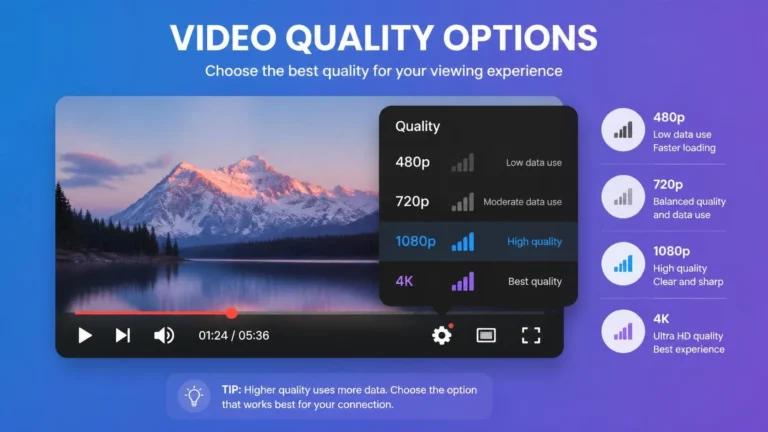
Video devours mobile data. Netflix’s own figures put an hour of HD near three gigabytes, and 4K climbs toward seven. Netflix’s Help Center shows exactly how much data each quality setting uses. One movie on roaming data can cost more than the snack budget for your entire row.
Call your carrier before you fly. Many offer travel passes or day rates that beat standard roaming charges by a wide margin. Buy the pass before departure, because activating it from a foreign network is its own adventure.
A local SIM or eSIM with a data bundle often wins on price for longer stays. You can install an eSIM before you even leave, so you land already connected. Keep your home SIM safe in the hotel safe.
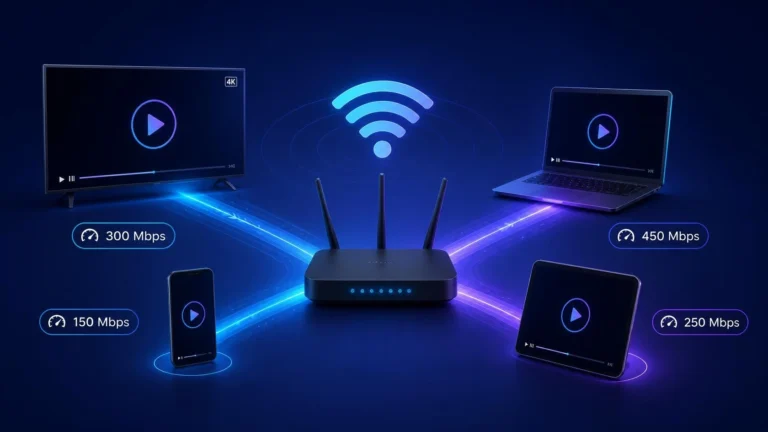
Hotel Wi-Fi is a lottery. Some hotels stream 4K without blinking, while others choke on a video call. To watch streaming services abroad on hotel Wi-Fi without stutter, test the connection with a short clip before you settle in for movie night.
If a two-minute trailer stutters, a two-hour film will stutter more. That is also why streaming keeps buffering on hotel Wi-Fi more often than at home.
Whatever you choose, handle downloads and app updates the night before, on your home Wi-Fi. Airport internet is too slow to rescue a half-finished queue.
Keep your devices and accounts safe on the road
Hotel smart TVs remember logins longer than you would like. Sign out of every app on a shared TV when you finish watching, every single time. Better yet, skip the hotel TV and watch on your own tablet or phone.
A streaming stick you packed yourself beats a hotel TV you have never met. It carries your logins and profiles, and it leaves nothing behind when you unplug it. If you are still deciding between a smart TV and a streaming device for home, travel is where the stick earns its keep.
Update every streaming app before you leave. Old versions cause strange errors, and app stores sometimes behave oddly on foreign networks. An update over home Wi-Fi takes two minutes and prevents a whole category of travel headaches.
If an app misbehaves at your destination, check the service’s official help pages first. They document country-specific quirks, from payment verification to device limits. Random forum advice ages badly, while the help center stays current.
Photograph your hotel room number and the Wi-Fi password when you check in. You will need both more often than you expect, and the little card on the desk always disappears.
Set languages and subtitles before you leave
Subtitle and audio options follow your profile across borders, but downloaded titles need the tracks saved in advance. Open each download’s language menu at home and confirm your preferred audio and subtitles are included.
Families should set this per profile. Your kids may want cartoons dubbed in your home language while you prefer original audio with subtitles. Doing this on hotel Wi-Fi wastes the exact data you are trying to save.
Some downloads carry fewer audio tracks than the streamed version. Studios occasionally limit offline language options, so verify while you still have fast internet. Discovering the missing dub at 35,000 feet helps nobody.
Downloaded subtitles sometimes default to the wrong language on the first play. Open the subtitle menu during the opening seconds and switch it once, and the app remembers your choice for the rest of the trip.
Run this pre-flight routine the night before
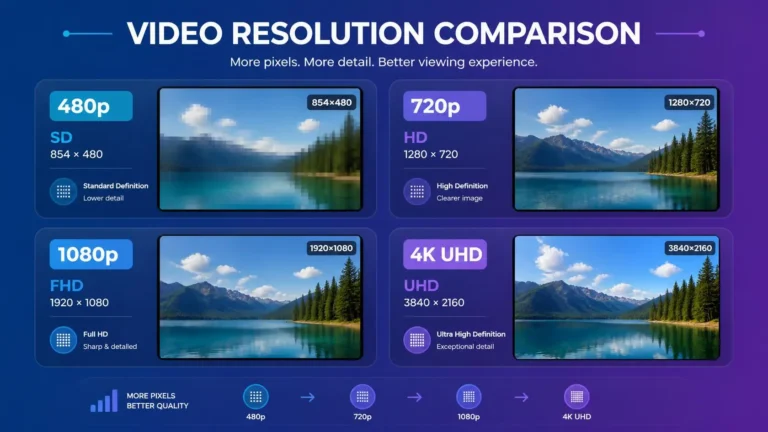
Two nights out, update the apps and clear space on your devices. A full phone cannot download anything, and deleting old downloads takes seconds. Pick Standard quality for most titles, since it looks fine on a phone screen and halves the storage. That is when lower quality is the smarter choice, and you can read how much data an hour of streaming uses to plan the rest.
The night before, queue your downloads on home Wi-Fi and let them finish completely. Half-downloaded episodes do not play, and airport Wi-Fi is too slow to rescue them. Plug the phone in and let it work overnight.
At the airport, switch on airplane mode and press play on one download per app. This thirty-second test catches expired licenses and corrupt files while you can still fix them. If a title refuses to play, re-download it on the terminal Wi-Fi.
When you land, connect and glance at what is available, then lean on your downloads first. They need no data and ignore every catalog difference. Prepare at home, relax abroad, and watch streaming services abroad exactly the way you planned.