Why Is My Streaming Video Quality Poor?
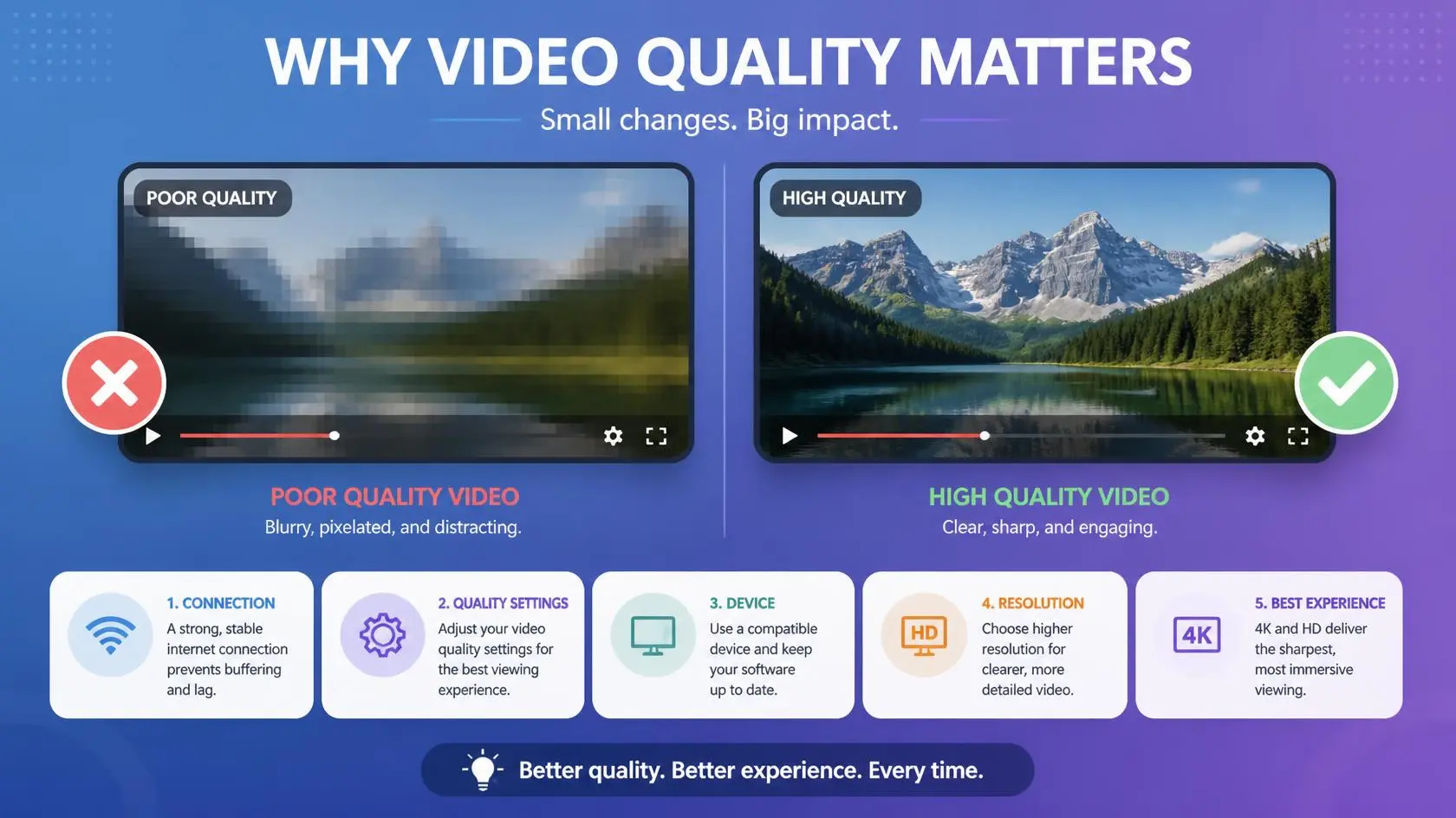
A streaming video can look blurry, pixelated, soft, or noticeably worse than expected even when the video eventually plays without buffering. If you are wondering why your streaming video quality is poor, the cause may be related to the connection, playback settings, device, display, or the content itself.
Poor quality does not always mean your internet connection is too slow. A streaming player can lower video quality when conditions change, and some devices and displays have limitations that affect what you can actually see. The first step is identifying whether the problem affects one video, one app, one device, or everything you watch.
Start by Identifying the Type of Quality Problem
Before changing any settings, look closely at what is actually wrong. Different symptoms point toward different causes, and the table below maps common ones to what they usually mean.
| What you see | What it may indicate |
|---|---|
| Video looks blurry during movement | Temporary quality reduction or compression |
| Fine details look soft all the time | Lower playback resolution or source quality |
| Blocks appear around faces or objects | Heavy video compression |
| Quality changes during playback | Adaptive bitrate switching |
| 4K option is missing | Device, content, plan, or service limitation |
| 4K is selected but the picture looks like HD | Playback or display limitation |
| HDR picture looks unusually dark | HDR/display configuration issue |
| Only one title looks poor | Source or title-specific limitation |
| Every app looks poor | Device, display, or connection issue |
| Quality is good on one device but poor on another | Device, app, or display difference |
This distinction matters because the correct fix depends on what is actually changing.
Check the Playback Quality Setting
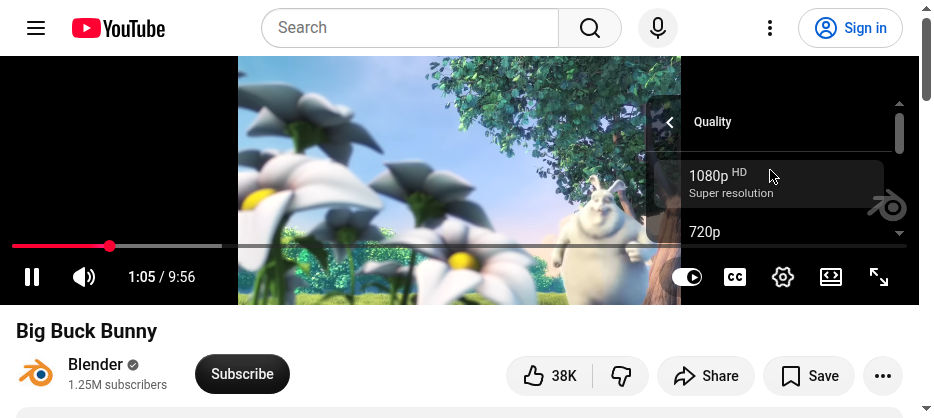
The first thing to check is the quality setting inside the streaming player. Many services provide automatic quality selection, and the player can drop to a lower-quality version when network conditions or other playback factors change.
If the player is set to Auto, check whether you can manually select a higher quality for testing. If manually selecting a higher quality improves the picture and playback stays stable, the issue may involve automatic quality selection rather than the display itself.
Do not assume manually choosing the highest setting is always the right move. If the connection cannot consistently support it, playback may become less stable instead of more.
Test the Same Video at Different Qualities
A useful test is comparing two or more available quality levels, such as 480p, 720p, 1080p, 1440p, and 2160p/4K. The exact options depend on the service, device, title, and account.
If 480p and 720p look normal but 1080p or 4K repeatedly falls back or becomes unstable, investigate the connection and device requirements for the higher quality. If every quality level looks unusually soft, though, the problem probably sits elsewhere entirely. This test tells you far more than simply running a speed test.
Check Whether the Quality Changes During Playback
If the picture starts sharp and then suddenly becomes blurry, the player may be switching to a lower-quality version. This can happen with adaptive bitrate streaming.
Streaming services prepare multiple versions of the same video at different bitrates and resolutions, and a compatible player switches between those versions as network conditions change. Once conditions improve, the player may move back to a higher-quality version. This behavior is different from a permanently low-quality source, and our guide on what adaptive bitrate streaming actually is covers how this technology works in more detail.
Check Your Connection During the Quality Problem
Do not rely only on the internet speed you normally receive. A connection can perform differently from one moment to the next, particularly when several devices are active.
While the poor quality is happening, check whether other people are streaming, a computer is downloading a large file, cloud storage is synchronizing, a game console is downloading an update, several devices are sharing the same Wi-Fi, or the streaming device has a weak wireless signal. If the picture becomes clearer once other network activity stops, available bandwidth or network conditions are likely contributing. For general bandwidth requirements, see our guide on what internet speed you need for streaming.
Check Wi-Fi Where the Device Is Located
A speed test on a phone beside the router does not necessarily represent the connection your television or streaming device receives in another room. Walls, distance, interference, router placement, and the device’s wireless hardware can all affect Wi-Fi performance.
If your streaming device uses Wi-Fi, try moving it closer to the router and compare the picture. If quality improves, investigate the wireless connection. If Ethernet is available, compare Wi-Fi against Ethernet the same way. A consistent difference between the two points toward the local wireless connection rather than the display itself.
Make Sure the Content Actually Supports the Quality You Expect
A common mistake is assuming every title is available in the same resolution. Streaming services may offer different quality levels depending on the specific title, the service, your subscription, the device, your region, content licensing, or the available version of that title.
A missing 4K option, in other words, does not automatically mean your television or internet connection is failing. Try another title that the service clearly advertises as available in the quality you want. If that second title offers higher quality on the same device and connection, the original title likely has its own source or availability limitation.
Check Whether Your Device Supports the Desired Quality
Your streaming device must support the quality and formats actually being delivered. Depending on the setup, this can involve resolution support, video decoding capabilities, app support, operating-system support, HDR compatibility, HDMI capabilities, and display capabilities.
A television can have a 4K panel while a particular application or connected device does not deliver 4K in that configuration. That is why the label on the television alone does not tell you everything about the playback chain behind it.
4K Is More Than a Picture Setting
If you are specifically troubleshooting 4K, several components need to work together: the streaming service, the application or player, the streaming device, the HDMI connection where applicable, and the display itself. A limitation at any single stage can affect the final result.
For example, if a streaming device does not support the required 4K format, selecting 4K on the service does not suddenly make the device capable of displaying it. For a detailed explanation of 4K itself, see our guide on what 4K streaming actually is. The troubleshooting question here is different: why is my 4K content not actually appearing in the expected quality?
Check the HDMI Connection for External Devices
If you use a separate streaming box or stick connected to a television, the HDMI connection becomes part of the troubleshooting process. Confirm the streaming device is connected directly to the appropriate HDMI input, the cable is suitable for the required video signal, the television input supports the required resolution and features, and any intermediate equipment such as an AV receiver or switch supports the same requirements.
If you are testing 4K or HDR, the entire connection path needs to support that signal. Avoid replacing cables immediately. First determine whether the problem actually changes when you use another compatible HDMI connection or device.
Check HDR Separately From 4K
4K and HDR are related, but they are not the same thing. 4K primarily describes image resolution, while HDR describes a wider range of brightness and related image characteristics.
A display can support 4K without supporting every HDR format, and HDR availability depends on the content, service, device, and display. If the image is sharp but the colors or brightness look wrong, the problem may be related to HDR rather than resolution. For that situation, see our guide on what HDR streaming actually is.
Why Does Video Look Pixelated?
Pixelation often appears as visible blocks, especially around moving objects, faces, or detailed scenes. Possible causes include a low playback bitrate, a temporary quality reduction, network limitations, heavy source compression, or a lower-resolution stream being selected.
Pixelation that disappears once the player moves back to a higher quality is usually tied to adaptive streaming. Pixelation that shows up consistently in one title, though, more likely reflects the source quality itself. Either way, do not assume pixelation automatically means your television is defective.
Why Does Video Look Blurry Even Without Buffering?
Buffering and picture quality are separate issues, and a video can play continuously while still looking poor. Smooth playback with zero buffering can still deliver a blurry picture if the problem lies in the selected resolution, bitrate, source quality, display settings, or device configuration.
That is exactly why troubleshooting video quality should never begin and end with checking internet speed alone. If the video is actually stopping to load rather than simply looking poor, see our guide on why streaming keeps buffering.
Check the Device’s Display Resolution
If you are watching through a computer, phone, tablet, television, or external streaming device, check what resolution the device is actually outputting. For an external device, that output resolution may be configurable.
A mismatch can occur when the source is high resolution, the streaming device outputs a lower resolution, and the display simply receives that lower-resolution signal. Menu names vary between manufacturers, so use the device’s own documentation when changing display settings, and change one setting at a time so you can actually track what helped.
Check the App or Browser
If the problem only happens in one streaming application, investigate the application before touching your entire network. Try closing and reopening the app, checking for an available update, restarting the device, signing out and back in if the service requires an account, and checking whether the same service works correctly on another supported device or platform.
For browser playback, also check whether the browser is updated and officially supported by that service. If another application produces normal quality on the same device, that is useful evidence the display itself probably is not the main problem.
Clear the App Cache When Appropriate
Some devices let you clear an application’s cached data, which can help when an app behaves oddly after repeated use or an update. Clearing app data may remove locally stored settings or require you to sign in again, though, so use this option only when you understand what it removes.
Do not treat cache clearing as a universal fix for poor video quality.
Check Whether the Problem Follows the Device
One of the easiest ways to narrow this down is comparing devices. Use the same streaming service, title, account, and network, then compare two supported devices side by side.
If Device A shows poor quality but Device B looks normal, investigate Device A, its application, output settings, or display connection. If both devices show the same problem, look more closely at the service, content, or network instead.
Check Whether the Problem Follows the Display
If possible, connect the same streaming device to another compatible display. If the picture looks normal on the second display, the original television or monitor becomes an important part of the investigation. If the picture stays poor, the display is less likely to be the primary cause.
This kind of controlled comparison is far more useful than changing several settings at once and hoping something sticks.
A Practical Diagnosis Table
Use whichever row below matches what you are actually seeing.
| Test result | What to investigate next |
|---|---|
| Only one title has poor quality | Content/source availability |
| One streaming service has poor quality | App or service |
| All services are poor on one device | Device or display |
| All devices are affected | Network or service conditions |
| Lower quality works normally | Connection capacity or stability |
| Wi-Fi is poor but Ethernet is good | Wireless network |
| Another device works normally | Original device or app |
| Another display works normally | Original display or connection |
| 4K option is unavailable | Content, account, device, or service support |
| 4K is selected but output is lower | Playback chain or device configuration |
| Picture is sharp but HDR looks wrong | HDR compatibility/configuration |
The table is not a diagnosis by itself. It is a way to decide what to test next.
When Poor Quality Is Probably Not an Internet Problem
Consider another cause when only one title looks poor, other services look normal, lowering or raising the quality setting makes no difference, another device produces a clear picture on the same connection, the source itself appears heavily compressed, the display has a configuration issue, or the problem happens even when the network is performing normally.
Recognizing these patterns can save you from making unnecessary changes to your router or internet plan.
When the Internet Connection Is More Likely Involved
The network deserves more attention when quality repeatedly drops during playback, the problem affects multiple services, several devices are using the connection heavily, Wi-Fi performance changes depending on location, Ethernet performs better than Wi-Fi, lowering quality consistently improves playback, or the problem happens mainly during periods of heavy network use.
In that situation, compare the connection under normal and reduced network activity to confirm the pattern.
A Complete Diagnostic Checklist
Work through these checks in order rather than changing several things at once. Each one narrows down whether the cause is the content, service, app, device, network, or display.
- Is the correct playback quality selected, and does the quality change mid-playback?
- Does another title on the same service have the same problem, and does another streaming service show it too?
- Does another device produce better quality on the same network and account?
- Is the streaming device actually receiving a stable connection, and does Ethernet perform differently from Wi-Fi?
- Is another device on the network using significant bandwidth right now?
- Does the content itself actually support the quality you expect, and does your device support the required resolution and format?
- Are the streaming app and device software both updated?
- Is the display configured correctly, and if you are using an external device, have you checked the HDMI connection?
- Are you confusing an HDR problem with a 4K problem? They call for different fixes.
The goal is not simply to make the picture look better by changing random settings. The goal is figuring out why the quality is poor in the first place, so you can address the actual cause.
If the problem is caused by temporary network conditions, improving the connection may help. If it is caused by an application, device, display, or content limitation, changing the internet connection may accomplish very little. A few controlled comparisons can usually tell you which direction to investigate.
Frequently Asked Questions
Why is my streaming video quality poor but there is no buffering?
A stream can play continuously at a low resolution or bitrate. Poor quality does not necessarily require visible buffering. Check the selected quality, content availability, device capabilities, and network conditions.
Why does my streaming quality keep changing?
The player may be using adaptive bitrate streaming and switching between available video versions as network conditions change. A changing picture does not automatically mean the streaming service or television is defective.
Why is my 4K streaming not actually 4K?
The service, title, account, application, streaming device, connection path, or display may be limiting the available quality. Check whether another supported 4K title works on the same setup, and verify the capabilities of each part of the playback chain.
Why does streaming look blurry on my Smart TV?
Check the selected playback quality, Wi-Fi connection, streaming application, TV software, content availability, and display settings. If another service looks sharp on the same television, the problem is probably specific to the original app or content.
Can slow internet make streaming video quality poor without causing buffering?
Yes. A streaming player can reduce quality to keep playback continuous instead of stopping completely. The result can be a smooth but noticeably lower-quality picture.
Why does the same streaming service look better on another device?
Different devices can have different application support, video capabilities, display resolutions, decoding capabilities, and connection conditions. Comparing devices is a genuinely useful way to isolate the problem.
Should I upgrade my internet package because my video quality is poor?
Not immediately. First determine whether the problem is actually related to available bandwidth or network stability. If only one title, app, device, or display is affected, increasing internet speed may not address the cause at all.