Why Does Streaming Keep Disconnecting?
A streaming video that repeatedly loses its connection can be harder to diagnose than ordinary buffering. The player may work normally for several minutes, suddenly stop, reconnect, and then disconnect again later. Sometimes the video resumes on its own, and sometimes you have to press play again.
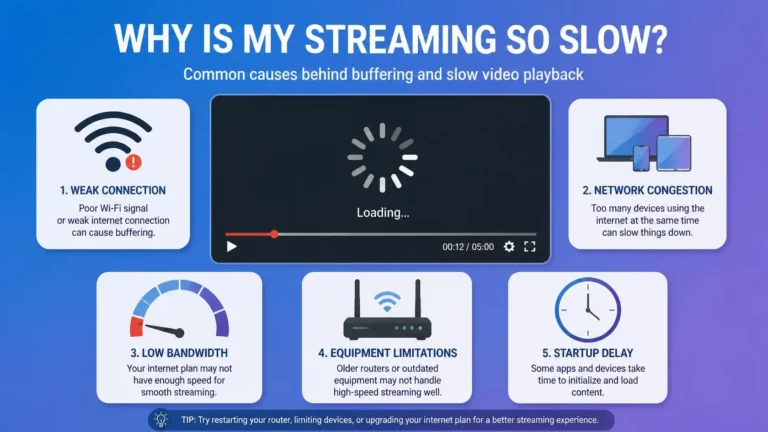
If you are wondering why does streaming keep disconnecting, the most useful approach is looking at the pattern of the interruptions. A weak Wi-Fi connection, unstable network, router issue, device problem, application error, DNS configuration, mobile connection, or temporary streaming-service problem can all produce similar symptoms.
The important distinction is that a connection can be fast enough for streaming while still being unstable. Repeated disconnections are not automatically a sign that you need a faster internet package.
Start With the Pattern
Think about what happens immediately before the stream disconnects. Does it happen only on one device, only with one streaming service, every few minutes, when several people are using the network, only over Wi-Fi, after the device has been playing for a while, on every video, at particular times of day, or only when using mobile data? These details can narrow the problem considerably when you are trying to understand why does streaming keep disconnecting.
For example, if your Smart TV disconnects while a phone and computer keep working normally, the problem more likely involves the TV, its application, or its connection to the router. If every device loses its connection at roughly the same time, investigate the network itself.
Watch What Happens to the Other Devices
The quickest way to separate a device problem from a wider network problem is checking another device the moment the disconnection happens. If a television stops streaming while your phone still has internet access, your computer still loads websites, and another television keeps playing normally, that makes a problem affecting the entire internet connection less likely.
Now consider the opposite situation: the stream stops, websites stop loading, and several connected devices lose access at the same time. That points toward the local network, router, or internet connection. You do not need to make changes yet. Simply observing what else happens during the interruption gives you useful evidence.
Look at the Connection Icon
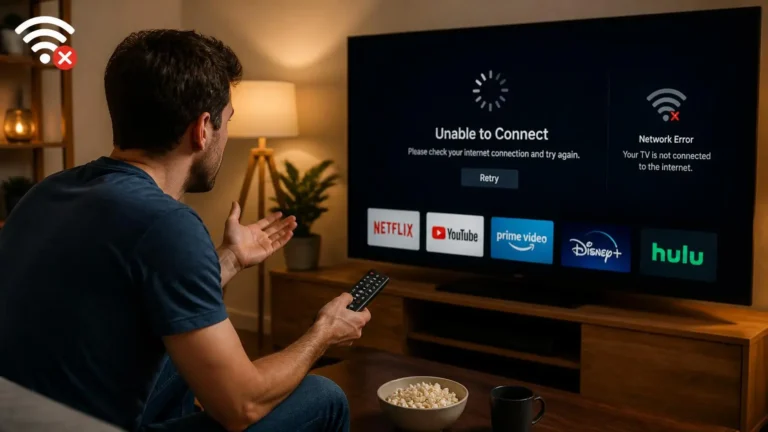
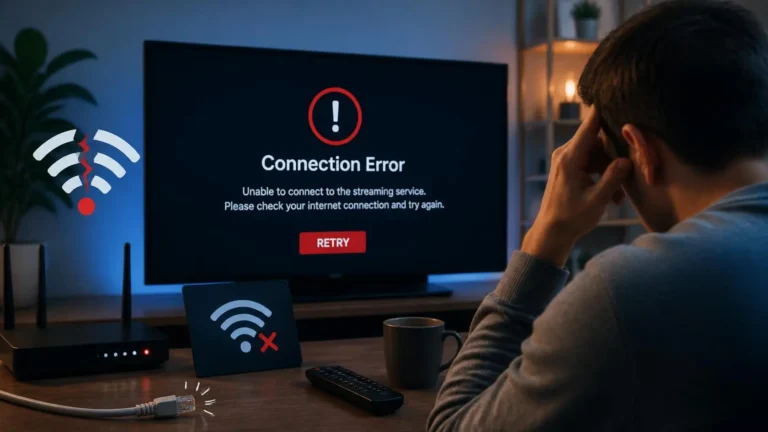
When the stream disconnects, check the device’s network status if it provides one. A Wi-Fi symbol may disappear, show a weak signal, or indicate that the device has connected again. Some devices instead display a message like “no internet connection,” “network unavailable,” “connection lost,” “unable to connect,” or “server unavailable.” The exact wording varies by device and application.
If the device itself reports lost network connectivity, investigate the connection before focusing on video playback settings. If the network stays connected but only the streaming application stops working, investigate the application or streaming service instead.
Wi-Fi Can Disconnect Without Your Internet Being Completely Down
Wi-Fi is a local wireless connection between your device and router, which means there are two different things to consider: the connection between the device and the router, and the connection between the router and the internet itself. A problem with the first can interrupt streaming even when the internet service entering your home is functioning normally.
Distance from the router, walls, interference, congestion, and the device’s wireless hardware can all affect the local connection. If your streaming device is in a room far from the router, test it closer to the router when possible. If the disconnections become less frequent, the wireless connection deserves further investigation.
Try Ethernet as a Diagnostic Test
If your streaming device supports Ethernet, connecting it directly to the router provides a useful comparison. You are not necessarily trying to make Ethernet your permanent setup. The purpose is finding out whether Wi-Fi is involved.
Try the same service and, where possible, the same content. If the stream repeatedly disconnects over Wi-Fi but stays connected through Ethernet, focus on the wireless network. If both connections disconnect the same way, the problem probably needs a wider investigation. This test is particularly useful because it removes several wireless variables at once.
Restart the Router, But Pay Attention to What Changes
Restarting your router can clear temporary network problems, but treat it as a test rather than a permanent explanation. Wait until the router has fully reconnected, connect the streaming device again, play the same service, and observe whether the disconnection returns.
If the problem disappears temporarily and then returns later, note how long the connection remained stable. For example, a stream that works for several hours after a router restart but begins disconnecting again tells you more than simply saying “restarting the router fixed it.” If restarting makes no difference at all, move on to the next test rather than repeatedly restarting the equipment.
Check Whether Other Devices Are Using the Network Heavily
A home network can become busy without anyone deliberately doing anything unusual. Large downloads, game updates, cloud backups, security cameras, software updates, and other video streams can all generate network traffic.
Temporarily pause significant network activity and test the stream again. If the connection stays stable afterward, investigate how your network behaves when several devices are active. If the stream still disconnects with very little other activity happening, look elsewhere. Repeated disconnections are not necessarily caused by a lack of total internet speed. Network stability matters just as much.
For a broader explanation of the connection capacity needed for different streaming qualities, see what internet speed you need for streaming.
Check the Streaming App
If the network stays connected but the video repeatedly loses playback, the application may be involved. Start with simple steps: close the application, open it again, restart the device, check for an application update, check for system updates, and test another supported title.
Official YouTube troubleshooting guidance recommends steps such as restarting the app or device, checking for updates, trying another internet connection, and testing playback on another supported device when video problems continue. See YouTube’s official troubleshooting guide for the service’s current troubleshooting recommendations.
If the same application disconnects while other streaming applications work normally, that is useful evidence. You can also test the affected service on another supported device. If it works normally there, investigate the original application or device rather than changing your entire network.
When the Problem Follows Your Account or Service
Sometimes the same streaming service behaves differently from other services. Try another title within the same application. If one title repeatedly disconnects while others stay stable, the problem may be related to that content or how the service delivers it.
If every title in the application disconnects but another streaming service works normally, investigate the affected service and application. If the same account and service disconnect on multiple supported devices, the problem is less likely to be limited to one television, phone, or streaming box. That does not prove the service itself has a technical problem, but it gives you a reason to check its official support or service-status information. This comparison can provide useful evidence when determining why does streaming keep disconnecting across several devices.
Check for Router or Network Reconnection
A router may briefly lose its connection to the internet and reconnect without making the problem obvious. If you notice the stream disconnecting at the same time websites stop loading, messages stop sending, other devices lose internet access, the router’s internet indicator changes, or devices reconnect afterward, the issue is broader than the streaming application.
If your router provides connection or event logs, they may contain useful information about repeated reconnections. Do not change advanced router settings simply because you find a log, though. First identify whether the disconnections are actually happening at the router level.
Could DNS Be Responsible?
DNS can be relevant when a device needs to resolve a domain name before communicating with a service. It should not be treated as the automatic solution to repeated streaming disconnections, though.
If your device can consistently access websites and other online services while one streaming application repeatedly loses playback, changing DNS may not address the underlying problem. DNS becomes more relevant when you see failed domain resolution, specific connection errors, services that cannot be reached while other internet activity works fine, or problems that change when you switch to another network. If you suspect DNS, test the theory rather than changing settings without evidence.
YouTube’s official troubleshooting documentation also includes checking DNS settings among the possible steps for certain video and connection errors. See YouTube’s official video-error troubleshooting guide for additional information.
A dedicated DNS troubleshooting article, once published, will cover this topic in more depth without mixing it into every streaming problem.
Test Another Network
One of the strongest diagnostic tests is using a different internet connection when practical. For a phone or tablet, you may be able to compare the normal Wi-Fi connection with mobile data. For another device, you might test it on a different trusted network.
If your normal network produces repeated disconnections but a different network gives stable playback, that points attention toward the original network or its internet connection. If the same service disconnects on both networks, investigate the device, application, account, or streaming service instead. Be careful when using mobile data for testing, since video playback can consume significant data.
Check Whether the Problem Happens Only on Wi-Fi
If the streaming device is wireless, run a simple comparison. Use the device normally and observe the disconnections, then, if supported, test the same device using Ethernet. Another option is moving the device temporarily closer to the router.
If the problem changes significantly, the local Wi-Fi connection becomes a stronger suspect. If there is no difference between locations and connection types, avoid spending time repeatedly changing Wi-Fi settings without testing other possibilities.
Consider the Device’s Power and Software State
A device that has been running continuously for a long time can occasionally develop temporary software problems, especially worth considering when the streaming application is not the only thing behaving strangely. Watch for slow menus, apps taking longer to open, delayed remote-control responses, unexpected restarts, several applications becoming unstable, or system messages about storage or updates.
If these symptoms appear alongside streaming disconnections, restart the device and check its available updates. If the device returns to normal afterward, monitor it rather than immediately replacing hardware.
Check Available Storage
Some streaming devices and Smart TVs have limited internal storage, and if the device is nearly full, application and system behavior can become less predictable. Check whether your device provides a storage-management screen, and remove applications or content you no longer need if storage is genuinely low.
Do not assume low storage is the cause of every disconnection. It becomes relevant when the device also shows broader performance problems.
Mobile Streaming Needs a Different Test
If you are streaming over mobile data, Wi-Fi troubleshooting does not apply the same way, since the connection can change as the device moves between locations or cellular conditions shift. Pay attention to whether disconnections happen in one particular location, while moving, indoors but not outdoors, during periods of weak cellular signal, or when switching between network types.
If another application using the mobile connection also loses connectivity at the same time, the problem may be related to the cellular connection rather than the streaming application.
Check Whether the Problem Happens at a Specific Time
Repeated timing can reveal a pattern. Suppose the stream works normally throughout the day but disconnects regularly during a particular period. Record the times for several occurrences, then compare other devices, other services, Wi-Fi versus Ethernet, and general internet access during that same window.
If several devices experience connection problems at the same time, investigate the wider network. If only one streaming service is affected, investigate that service separately. A repeated pattern provides far more useful information than one isolated disconnection.
Do Not Confuse Disconnecting With Buffering
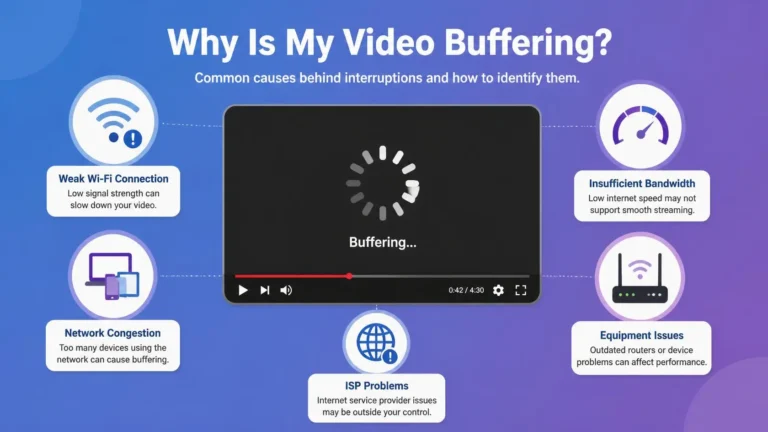
The two problems can look similar on screen, but they are not the same thing. With buffering, the device generally stays connected but does not receive enough media data quickly enough to continue playback. With a disconnection, the application or device may actually lose communication with the service or network entirely.
A stream can also move from one problem to the other: the connection becomes unstable, playback slows, buffering begins, and the connection is eventually lost. This is why observing the network status at the moment of failure matters. If your main problem is repeated loading without an actual connection loss, our guide on why streaming keeps buffering covers that situation instead.
What If Streaming Disconnects Only After Several Minutes?
A delayed failure is an important clue. If playback starts normally and then disconnects after roughly the same amount of time, consider device software, application behavior, Wi-Fi stability, router behavior, network conditions, device temperature, or service-specific problems.
Try the same service on another device. If the second device stays connected for much longer, the original device becomes more relevant. If both devices fail after similar periods, investigate the network and service instead. The time pattern does not automatically identify the cause, but it is evidence that can guide the next test.
A Controlled Troubleshooting Checklist
Work through the problem in stages rather than changing everything at once, since each step gives you real evidence instead of a guess.
- Reproduce the problem using the same service and, if possible, the same title, and note approximately when the disconnection occurs.
- Check another service to see if it works normally.
- Check another device on the same network.
- Compare the connection by trying Ethernet instead of Wi-Fi if possible.
- Reduce network activity by pausing large downloads, backups, updates, and additional streams, then test again.
- Test another network if you can, to see whether the same device behaves differently elsewhere.
- Only after these basic tests should you start considering more advanced causes like DNS configuration or router settings.
When the Router or Provider Deserves Attention
Look more closely at the router when several devices lose connectivity together, Wi-Fi devices disconnect at the same time, Ethernet also loses internet access, the router repeatedly reconnects, the problem affects unrelated online activities, restarting the router only provides temporary relief, or the issue shows up across multiple streaming services. Check the router’s physical placement, power connection, firmware updates, and any available diagnostic information.
If those same signs persist after checking the router itself, particularly if the router repeatedly loses its internet connection, general internet access drops at the same time as streaming, or the problem continues for several days despite restarting your equipment, it is worth contacting your internet provider. Before you do, note what you actually tested. Something like “the streaming connection drops on two devices, Ethernet also loses internet access, and websites stop loading at the same time” gives support staff a far clearer starting point than simply reporting that one video stopped playing.
When the Streaming Service Should Be Investigated
Focus on the service when other services work normally, the same service disconnects on multiple devices, several titles within that service have the same problem, the problem continues on another network, or your devices maintain their internet connection when playback stops.
Check the service’s official support information or status page if one is available. Avoid assuming an outage exists based on your own experience alone, since a service can also have an issue affecting a specific region, device, application version, or content delivery path.
What You Should Avoid Changing Without a Reason
Repeated disconnections can make you want to change every network setting you can find, but that usually makes diagnosis harder. Avoid immediately changing DNS, resetting the router to factory defaults, changing advanced Wi-Fi settings, buying a new router, upgrading your internet plan, replacing every cable, resetting your Smart TV, or reinstalling every application.
Make one change at a time and test again. If the problem disappears, you will then have a reasonable idea of what actually made a difference.
Frequently Asked Questions
Why does streaming keep disconnecting but the internet still works?
The device may still have general internet access while the streaming application loses communication with its service. Test another streaming service and another device to determine whether the problem follows the application, device, or service.
Can weak Wi-Fi cause streaming to disconnect?
Yes. An unstable wireless connection can interrupt communication between the streaming device and router even when the internet connection itself has adequate capacity. Moving closer to the router or comparing Wi-Fi with Ethernet can help identify whether Wi-Fi is involved.
Why does streaming disconnect every few minutes?
Repeated timing can indicate an ongoing network, device, application, or service problem. Test another device and service, then compare Wi-Fi with Ethernet if possible. The timing itself does not identify the exact cause.
Should I change DNS when streaming keeps disconnecting?
Not automatically. DNS can be relevant to certain connection and name-resolution problems, but repeated disconnections have many possible causes. Establishing a DNS-related symptom first makes the troubleshooting process more useful.
Why does streaming disconnect on my Smart TV but work on my phone?
The TV may have a different Wi-Fi connection, application version, operating system, or hardware configuration. Compare the TV and phone on the same network and test another application on the TV.
Why does streaming work after restarting my router but disconnect again later?
A temporary improvement after restarting the router suggests the restart changed something about the network state, but it does not identify the underlying cause. Observe how long the connection stays stable and whether other devices experience the same problem.
Can Ethernet fix streaming disconnections?
Ethernet can eliminate many wireless-related variables, but it cannot fix every type of disconnection. If Ethernet produces stable playback while Wi-Fi does not, the wireless connection is worth investigating. If both disconnect, look at the device, router, internet connection, or streaming service.
Why does only one streaming service keep disconnecting?
The issue may be specific to the application, service, title, account environment, or how that service is reaching your device. Testing another title, device, and network can help narrow down the cause.
Final Takeaway
Repeated disconnections are best investigated by looking at what changes when the connection fails. If only one device disconnects, start with that device and its connection. If Wi-Fi fails but Ethernet stays stable, investigate the wireless network. If every device loses internet access, look toward the router or internet provider. If one streaming service fails across several devices and networks, investigate the service or application.
Do not assume a faster internet package, a new router, or a different DNS server will solve the problem before you know where the connection is actually failing. A few controlled tests can narrow the possibilities considerably and help you make changes based on evidence rather than guesswork. The goal is to identify the point of failure rather than simply react to the symptom, which is central to understanding why does streaming keep disconnecting.