Why Is Streaming Not Working on Smart TV?
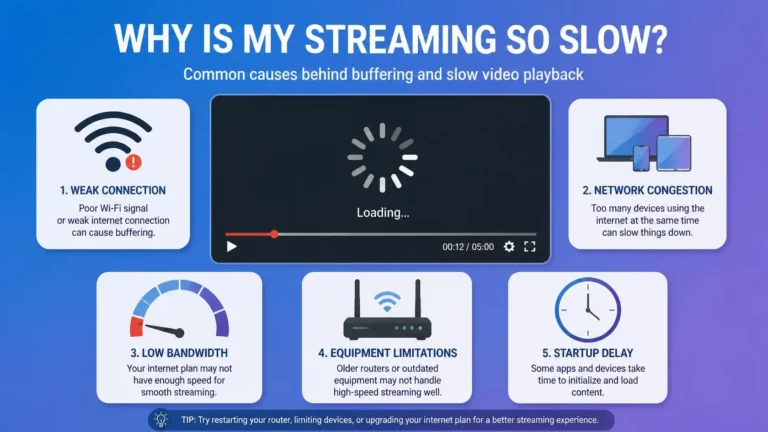
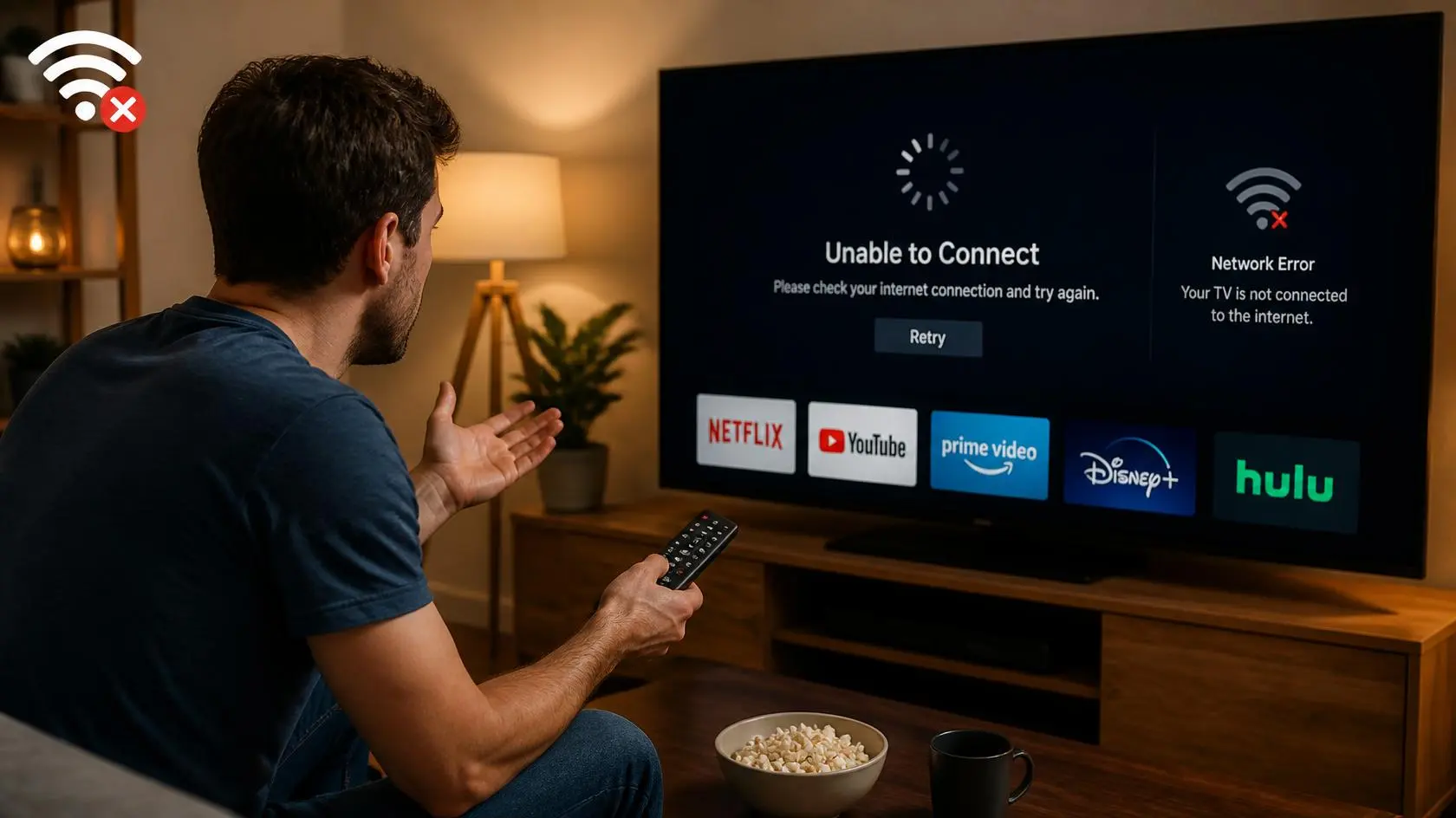
Streaming on a Smart TV can stop working for several different reasons. The television may still be connected to Wi-Fi, yet an app might refuse to load. Videos may stop during playback, or the picture may remain stuck on a loading screen.
The useful part is that you do not need to change every setting at once. A few simple checks can help identify where the problem is coming from. It could be the internet connection, the Smart TV itself, the streaming app, or the service you are trying to use. This guide focuses specifically on situations where streaming not working on Smart TV is the problem. It gives you a practical order for checking each part of the setup.
Start With What the TV Is Actually Doing
Before changing any settings, identify the exact symptom. A Smart TV might have one of several different problems, and the specific one you are seeing matters.
The streaming app might not open at all, or it might open but never finish loading. A video could start playing and then stop, or the picture might keep buffering without ever recovering. Sometimes the video plays with no sound, or the picture quality looks unusually poor for no clear reason. The TV might show a network or connection error outright. It is also worth noting whether only one streaming service is affected or several apps are affected. Streaming might even work fine on another device but not on the TV itself.
These symptoms can point toward different causes. If every app has stopped connecting, checking the TV’s network connection makes more sense than immediately reinstalling one particular app. If only one app has a problem while other services work normally, the problem is more likely to be limited to that app or its service.
Check Another App First
Open a different streaming app on the same TV. This is one of the quickest ways to narrow down the problem.
If another app plays video normally, the TV’s basic internet connection is probably working well enough for streaming. You can then focus on the original app, its account, or the streaming service instead. If several apps cannot load or play video, look at the TV’s network connection next. This simple comparison is often the fastest way to narrow down streaming not working on Smart TV without guessing. It also prevents you from making unnecessary changes to applications that were already working correctly.
Test the Internet Connection From the TV
A Smart TV can display a Wi-Fi connection even when that connection is not actually working for internet access. Open the network settings on the TV and check whether the television reports an active internet connection. If the TV has a built-in connection test, run it.
Pay attention to what the test actually reports. It might say you are connected to Wi-Fi but have no internet, or that you are connected to both the network and the internet normally. It could also show a weak wireless signal, a network authentication failure, or a DNS or connection error. Some TVs will simply report that the device is unable to obtain an IP address at all. The exact wording depends on the television manufacturer and operating system. If the TV cannot reach the internet, the streaming app is unlikely to work correctly until that network problem is resolved.
Try the TV on Another Network
If possible, connect the Smart TV to another network temporarily. A phone hotspot can sometimes work for this test, provided your mobile plan and signal allow it. The purpose is not to use the hotspot as a permanent streaming solution. It is purely a diagnostic test.
If streaming works on the alternative network but not on your normal home connection, the problem likely sits somewhere in your home setup. That could be the router, Wi-Fi configuration, internet connection, DNS settings, or another part of the home network. If streaming still fails on the alternative network, the TV, app, account, or streaming service becomes more relevant. This is one of the most useful tests when streaming not working on Smart TV seems difficult to explain.
Restart the Smart TV Properly
A proper restart is one of the simplest fixes for streaming not working on Smart TV, and it is worth doing correctly. Turning the screen off with the remote does not always perform the same type of restart as disconnecting the television from power. If the TV is behaving strangely, close the apps and restart the television properly.
If the manufacturer recommends a power cycle, follow its instructions. On some TVs, disconnecting the power for a short period and reconnecting it can clear temporary software or connection problems. YouTube’s current TV troubleshooting guidance also recommends power cycling or rebooting the device for playback problems. After the TV starts again, open the streaming app and test playback before changing any additional settings. Do not combine a restart with several unrelated configuration changes at once. Testing one change at a time makes the result far easier to understand.
Check Whether the App Needs an Update
Outdated software is a common, easy-to-miss cause of streaming not working on Smart TV. Smart TV applications can receive updates that address compatibility, playback, or other software problems. Open the television’s app store or application management section and check for an available update. If one is available, install it and test the app again.
Also check whether the TV itself has a system software update available. There are two separate pieces of software involved here: the Smart TV’s own operating system and the streaming application itself. Keeping both reasonably current can help avoid problems caused by outdated software.
YouTube’s current troubleshooting guidance recommends checking for app updates and device system or firmware updates when TV playback problems occur.
Check the TV’s Date and Time
Incorrect date and time settings can sometimes interfere with services that rely on secure connections or account authentication. Open the TV’s date and time settings. If an automatic date and time option is available and appropriate for your setup, use the manufacturer’s recommended configuration. Then reopen the streaming application and test it again.
This is not usually the first thing to check. It is worth considering, though, when the internet connection looks normal and an app keeps reporting connection or authentication problems.
Google’s current troubleshooting guidance includes checking automatic date and time settings for certain app and Google Play problems.
Check Your Streaming Account
Account problems are an easy thing to overlook when diagnosing streaming not working on Smart TV. If the app opens normally but refuses to play content, check the account associated with the service. Look for messages involving sign-in problems, expired subscriptions, or account verification. Also watch for device limits, playback restrictions, profile restrictions, or payment and billing issues.
If the same account works normally on another supported device, compare what is actually different about the Smart TV. Do not assume that a working internet connection also means the account or service is functioning correctly. Those are two separate things.
Test a Different Video
Sometimes the cause of streaming not working on Smart TV is not the entire application at all. Try another video within the same service.
If one title fails while other videos play normally, the issue may be specific to that content or how the service handles it. If every video fails, the problem more likely involves the application, account, network, TV software, or the service itself. This small test can help separate a playback-specific problem from a broader application problem.
Check Whether the TV Has Enough Available Storage
Some Smart TVs have limited internal storage. If the television has accumulated many applications or stored data over time, available space can become relevant to application updates and normal operation.
Look in the TV’s storage or device management settings if the manufacturer provides them. You do not need to delete applications randomly. Instead, look for unusually low available storage and remove apps you no longer use if that turns out to be necessary. If the television reports plenty of available space, storage is less likely to be the reason for the problem.
Storage requirements vary considerably between Smart TV platforms, so treat this as a diagnostic check rather than assuming low storage is the cause of every application failure.
Reinstall the Streaming App Only After Basic Checks
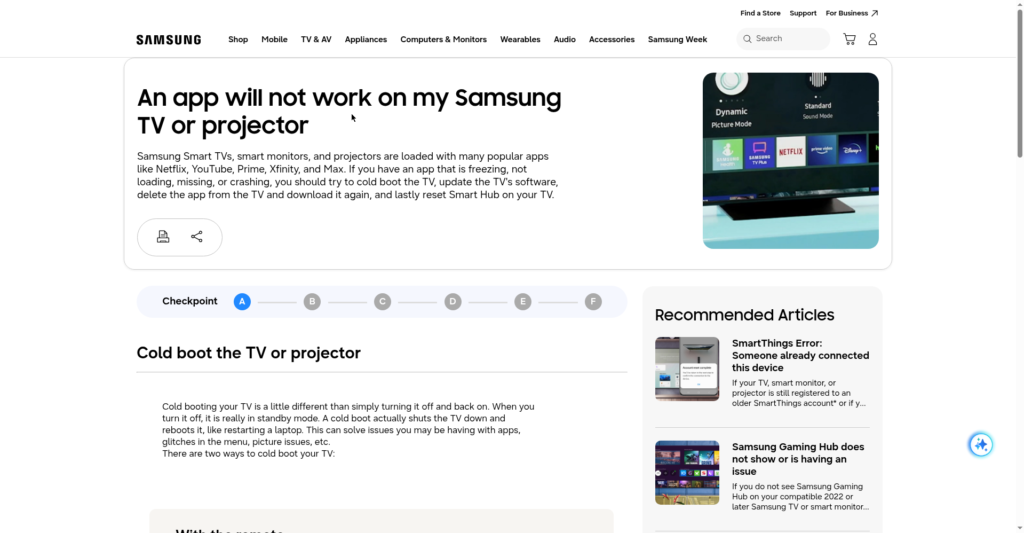
Reinstalling an application can help when its local installation or stored data has become problematic. However, it should not be the first troubleshooting step you reach for.
Before reinstalling, establish a few things first: whether other apps work, whether the TV has internet access, and whether the account works elsewhere. Also check whether the problem affects one video or every video, and whether the TV software is current. If the basic checks point toward the application itself, remove and reinstall it using the TV’s normal application management tools. You will normally need to sign in again afterward.
Reinstalling can remove locally stored application information, so it is better treated as a later step after simpler checks have failed. Google’s current app troubleshooting guidance similarly places uninstalling after restart, updates, force stopping, and cache or data troubleshooting.
Look at Wi-Fi Signal and TV Location
A Smart TV can have a weaker wireless connection than a phone or laptop in the same home. The general reasons for that are covered in our guide on the internet speed you need for streaming. Here, the useful step is comparison rather than explanation.
If the TV sits far from the router, check how a device located closer to the router behaves on the same network. You can also test the TV over an Ethernet connection if both the television and router support it. Ethernet will not automatically fix every streaming problem, but it is a useful diagnostic. If playback becomes stable over Ethernet while the same TV struggles over Wi-Fi, that points more strongly toward the wireless connection as the cause.
YouTube’s current TV troubleshooting guidance also recommends checking connection speed near the TV, reducing interference, moving the device closer to the router when appropriate, and minimizing other devices using the network.
Check Other Devices Using the Network
A Smart TV is rarely the only device competing for your connection. If several people are using the network at once, temporarily pause other heavy activity, such as downloads or backups, and test the Smart TV again.
This is particularly useful when streaming works fine at some times but struggles when the household is busy online. The goal is to figure out whether the problem follows the TV itself or just the network conditions around it at that moment.
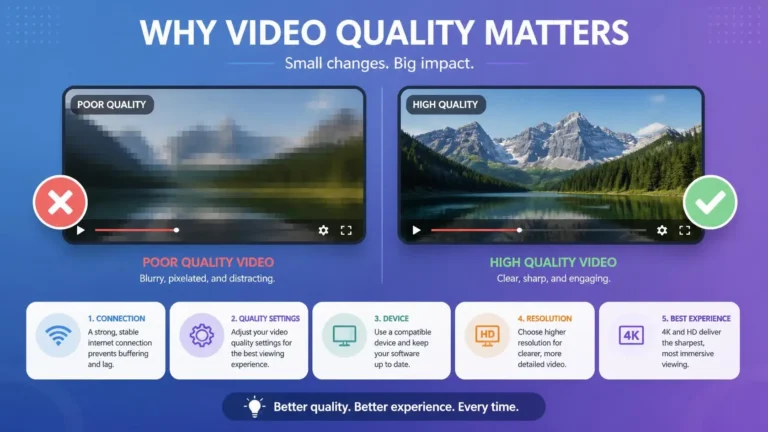
Check Video Quality Settings
If the application opens and videos play but the picture looks poor, that is a different problem. Do not treat it the same as an application that cannot connect at all. Check the playback quality options available in the streaming service. A video may automatically drop to a lower quality level when network conditions are unsuitable.
Also check whether the TV and streaming application actually support the resolution you are trying to use. For high-resolution playback, several parts of the setup may matter. That includes the streaming service, the video title itself, the application, the Smart TV hardware, the display, the network connection, and any connected external device. A lower resolution does not necessarily mean the TV is faulty.
Check the HDMI Connection if You Use an External Device
If you are not using the TV’s built-in application and instead stream through a separate device, the troubleshooting path changes. That external device is likely connected through HDMI.
Check that the HDMI cable is securely connected, the correct HDMI input is selected, and the external device is powered on. Also confirm that the device has its own internet connection and that its streaming application is actually working. If the built-in TV applications work but the external streaming device does not, concentrate on that external device rather than changing the television’s network configuration.
Check the TV’s Network Settings Carefully
Network settings are often the deepest layer worth checking for streaming not working on Smart TV. If the network test fails, review the television’s network configuration. Depending on the TV, this can include Wi-Fi network selection, the Wi-Fi password, automatic IP configuration, DNS configuration, proxy settings, and network reset options.
Do not change several network settings at the same time. If you manually configured DNS, for example, record the existing settings before changing them. That gives you a way back to the previous configuration if the change does not help. DNS translates domain names into the numerical information devices use to locate services. Even so, changing DNS should not be treated as a universal solution for Smart TV streaming problems.
When the Router Should Be Checked
If the TV and other devices are having connection problems, the router deserves attention. Check whether other devices are also losing internet access, whether the router shows warning indicators, and whether the problem affects multiple rooms or devices. Also note whether restarting the router temporarily changes anything, and whether the connection drops at particular times.
If several devices lose internet access at the same time, troubleshooting only the Smart TV can send you in the wrong direction. The television may simply be showing the effects of a broader network problem.
When the Streaming Service May Be the Problem
Sometimes your TV, internet connection, and application are all working normally while the service itself is having a problem. A few signs make this possibility more likely. Several devices might be unable to play the same service while other streaming services keep working normally, or the same title may fail across different devices. It is also worth noting if the service reports an outage or technical issue. A sudden problem with no change to your TV or network points in the same direction.
Check the streaming service’s official support or status information when it is available. Independent outage trackers like Downdetector collect user reports for many services. Checking one can provide additional context before you spend more time troubleshooting your own setup. If other services work normally on the same television, avoid changing the TV’s network settings repeatedly without evidence that the network is actually responsible.
A Simple Smart TV Troubleshooting Order
When streaming not working on Smart TV becomes a problem, working through the checks in a controlled order gets you an answer faster than guessing. Start by identifying the exact symptom, then open another streaming app to see if the problem is isolated to one service.
From there, test the TV’s internet connection directly, restart the television, and check both the app and the TV itself for available updates. Try another video to see whether the issue affects one title or everything. Testing a second network, if you can, helps separate home network problems from TV or app problems.
Check the account for sign-in or subscription issues next, and only reinstall the app once the evidence actually points that way. If nothing so far has resolved it, contact the appropriate support team. Use the information you have already gathered rather than simply reporting that the app does not work. Working through the checks in this order reduces unnecessary changes and gives you useful information after every step.
What Information to Collect Before Contacting Support
If streaming not working on Smart TV continues after all of the above, make a note of what you have already tested. Useful information can include the Smart TV’s manufacturer and model, its operating system or software version, and the streaming app’s name and version if shown. Also note the exact error message you are seeing.
It also helps to note whether other apps work, whether other devices can use the same service normally, and whether switching networks changes the result. Check too whether the problem affects every video or just one, and whether restarting the TV changes anything at all.
This information can make support troubleshooting far more specific. Instead of saying only “streaming does not work,” you can explain that one application fails on the TV while other applications work normally, for example. That points support toward a different, more useful troubleshooting path.
Frequently Asked Questions
Why is streaming not working on my Smart TV but working on my phone?
The TV and phone may be using different network connections, applications, software versions, or device capabilities. Test another streaming app on the TV and check the TV’s internet connection before changing other settings.
Why does my Smart TV say it is connected but streaming does not work?
A TV can be connected to a Wi-Fi network without having a working internet connection. Run the television’s network test and try another application to determine whether the issue affects the entire connection or just one service.
Should I restart my router when streaming stops working?
If multiple devices are experiencing internet problems, restarting the router may be a reasonable troubleshooting step. If only one Smart TV application is affected while everything else works, investigate the app and service first instead.
Does changing DNS fix Smart TV streaming problems?
DNS changes can help with certain name-resolution or connection problems, but they are not a universal fix. First establish whether DNS is actually related to the problem before changing it.
Why does one streaming app work while another does not?
Different applications connect to different services and can have different software, account, playback, and compatibility requirements. If one service works normally, use that result to narrow down the problem rather than assuming the entire TV is faulty.
Why does streaming work on Wi-Fi but not on my Smart TV?
The TV may have a weaker wireless connection, different network configuration, outdated software, or an application-specific problem. Testing another network or an Ethernet connection can help separate the possibilities.
Should I factory reset my Smart TV?
A factory reset should generally be treated as a last resort rather than the first troubleshooting step. It removes settings and can require you to sign in and configure the TV again, so try the simpler diagnostic steps first.
Final Check
When a Smart TV cannot stream, the fastest solution is not always the most useful one. The important question is where the failure actually occurs.
Start by comparing applications, then check the TV’s internet connection. After that, look at the app, TV software, account, network, and streaming service based on what your tests reveal. If streaming not working on Smart TV turns out to be limited to one application, there is little reason to reset the entire television. If several applications fail and other devices are also offline, investigate the network instead.
Working through the problem one layer at a time gives you a clearer answer. It also reduces the chance of changing settings that were never causing the problem in the first place. That is the whole point of treating streaming not working on Smart TV as a diagnostic problem rather than a single fix to guess at.