Streaming on PC: Browsers, Apps, Displays & Playback Settings
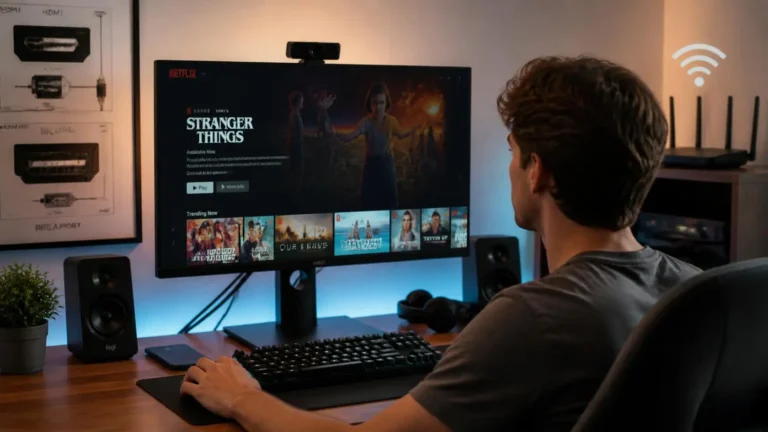
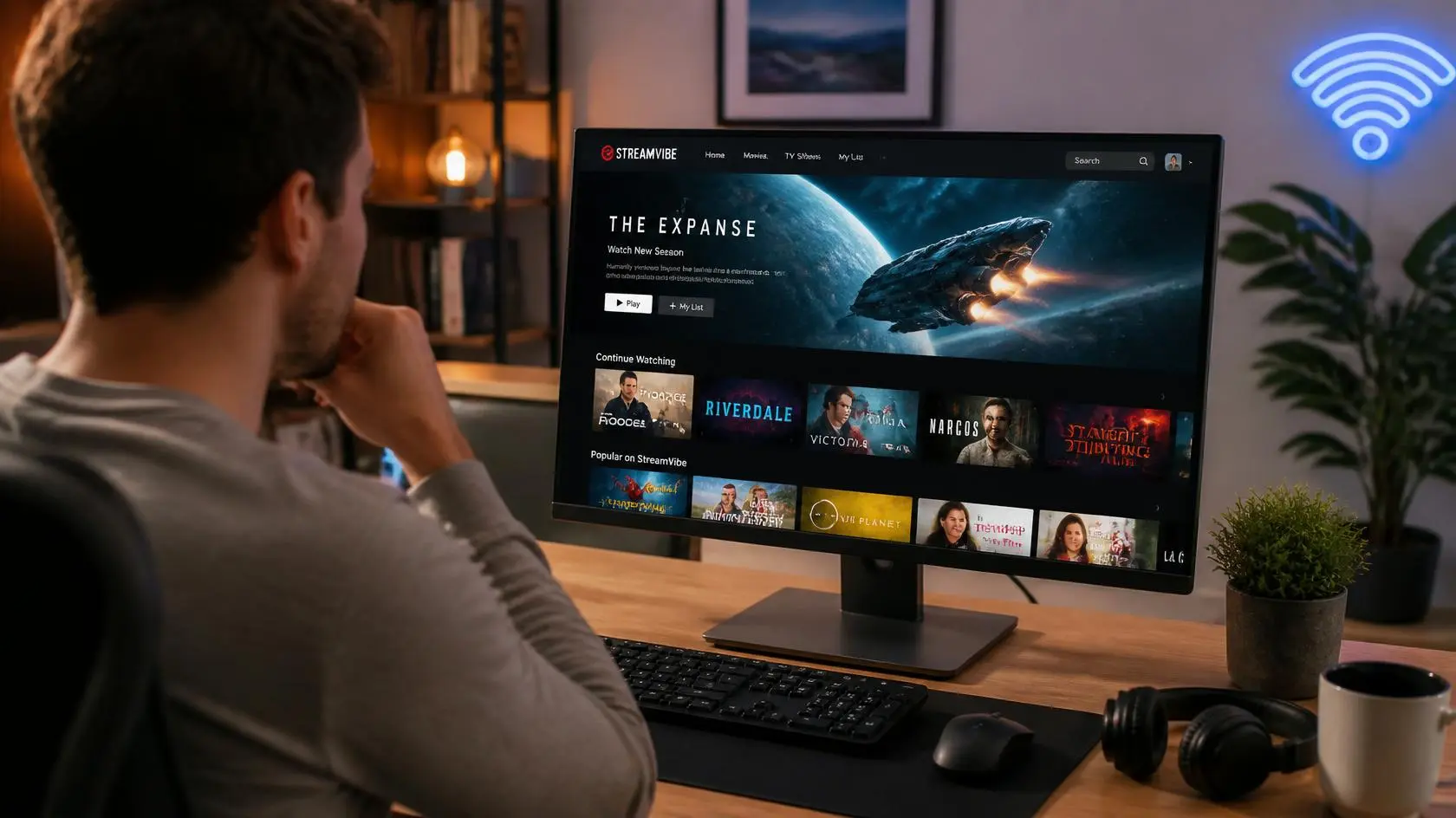
Streaming on a PC gives you more control over the viewing environment than many dedicated devices. You can choose between a browser and a dedicated application, connect different displays, change audio output, use Wi-Fi or Ethernet, and adjust operating system settings that can affect playback. That flexibility also means there are more parts involved.
A streaming session can depend on the operating system, browser or application, graphics hardware, display, audio device, network connection, and the requirements of the service you are using. Understanding how these pieces fit together makes it easier to choose appropriate settings without changing things unnecessarily. This guide covers the main parts of streaming on PC, with a focus on practical setup and the technical factors that influence playback.
Start With the PC as a Complete Playback System
A PC is not just a screen connected to the internet. It is a chain of components that work together to deliver and display video: the streaming service, the internet connection, the operating system, the browser or app, the graphics system, and finally the display and audio.
Each part has a different job. The network delivers the media. The application or browser communicates with the service and handles playback. The operating system provides access to hardware and system-level media functions. The graphics system processes and displays video, while the monitor or television presents the final image and speakers or headphones handle audio.
This is why two computers connected to the same internet connection can behave differently. The network may be identical, but their browsers, operating systems, graphics hardware, displays, or software configurations may not be.
Browser or Dedicated App?
One of the first decisions when streaming on a PC is whether to use a browser or an application supplied by the service.
A browser is convenient because it does not require a separate application for every service, and it makes switching between websites straightforward. However, browser playback depends on the browser’s support for the media technologies a given service uses. Modern browsers support HTML5 media and, where required, protected-content technologies. Encrypted Media Extensions provide a standard interface that websites can use with supported DRM systems for protected media.
A dedicated application, by contrast, may use operating-system media components and device capabilities differently from a browser. This can matter when a service offers both options. If a service’s official application is available for your operating system, compare its documented requirements with the browser requirements rather than assuming one method will always play better. The important distinction is not simply “app versus browser”. It is whether the chosen playback environment supports the video, audio, protection, display, and device features the service actually requires.
Keep the Browser in Good Condition
For browser-based playback, the browser itself becomes part of the streaming environment. A practical setup starts with using a supported browser, keeping it reasonably current, avoiding unnecessary experimental settings, checking extensions when they interfere with a site, allowing required site permissions, and keeping protected-content playback enabled when a legitimate service requires it.
Protected media depends on a browser’s DRM components. Microsoft documents that Edge supports Encrypted Media Extensions and DRM systems such as PlayReady and Widevine for protected playback. Microsoft also notes that disabling protected-content settings can cause media functions to stop working properly. This is particularly relevant when ordinary websites work normally but a legitimate video service reports a protected-content or playback-authorization error. A browser can be fully connected to the internet and still lack a required playback capability.
For streaming on PC, browser compatibility is therefore worth checking before changing network or hardware settings. If only one protected service has a problem, the browser’s supported media and DRM environment may be more relevant than the overall internet connection.
Hardware Acceleration Has a Specific Role
Hardware acceleration allows supported graphics hardware to handle certain workloads instead of relying entirely on the CPU. For video playback, this can affect how efficiently the computer processes and displays compatible media.
You should not automatically turn hardware acceleration on or off because another website recommends it. The correct setting depends on the browser, operating system, graphics hardware, drivers, and the specific playback problem. Microsoft’s Edge troubleshooting documentation describes hardware-accelerated decoding and software fallback for video playback. That is why toggling hardware acceleration should be treated as a diagnostic step rather than a universal streaming fix.
If video behaves differently after a graphics driver or browser update, hardware acceleration is one area worth checking. If everything is already working normally, there is generally no reason to change it simply because the setting exists.
Graphics Hardware Matters More Than Just “PC Power”
A computer does not need to be a high-end machine simply because it is used for streaming. What matters is whether the hardware and software combination can handle the media being played and the display output being requested.
Relevant components include the processor, graphics processor, available system memory, graphics drivers, display connection, monitor or TV, and the operating system’s media support. A newer processor does not automatically guarantee support for every video format or display configuration, and a powerful graphics card does not mean every streaming service will provide its highest available quality. The service, browser or app, DRM environment, operating system, and display chain can all impose their own requirements.
This is one reason streaming on PC can differ from one computer to another even when both machines use the same streaming service. The overall playback environment matters more than a single hardware specification.
Your Display Is Part of the Streaming Setup
The PC may successfully receive and decode a video while the final display connection limits what you can actually see. This becomes more important with 4K monitors, HDR displays, televisions connected to a PC, multiple monitors, external docks, and HDMI or DisplayPort connections.
Resolution and refresh rate are separate properties. A display can have a high resolution without a high refresh rate, and a high refresh rate does not automatically mean streaming video will be delivered at that rate. The output has to be supported by the computer, graphics system, connection, display, and the content or application itself.
HDMI’s specifications define different combinations of supported resolutions, refresh rates, color formats, and bandwidth across versions. This is why the label on a cable or port should not be judged in isolation. The complete connection chain matters.
Using a TV as a PC Display
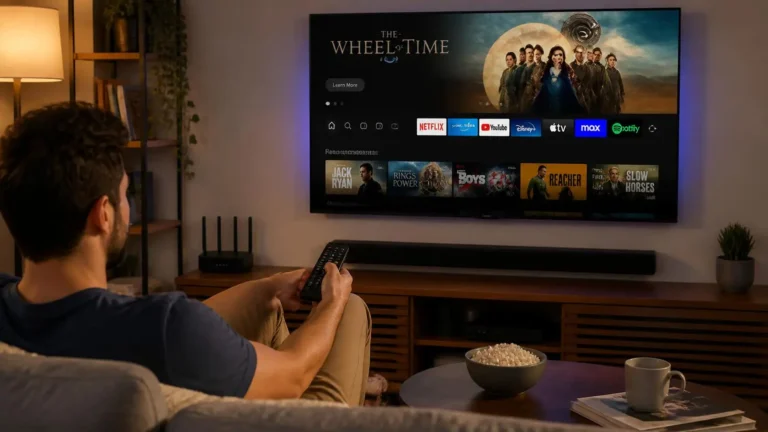
Connecting a PC to a television can turn a normal computer into a living-room streaming setup: the PC runs the browser or application over an HDMI or other supported video connection, while the TV acts as the display.
Before expecting a particular picture mode, resolution, or HDR feature, check the capabilities of both devices and the connection between them. A television may support 4K HDR with one type of source but require specific settings or input capabilities for another.
HDMI 2.1 supports features such as 4K at 120 Hz, while the newer HDMI 2.2 specification provides higher bandwidth, up to 96 Gbps, along with support for higher-resolution and higher-refresh-rate configurations.
You do not need the newest HDMI specification simply because you are streaming video. The appropriate connection depends on the actual resolution, refresh rate, HDR format, audio requirements, and capabilities of your devices.
Multiple Monitors Can Change Playback Behavior
Multiple-monitor setups are useful for work, but they introduce additional display variables: different resolutions, refresh rates, scaling settings, color capabilities, HDR support, and connection types.
Microsoft’s Windows documentation specifically notes that different refresh rates across multiple monitors can cause video playback problems in some situations, including playback that stalls or starts and stops repeatedly. Microsoft recommends adjusting the display refresh rate so that the monitors use the same refresh rate when this is relevant to the problem.
That does not mean every multi-monitor setup causes streaming problems. It means that if video behaves strangely only when several displays are connected, the display configuration becomes a meaningful part of the investigation.
For streaming on PC with multiple displays, test playback with the simplest display configuration first if you are troubleshooting an unusual problem. If the issue disappears, the display arrangement becomes a useful clue.
Audio Deserves Its Own Check
Video quality often gets most of the attention, but the audio path matters just as much. A PC can send audio through built-in speakers, headphones, USB audio devices, Bluetooth devices, HDMI, DisplayPort, external speakers, or an AV receiver.
The selected Windows or macOS output device may not be the one you expected. For a PC connected to a TV, for example, audio may route through the display connection rather than the computer’s built-in speakers. If the video works but there is no sound, check the operating system’s selected output device before changing unrelated streaming settings.
This is particularly useful when streaming on PC through a television or external monitor because the display connection can become part of the audio path.
Wi-Fi and Ethernet on a PC
A PC can use either wireless or wired networking. Ethernet provides a physical connection, while Wi-Fi lets the computer connect without a cable, and both can support streaming when network conditions are suitable. For a desktop PC that stays in one location, Ethernet can be practical when a suitable router connection is available. A laptop gives you more flexibility, so Wi-Fi is often the normal choice.
The important point is that the PC’s network connection is only one part of the playback path. A strong connection does not automatically guarantee maximum video quality if the service, browser, device capabilities, or display do not support it. This is also why advertised internet speed should not be treated as the only measure of streaming capability.
If the network itself is the suspected problem, see our guide on what internet speed you need for streaming and our troubleshooting guide on why streaming keeps buffering.
4K and HDR Need an End-to-End Check
Higher-quality video requires more than a 4K monitor. For a genuinely compatible high-resolution experience, the complete chain matters: the content, the streaming service, your account and plan requirements, the browser or app, the DRM environment, the graphics hardware, the video connection, and the display. A limitation at any point can affect the final result.
HDR adds another layer, since the source content, playback environment, operating system, graphics output, connection, and display all need to support the required HDR mode. HDMI documentation describes HDR-related capabilities and bandwidth considerations across HDMI specifications.
This is why “4K” alone does not describe an entire video connection. If a service provides a quality or playback-information screen, use that instead of assuming the monitor’s specification tells you what the service is actually delivering.
For a deeper explanation, see what is 4K streaming and what is HDR streaming.
DRM and Protected Streaming
Digital Rights Management is one of the less visible parts of streaming on PC, but it matters when using legitimate services that protect their video. DRM systems are designed to control access to protected content.
In a browser environment, Encrypted Media Extensions provide a standard interface through which websites communicate with a Content Decryption Module. Microsoft describes Edge’s protected-content system as using DRM information and media licenses to validate playback access. Different services can support different DRM systems depending on their requirements.
This explains why a PC can browse websites and play ordinary video successfully while a particular protected streaming service refuses to play. If you see a DRM or protected-content message, the relevant question is not simply whether your internet connection works. Check the service’s supported browser, operating system, application, and protected-content requirements instead.
Operating System Settings
The operating system sits underneath the browser and applications, so system-level settings can affect the playback environment. On Windows, built-in video playback settings apply to supported applications and can include options related to video processing and resolution. Microsoft also documents how multiple-monitor refresh rates can affect video playback.
Other operating-system areas that can matter include display resolution, display scaling, HDR settings, audio output, graphics settings, power settings, network configuration, and available system updates.
Do not change all of these at once. A useful configuration is one where you know what each setting is doing and can identify which change actually affected the result. This makes troubleshooting much easier than applying several unrelated “optimization” changes simultaneously.
Browser Versus App: What Should You Use?
There is no universal rule that a browser is better than an application, or vice versa. Use whichever option provides the compatibility and features you actually need.
A browser tends to work well when the service performs well in a supported browser, you want a simple setup, you use several services, or you would rather not install another application. An official application tends to be useful when the service offers features unavailable on its website, has specific device integration, or is documented as the supported method for your platform.
The right choice depends on the service and your PC, not a general claim that one method is superior.
A Practical PC Streaming Setup
If you are setting up a PC specifically for streaming, work through the system from the display backward. First, identify the display: know whether you are using a monitor or television and what resolution and HDR capabilities it supports. Next, check the connection, confirming that the selected HDMI, DisplayPort, or other connection actually supports the features you intend to use.
Then configure audio by selecting the intended speakers, headphones, TV, or external audio system, and choose the playback method, using a supported browser or the service’s official application where available. Check the network connection, using Wi-Fi or Ethernet according to the physical setup and network conditions.
Finally, test actual playback rather than judging the setup from specifications alone. Open a legitimate streaming service and verify that video, audio, resolution, and display behavior are all working as expected. This approach keeps the setup understandable and makes later changes easier to trace.
If your setup includes a separate desktop workspace with multiple displays, cables, speakers, or other physical components, our guide to streaming on desktop covers that side of the setup separately.
What You Should Not Assume
A few common assumptions can make PC streaming more confusing than it needs to be.
A faster PC does not guarantee better streaming, since processing power is only one part of the system. The service, playback software, display, connection, and supported formats all matter too. A 4K monitor does not guarantee 4K streaming, since the entire playback chain has to support the required resolution and conditions. Ethernet does not automatically improve picture quality, since a wired connection changes the network path, but final video quality still depends on the service and playback environment.
Changing browser settings is not always an improvement, either. Hardware acceleration, experimental flags, extensions, and protected-content settings can affect other websites or applications, so change them for a specific reason rather than following a generic optimization checklist.
A browser error does not necessarily mean the internet is broken. The browser may have a codec, DRM, permission, software, or compatibility issue even when ordinary websites load normally.
When a PC Is a Good Streaming Device
A PC is particularly useful when you want one device to handle several roles. You can use it for streaming while also connecting different displays, changing audio devices, switching between services, or using the same hardware for other tasks. It also gives you direct access to browser-based services and operating-system controls that are less visible on dedicated streaming hardware.
The trade-off is complexity. A dedicated streaming device generally hides more of the underlying system, while a PC exposes more settings. That provides flexibility but also creates more possible variables. This is not necessarily a disadvantage. It simply means streaming on PC benefits from understanding the relationship between software, hardware, display, audio, and network components.
Frequently Asked Questions
Is streaming on PC better in a browser or an app?
Neither is universally better. Use the supported option that provides the features and compatibility required by the streaming service and your operating system.
Can I use a PC for 4K streaming?
A PC can support 4K playback when the service, playback software, graphics system, display connection, and display all meet the relevant requirements. A 4K monitor alone does not guarantee that the service will deliver 4K.
Does hardware acceleration improve streaming?
Hardware acceleration can let supported graphics hardware handle certain workloads more efficiently, but it is not a universal quality setting. If playback is already working correctly, there is usually no reason to change it without a specific compatibility or performance issue.
Can I stream from a PC to a TV?
Yes. A PC can connect to a television through a supported video connection such as HDMI. The PC runs the streaming application or browser while the TV serves as the display.
Why does protected streaming sometimes behave differently from ordinary video?
Protected services can require DRM support in the browser or application. A browser may play ordinary media successfully while a protected service requires an appropriate Content Decryption Module and playback configuration.
Do I need Ethernet for streaming on PC?
No. Wi-Fi can support streaming when the wireless connection is suitable. Ethernet is another option, particularly for a stationary desktop where a wired connection is practical.
Can multiple monitors affect video playback?
They can in some configurations. Different refresh rates and other display differences can contribute to playback issues, and Microsoft specifically identifies mismatched monitor refresh rates as a possible cause of problematic video playback.
Editorial and Source Note
This guide focuses on general PC streaming technology rather than recommending a particular computer, browser, application, or hardware configuration. Technical details can change as operating systems, browsers, streaming services, and display standards evolve, so where platform-specific behavior matters, consult the documentation for the software and hardware you are using.
The technical claims in this guide are sourced from official Microsoft and Mozilla documentation and HDMI’s official technical documentation, linked throughout.
Last reviewed: September 2026
Final Takeaway
A PC gives you considerable control over the streaming environment, but that control comes from having several components work together. The browser or application handles playback, the operating system connects software to hardware, the graphics system processes the video, the display presents the image, and the network provides access to the service.
Once you understand those separate roles, configuring streaming on PC becomes much more straightforward. Instead of treating the computer as a single device, you can identify the specific part of the playback chain that actually matters for the experience you want.