Why Your Chromecast Keeps Buffering and How to Fix It
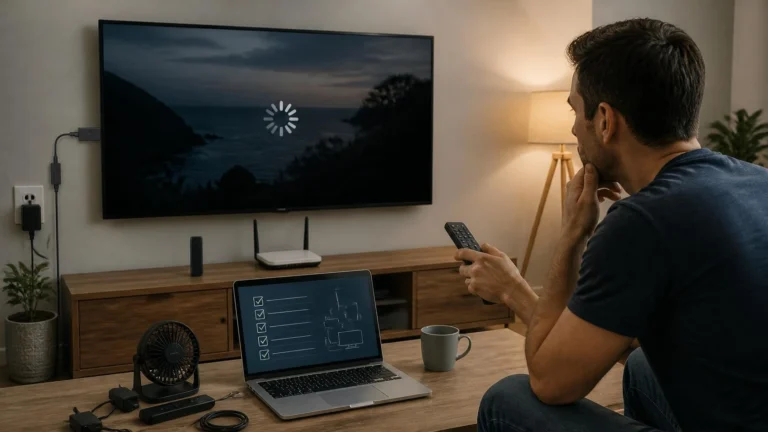
The spinning circle always appears at the worst moment. Your movie freezes mid-scene, the sound stutters, and the little loading wheel takes over the screen. Most people blame their phone, since that is where they pressed play.
Everyone wants to know why their Chromecast keeps buffering, and the answer surprises most of them. Your phone is innocent. A Chromecast works differently from screen mirroring, and the real cause sits somewhere else entirely. Once you see where the video actually travels, the fixes get obvious.
How Chromecast streams your video
When you tap the cast button, your phone hands the video’s web address to the Chromecast. The little stick then connects to the internet on its own and pulls the video straight from the streaming service. Your phone steps back and works like a remote control from that point on.
This design means you can take a call or leave the room without stopping playback. It also means a slow or old phone cannot cause buffering. The phone’s job ends the moment the video starts.
Casting a browser tab breaks this rule and behaves differently. Your computer stays in the middle in that case and streams its own screen to the TV. Tab casting needs a strong device and a strong network at the same time. It buffers far more often than casting from an app.
Why chromecast keeps buffering on the wrong Wi-Fi band
Most home routers broadcast two networks, one at 2.4 GHz and one at 5 GHz. The 2.4 GHz band reaches further through walls, while the 5 GHz band runs faster and stays far less crowded. A Chromecast parked on the crowded band will stutter even when your internet plan is fast.
Google’s own connection guide recommends the 5 GHz network when your router offers both. Older Chromecast models only see the 2.4 GHz band, so they share airtime with microwaves and nearby routers. A first-generation stick on that band explains a lot of evening buffering all by itself.
You can check the current network in the Google Home app. Open the app, touch and hold your Chromecast’s tile, then open Settings and Device information to see the Wi-Fi name. When a 5 GHz option exists and the stick sits on 2.4 GHz, move it over and test again.
Router placement matters more than your internet plan
People often pay for faster internet when distance is the real problem. Wi-Fi fades with every wall and every meter between the router and the stick. A 200 Mbps plan means little when only a thin signal reaches the TV corner.
Google suggests keeping the router within about six meters of the Chromecast. The company also warns against letting the stick touch the TV or rest against cables. The television itself blocks the signal.
A short HDMI extender pulls the stick away from the TV’s back panel. Many models include one in the box.
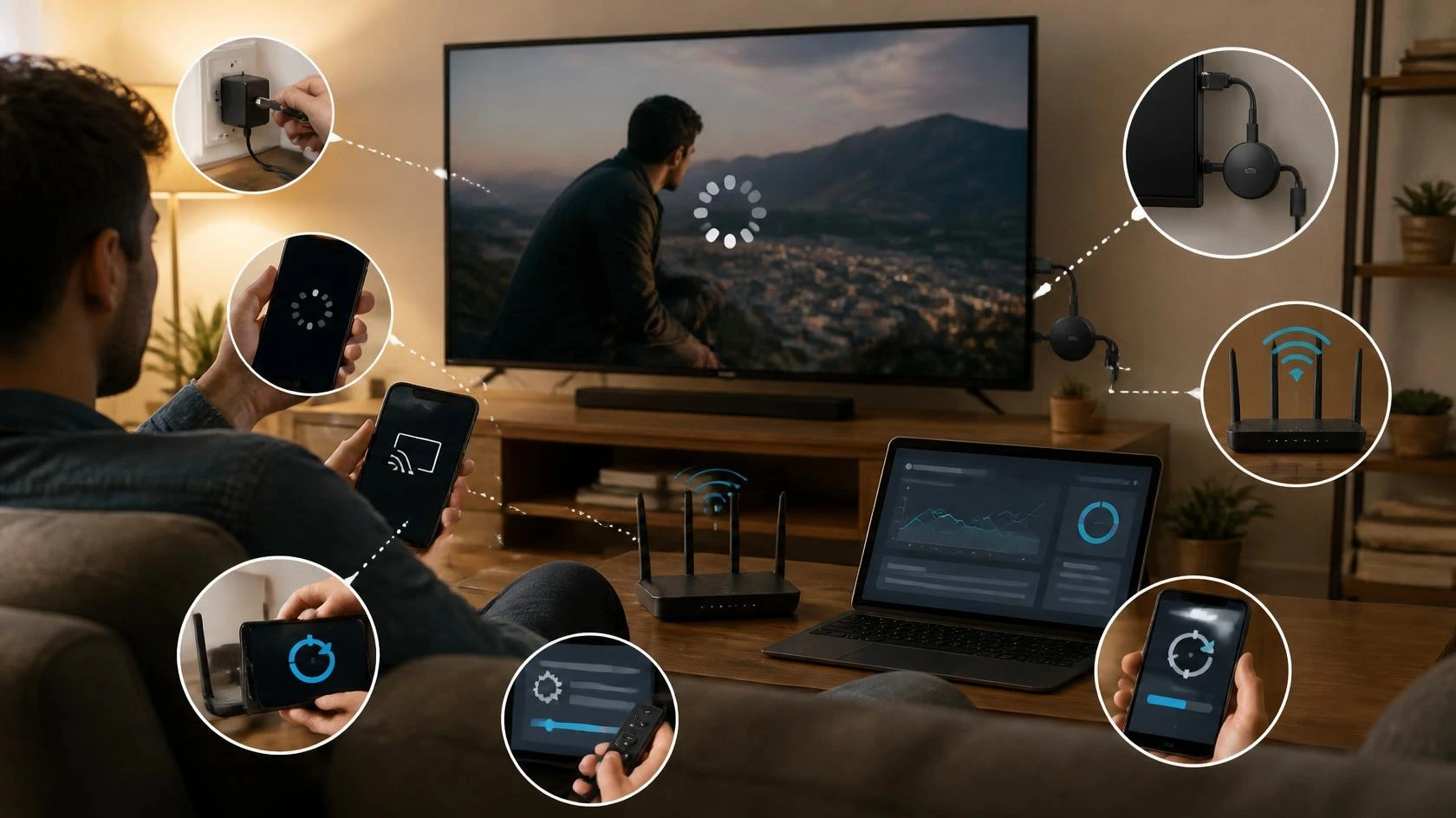
Restarting the router clears more trouble than most people expect. Unplug it for a full thirty seconds so its memory fully clears. Plug it back in and allow two minutes for reconnection. Restart the Chromecast the same way by unplugging its power cable for a few seconds.
The app controls the quality setting
Each streaming app decides how sharp the picture gets. YouTube, Netflix, and Disney Plus each carry their own quality setting, and most default to automatic. Automatic mode drops the resolution the moment the connection wobbles, which looks like endless buffering on a weak network.
Open the settings inside the app you cast from and look for playback or video quality. Dropping one step below maximum often ends the buffering with no visible change on smaller screens. On a phone or a 43-inch TV across the room, most eyes cannot tell 1080p from 720p.
Four-K video is the heaviest load a Chromecast can carry. It needs a steady 25 Mbps reaching the stick itself to play without pauses. If your Chromecast keeps buffering only on 4K titles, switch the app to 1080p and watch the spinning circle disappear.
Update the firmware before you blame the hardware
Chromecast updates itself quietly in the background, and those updates fix genuine streaming bugs. A stick that missed several updates can stutter on apps that expect newer software. The check takes less than a minute.
Find your Chromecast in the Google Home app’s device list. Its settings screen shows the current firmware version under device information. Google publishes firmware release notes for its streaming devices, so you can compare your version against the latest one.
When an update waits, leave the Chromecast powered on and connected overnight. It installs updates while idle, so a stick that gets unplugged after every movie night can fall months behind. Let it stay plugged in and handle its own quiet maintenance.
Guest mode and crowded networks cause strange symptoms
Guest mode lets visitors cast without joining your Wi-Fi, and it can confuse your own devices too. Nearby phones sometimes fight over the connection while guest mode stays active. Switching it off in the Google Home app removes one more variable from the puzzle.
A busy network slows everything attached to it. When someone takes a video call in the next room while another person games online, the Chromecast shares the same airtime. Pause the other heavy activity for ten minutes as a test. If the Chromecast keeps buffering only during those busy hours, the network was full rather than broken.
Some routers isolate guest networks from the main network for security. A phone on the guest Wi-Fi cannot reliably reach a Chromecast on the main network in that setup. Keep both devices on the same network name to avoid this silent failure.
Check whether the app itself is broken
Apps break in ways that look exactly like network trouble. A buggy update to a streaming app can make one service buffer while everything else plays fine. That pattern points at the app, and no router restart will change it.
Run a simple isolation test with two different apps. Cast the same kind of video from each one and compare the results. When YouTube plays smoothly and another app stutters, the network is fine and that app needs attention.
Clear the app’s cache on your phone or reinstall the app completely. Developers fix casting bugs in updates, so check your app store for anything pending. Sign out and back in as a final step. A stale login token sometimes interrupts the handoff between phone and stick.
Old sticks struggle with modern video
The first Chromecast launched in 2013, and video has grown much heavier since then. Newer formats and higher resolutions demand more from the tiny processor inside. A stick that worked perfectly five years ago can now choke on the same apps.
Heat makes every symptom worse. A Chromecast wedged behind a warm TV with no airflow slows itself down to protect its chips. Give it room to breathe and keep it clear of heat vents.
A factory reset is the last resort before replacing the device. It erases every setting and forces a clean setup. That wipe clears corrupted data that survives normal restarts. Google’s help pages describe the reset steps for each model.
When a reset plus every fix above still leaves buffering, the stick has reached the end of its useful life. A newer streaming stick costs less than the frustration of nightly buffering.
A ten-minute fix order that works
Start with the two restarts, since they resolve the most cases the fastest. Unplug the Chromecast power cable for ten seconds, then unplug the router for thirty seconds. Plug the router back in first, wait two minutes, then power up the Chromecast.
Next, open the Google Home app and confirm the 5 GHz band, then lower the in-app quality one step. Those changes take about five minutes combined. Work through them in this order instead of jumping around.
Finish by checking firmware and app updates, then run the two-app test to rule out a single broken app. Most cases where a Chromecast keeps buffering end somewhere in the middle of this list. You will know exactly which step fixed it, and you can skip straight to that step next time.