Why DAZN Keeps Buffering and How to Fix It
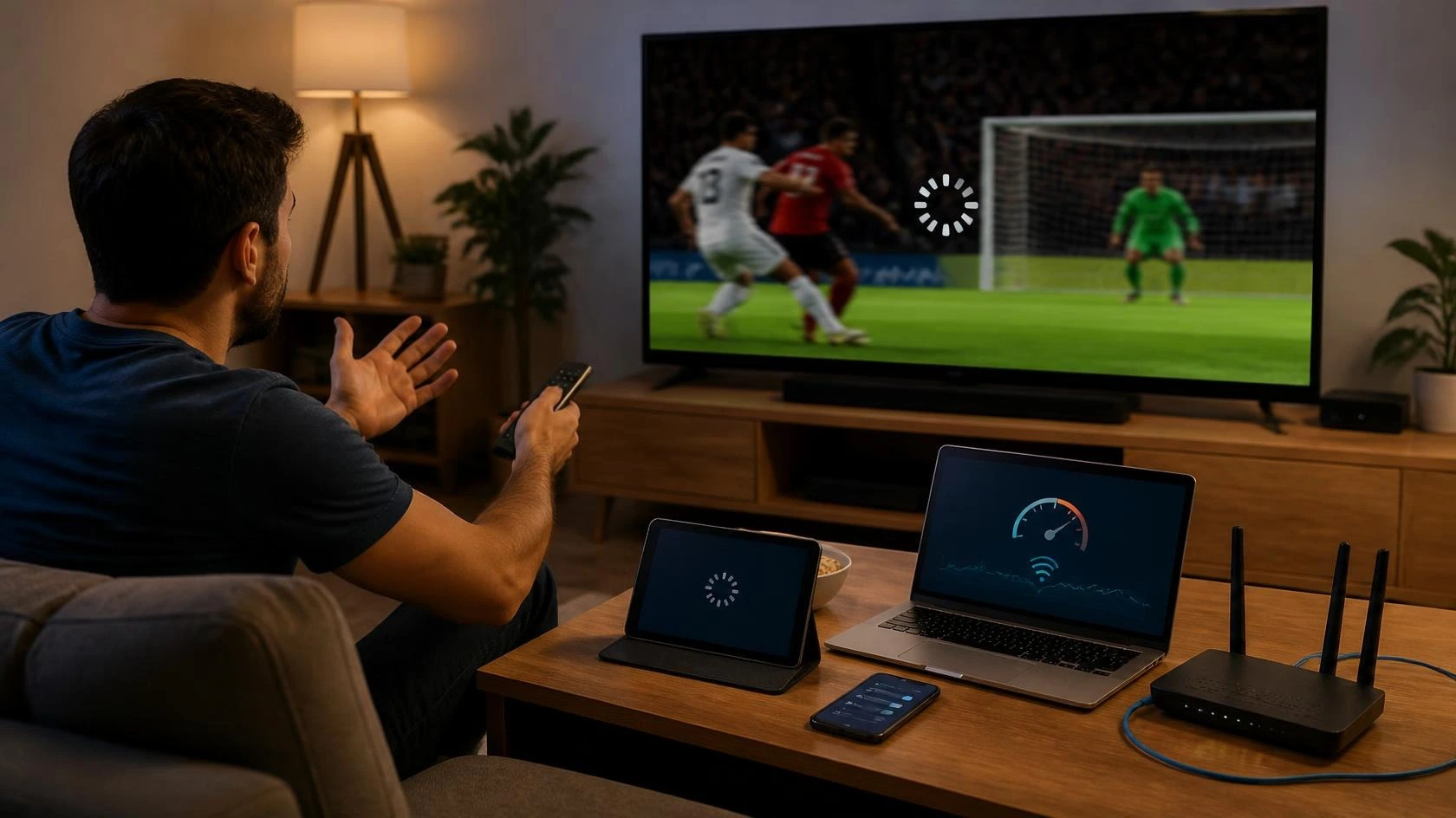
Nothing ruins a big match like the spinning circle. The ball freezes mid-flight, the commentary stutters, and you miss the goal everyone will talk about tomorrow. If you keep wondering why DAZN keeps buffering at the worst moments, this guide is for you.
Most buffering has a fixable cause on your side of the screen. A smaller share comes from DAZN’s own servers, and no setting on your TV can fix that.
The sections below walk through both, starting with the causes and ending with a calm order to follow before kickoff. You will also learn how to tell a fixable home problem from a DAZN outage. That way you stop wasting precious match nights on the wrong cure.
Why DAZN keeps buffering during live events
Live sport is the hardest thing a streaming app can do. A movie can load five minutes ahead while you watch the opening scene. A live match cannot, because the action has not happened yet.
That missing safety net is one honest answer to why DAZN keeps buffering more than your other apps. Your connection gets no room for error, so any small dip shows up as a spinning circle instead of staying invisible.
Live streams have no safety net
On-demand video downloads ahead of what you watch. The app stores the next minute or two, which covers short hiccups in your connection. You never notice the dip.
Live streams run almost in real time, usually only seconds behind the stadium. There is almost nothing stored ahead, so a one-second network dip becomes a visible freeze. This is physics at work, and no TV setting changes it.
Everyone watches at the same time
A big fight or a derby kicks off and millions of people press play within the same minute. Your street’s internet lines fill up, and DAZN’s own servers take the strain too.
That shared rush explains why a stream can run fine all week and then fall apart on Saturday night. When people ask why DAZN keeps buffering only during big events, this synchronized demand is usually a large part of the answer.
Start with your connection
Before you blame the app, test the pipe feeding it. Most DAZN buffering traces back to the home connection, and a two-minute test tells you where you stand. It also gives you proof when you need to call your internet provider.
DAZN itself points users to fast.com for this check. Run the test on the device you watch on, because a phone in the hallway tells you nothing about the TV in the living room.
Know the numbers that matter
You can find clear speed guidance in the DAZN help center. It recommends around 16 Mbps for full 1080p HD, 9 Mbps for standard HD on a TV or laptop, and 3 Mbps for SD.
Treat those figures as minimums. Aim higher whenever you can, because DAZN warns that some devices cannot use the full speed available, so extra headroom keeps the picture stable.
Give the stream a wired path
Wi-Fi is convenient and also the weakest link in most living rooms. Walls, distance, and neighboring networks all eat into the speed your TV actually receives.
An Ethernet cable from your router to the TV removes all of that at once. If a cable is impossible, move the router closer to the TV and out of closed cabinets.
Also check who else is online. Someone gaming, video calling, or downloading in the next room takes bandwidth directly away from your match.
Fix the app before anything else
Apps develop glitches that look exactly like network trouble. A tired app session can stutter on a perfect connection, so rule the software out early.
Work through these in order, testing the stream after each step. Stop as soon as the picture runs smooth.
Restart it properly
Force-close the DAZN app completely and open it again. On a smart TV, use the app’s own Exit option rather than just pressing Home, since that fully stops the stream.
DAZN’s own TV guidance suggests exiting the app and waiting a few minutes before returning. Signing out and back in also refreshes a stale login session, which fixes more problems than people expect.
Update the app
Old app versions carry bugs that newer ones already fixed. Open your device’s app store and check for a DAZN update before the next match, not during it.
Turn on automatic updates if your device offers them. That is one less thing to remember on a busy sports night.
Reinstall when nothing else works
A reinstall is the deepest software fix available. It wipes corrupted files and settings that restarts cannot reach.
Delete the DAZN app, restart the device itself, then install DAZN fresh from the app store and sign in again. This takes five minutes and resolves stubborn cases.
Check the Data Saver setting
The DAZN mobile app includes a Data Saver option in its menu. When switched on, it deliberately caps your video quality to protect your data allowance.
That cap can look like constant buffering or a permanently soft picture. If you watch on Wi-Fi, make sure Data Saver is off so the app can use the full quality your connection allows.
Smart TV fixes worth knowing
The TV is the most common DAZN screen and also the fussiest one. TV apps get less attention than phone apps, and TV Wi-Fi chips are weaker than you think.
These steps cover the two biggest TV platforms. Pick yours and work through it.
Samsung TVs
First update the TV’s own software, since DAZN depends on it. Go to Settings, then Support, then Software Update, and install anything waiting.
Next restart the TV completely instead of leaving it in standby. Hold the power button on the remote until the TV reboots, or unplug it for thirty seconds.
If the app still misbehaves, delete the DAZN app and install it again from the Samsung app store. Also try switching off motion smoothing features like Auto Motion Plus if fast scenes look jumpy. DAZN’s help center flags those settings as a cause of judder.
LG TVs
Update webOS through Settings, All Settings, General, About This TV. An outdated TV system is a common cause of app trouble that people blame on their internet.
Restart the TV fully and reinstall the DAZN app from the LG Content Store if problems continue. LG’s motion smoothing, called TruMotion, can also make sport look strange, so switch it off for the match.
Turn off the VPN
DAZN states plainly in its help center that it does not support VPNs or proxies. A VPN adds extra distance between you and the stream, which raises latency and invites buffering.
Worse, DAZN actively blocks many VPN connections because of regional broadcast rights. If you run one, switch it off entirely and try the stream again before changing anything else.
When the problem is DAZN, not you
Sometimes every fix fails because the fault sits with DAZN’s servers. Big events can overload even well-prepared infrastructure, and then no setting on your TV matters.
The telltale signs are buffering on every device in your home. Friends report the same issue, and complaints pile up on social media during the event.
How to confirm it
Visit DAZN’s help center at dazn.com/help and check for service notices. Their social media accounts also acknowledge widespread problems faster than any support ticket will.
Try a replay or a different event while the live one buffers. If on-demand content plays fine and only the live event struggles, the bottleneck is almost certainly on DAZN’s side.
What you can actually do
Very little. Anyone promising a secret fix is selling something. Waiting is the main remedy, since server-side overload clears as the event settles or DAZN adds capacity.
If the problem repeats across many events rather than one big night, contact DAZN support through their help center. A persistent personal issue deserves their attention even when the servers are fine.
When a big night is already lost to the spinning circle, DAZN keeps full replays of every event. Their own help center suggests watching on catch-up after a failed live stream. It is not the same as live, but it beats spending two hours wondering why DAZN keeps buffering.
A calm order to follow on match night
Do this before kickoff and you will watch the match instead of troubleshooting it. Test your speed on the TV, use a cable if you can, and restart the app.
Update anything waiting, reinstall if the app has been strange all week, and keep the VPN off. Check DAZN’s help pages only if every screen in the house buffers at once.
Most match nights end with a smooth stream after the first two steps. The rest exists for the stubborn nights, and now you know exactly where to look.